Default Logins – Find Your Router Username and Password
Default logins are the administrator credentials that may be assigned to a router, modem, access point or gateway when it is first installed. They are used to open the device’s admin panel and manage settings such as WiFi name, wireless password, connected devices, DNS and other network options.
- 1Connect your phone or computer to the router.
- 2Type your router IP, like
192.168.1.1, into the browser. - 3Enter the administrator username and password.
The important thing to know is that there is no username and password that works for every router. Login details can vary by brand, model, firmware, internet provider and whether the router was previously configured.
If you are trying to access a router you own or manage, start with the information printed on the device or supplied with its documentation.
What Are Default Router Logins?
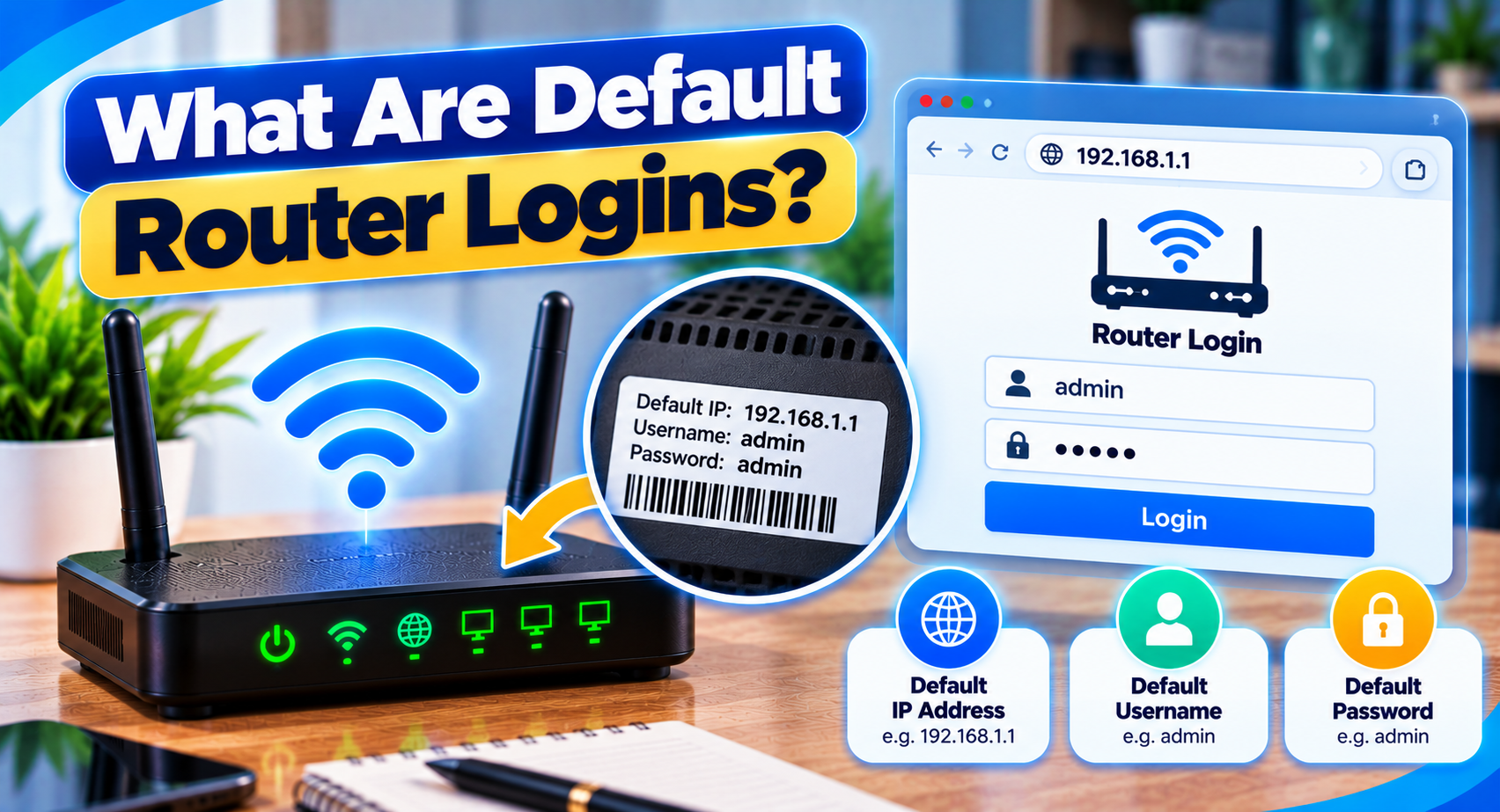
A router admin panel normally requires authentication before allowing changes to network settings.
The default router login may include:
- An administrator username
- An administrator password
- A password only
- A setup password printed on the router
- A password created during first-time installation
Some modern routers do not use a fixed factory password at all. Instead the owner creates one when the device is first set up. That is why a password copied from an online list may not work on your router.
Where to Find Your Router’s Default Login
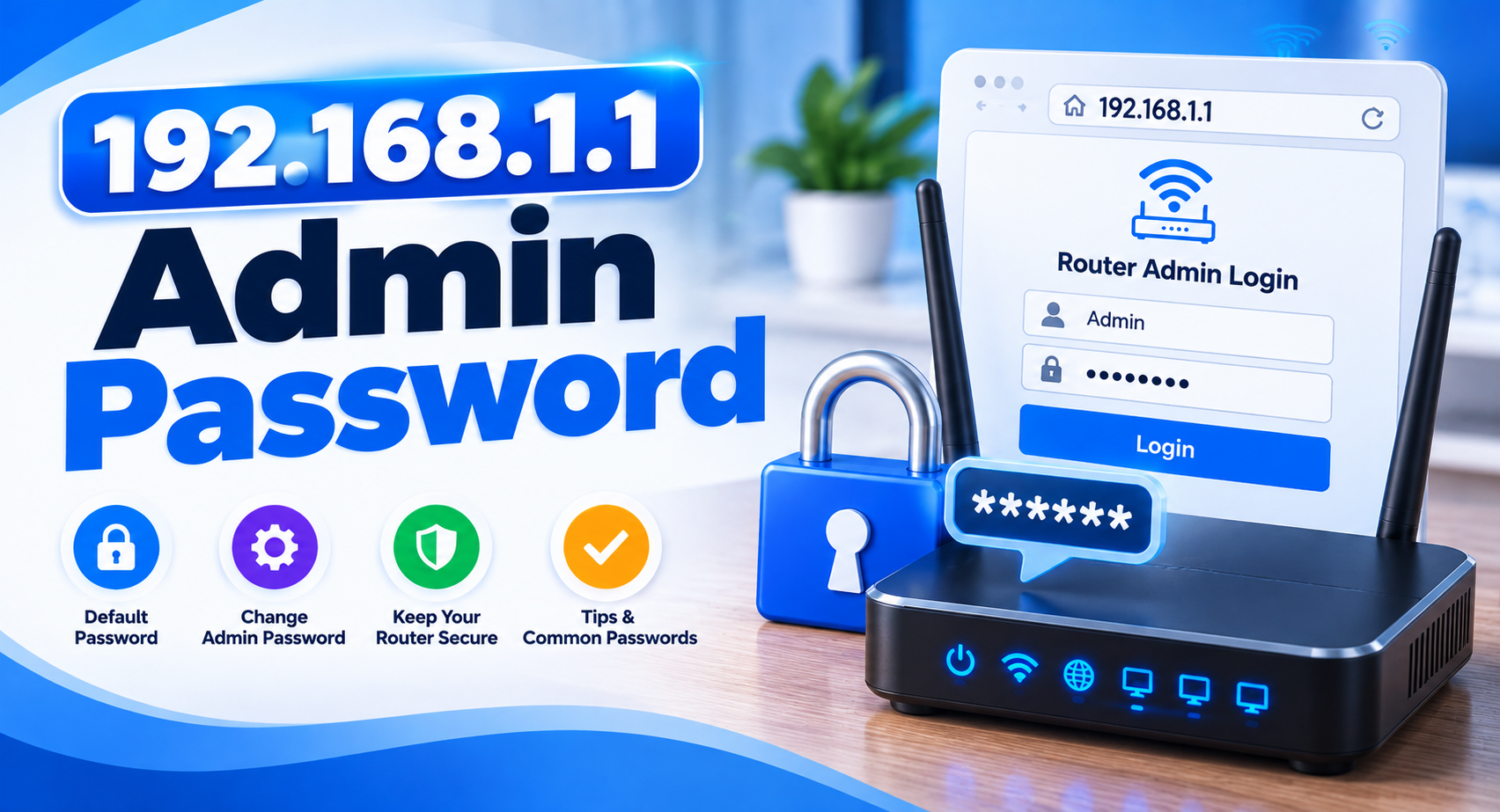
The safest place to look is the router itself.
Check the Router Label
Look on the back, bottom or side of the device.
The label may show information such as:
- Router login address
- Admin username
- Admin password
- WiFi network name
- WiFi password
- Serial number
- Model number
Do not confuse the WiFi password with the administrator password. They serve different purposes.
Check the User Manual
The router manual may explain the login process and whether a default password is used.
If you no longer have the paper manual look for documentation for your exact router model.
Check ISP Documentation
Routers supplied by an internet provider can use custom settings.
The provider may change:
- Default IP address
- Admin username
- Admin password
- Available settings
- Recovery method
If your router came from an ISP its instructions are often more useful than a generic router password list.
Default Admin Login vs WiFi Password
This is one of the most common points of confusion.
| Default Admin Login | WiFi Password |
|---|---|
| The router admin login is used to open the router settings page. | The WiFi password is used by phones, laptops, televisions and other devices to join the network. |
For example, your phone can connect to WiFi successfully while the same password fails on the router login screen. That does not necessarily mean something is broken. The router may simply use a separate admin password.
How to Use a Default Login
First connect your device to the router through WiFi or Ethernet.
Then open a browser and enter the router’s local IP address.
Common examples include:
- 192.168.1.1
- 192.168.0.1
- 10.0.0.1
- 192.168.1.254
- 192.168.100.1
These are examples, not guaranteed addresses.
When the login screen appears, enter the credentials provided for your router.
If you do not know the IP, check your device’s Default Gateway or router address rather than trying random addresses.
Why the Default Login May Not Work
Default logins only work if nobody has changed them since the router was first set up.
Even when the credentials look correct, several things can cause a login failure.
The Password Was Changed
Someone may have changed the administrator password during setup.
Once a custom password is saved the original factory login usually stops working.
The Router Uses a Setup Password
Some routers use a password printed on the device rather than a generic factory login.
This is more secure than using the same password on every unit.
The ISP Changed the Login
Internet providers sometimes customize router firmware and admin credentials before giving the device to the customer.
You Are Using the Wrong Router IP
If the browser opens a different device or nothing at all, the issue may not be the password.
Check the gateway first.
You Are Entering the WiFi Password
The WiFi password and the admin password may be completely different. Our 192.168.1.1 admin password guide explains the difference.
Check the label carefully before assuming the login has failed.
Forgot Your Router Admin Password?
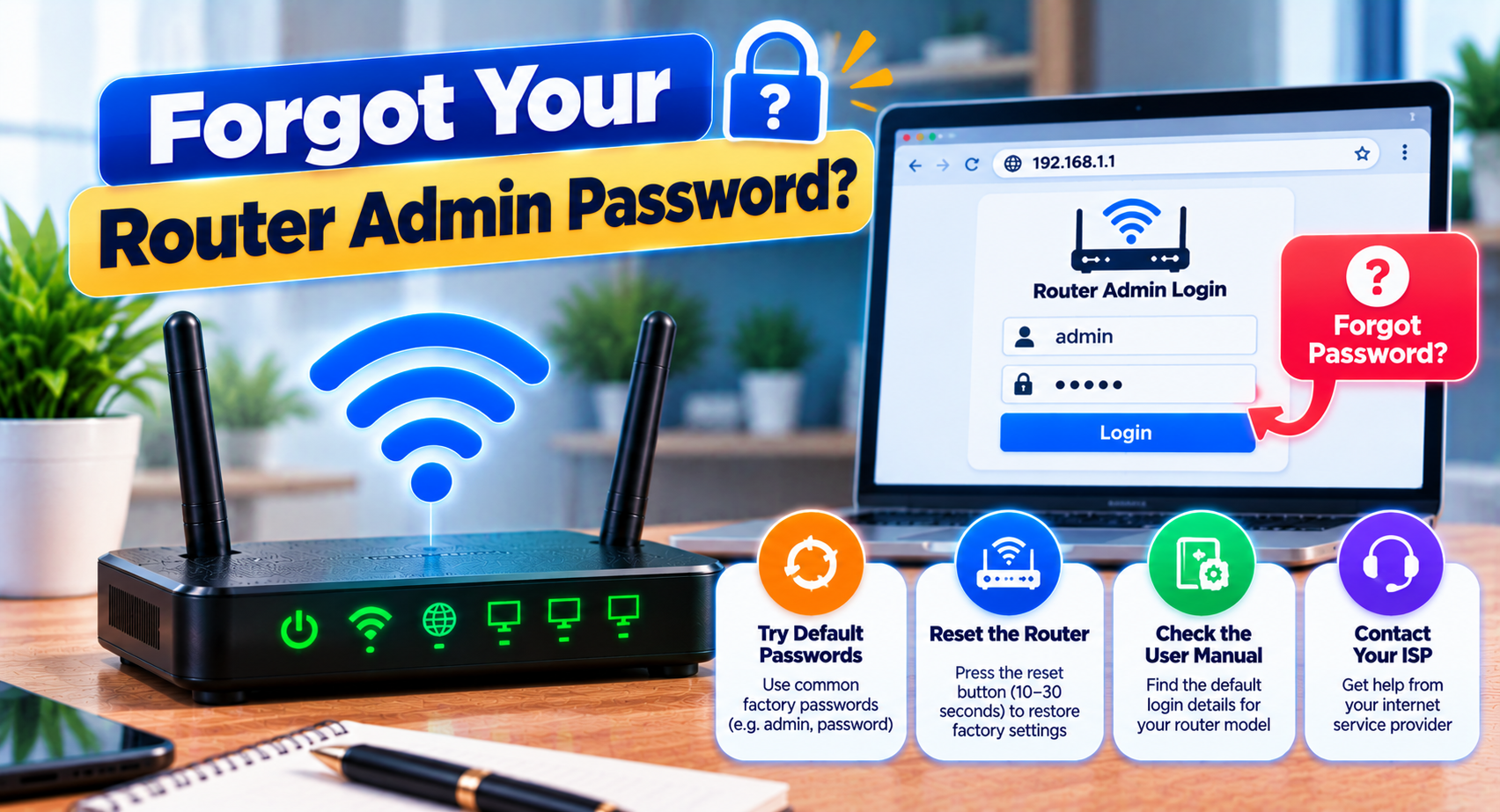
If you no longer remember a password you created earlier, start with the least disruptive recovery options.
Check:
- Saved password managers
- Router documentation
- ISP account information
- Notes from the installation
- Official recovery instructions
Some routers provide a supported recovery process while others require a reset when the admin password is completely lost.
Should You Factory Reset the Router?
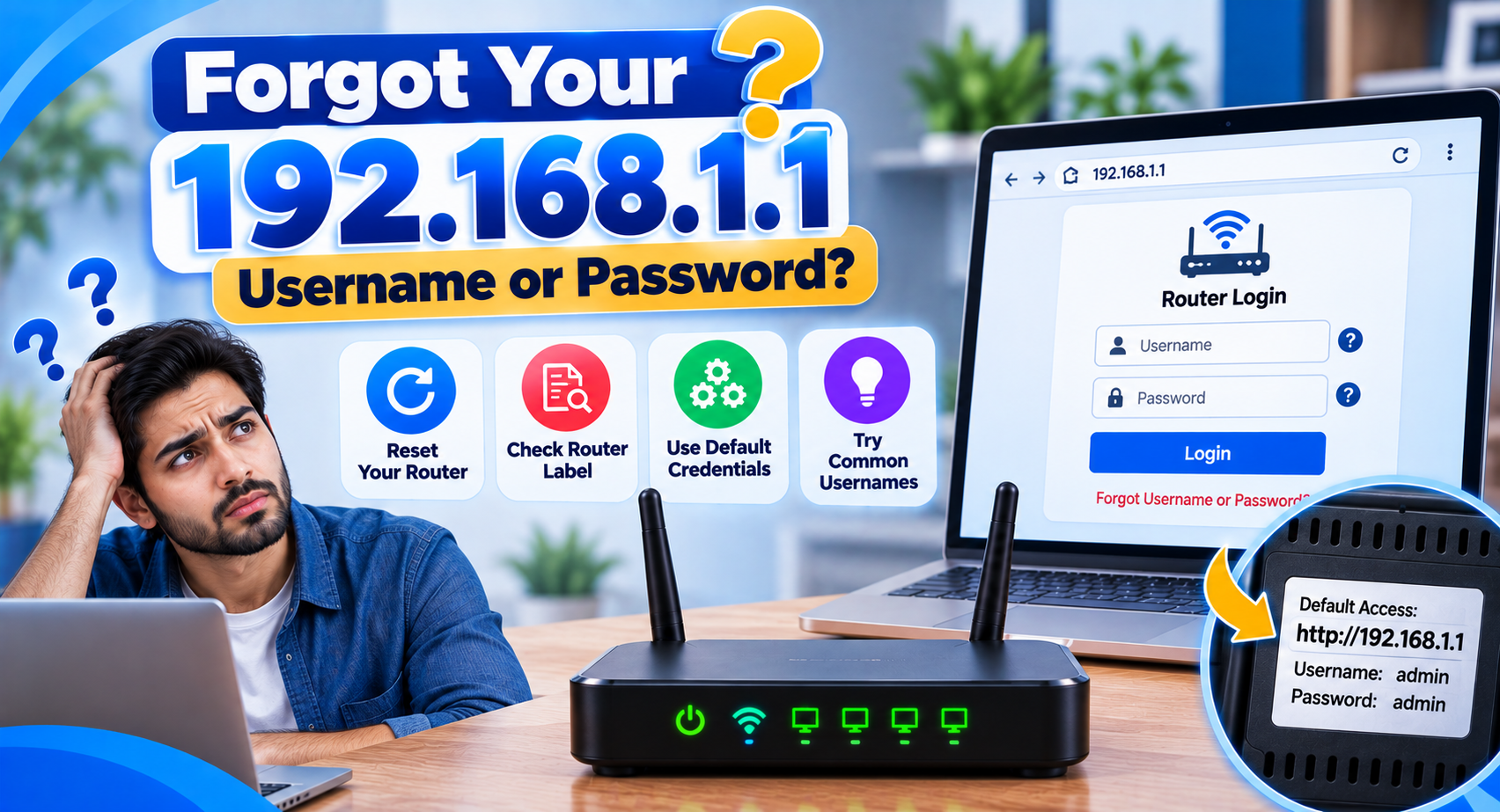
A factory reset should usually be the last step.
Resetting can remove:
- WiFi network name
- WiFi password
- Custom admin password
- DNS settings
- Parental controls
- Port forwarding rules
- Guest network settings
- ISP or WAN configuration
Before resetting an ISP-supplied router make sure you know whether any special connection settings will need to be entered again.
A normal restart is not the same as a factory reset. Restarting usually keeps your saved configuration.
Change the Default Login After Setup
Leaving the default router login unchanged makes it easier for anyone on your network to open the router settings page.
If your router still uses a weak administrator password, changing it can improve security.
Use a password that is:
- Difficult to guess
- Different from your WiFi password
- Not reused from another account
- Stored somewhere safe
Do not share the router administrator password with people who only need WiFi access.
Avoid Random Router Password Lists
Lists of generic router passwords can be misleading.
They may be outdated, model-specific or completely wrong for your device.
More importantly, repeatedly trying unrelated credentials wastes time when the router label or official documentation can often give you the correct answer.
Use the brand and model of your router when looking for login information.
Default Login Page Not Opening
If you cannot even reach the username and password screen the credentials are probably not the problem yet.
Check:
- Your device is connected to the router
- The router is powered on
- The IP address is correct
- You are using the browser address bar
- The network gateway has not been changed
Once the login page appears, then focus on the username and password.
Frequently Asked Questions
What is a default router login?
It is the username, password or setup credential used to access a router’s administration page.
Are all router default logins the same?
No. They vary by manufacturer, model, firmware and ISP configuration.
Is the admin password the same as the WiFi password?
Not necessarily. They often serve different purposes.
Where can I find my router username and password?
Check the router label, manual, ISP documentation or official instructions for your model.
Why does the default password not work?
The password may have been changed, the ISP may have customized the router or the device may use a setup password.
Will a factory reset restore the default login?
It may restore factory or provider-defined settings. It can also erase important network configuration.
Final Words
Default logins are useful when setting up or recovering access to a router. There is no universal credential that works on every device.
Use the information supplied with your router to confirm the correct admin address and check whether the password was changed before considering a factory reset.