192.168.1.1 Login – Router Admin Panel
192.168.1.1 login is used to access the panel of routers that are set up with this IP address.
- 1Connect your phone or computer to the router.
- 2Type
192.168.1.1into the browser address bar. - 3Enter the administrator username and password.
The page can give you access to WiFi settings, connected devices, network configuration, guest WiFi, parental controls and other options supported by your router.
- WiFi Settings
- Connected Devices
- Network Configuration
- Guest WiFi
- Parental Controls
How to Login to 192.168.1.1
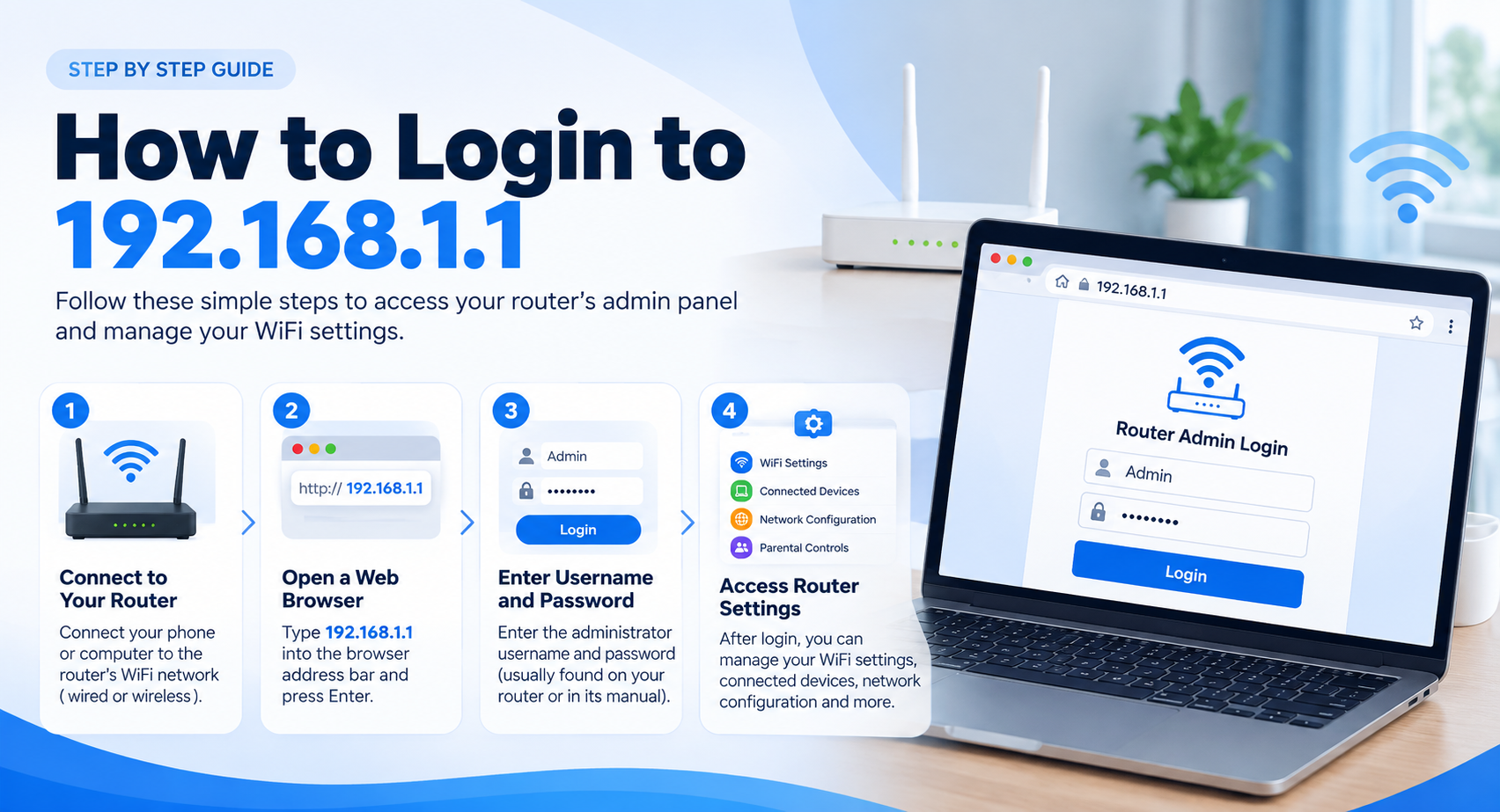
The 192.168.1.1 admin page is normally available to devices connected to the network.
-
Connect Your Device to the Router
Connect your phone, laptop or desktop computer to the router through WiFi or an Ethernet cable.
If you are using a phone, make sure it is connected to the WiFi network. Using mobile data will normally not give you access to a router’s local admin page.
A wired connection can also be useful when WiFi is unstable.
-
Enter 192.168.1.1 in the Browser Address Bar
Open Chrome, Edge, Firefox, Safari or another browser. Type this into the address bar and press Enter or Go:
192.168.1.1Do not type it into a Google or Bing search box. You are trying to reach a device on your network, not search for a website. You also do not need to add www or .com.
-
Enter the Router Admin Username and Password
If the IP is correct, the router should display its login page.
Enter the administrator credentials configured for that router. These may be printed on the router label, provided in its documentation, supplied by your ISP or created during setup.
Do not assume every router uses the default login.
-
Open the Admin Dashboard
After authentication you should reach the router management interface.
The exact design varies between manufacturers and firmware versions. A TP-Link router, ZTE gateway or ISP-supplied modem may use different menu names even when they perform similar functions.
What Is the IP Address 192.168.1.1?
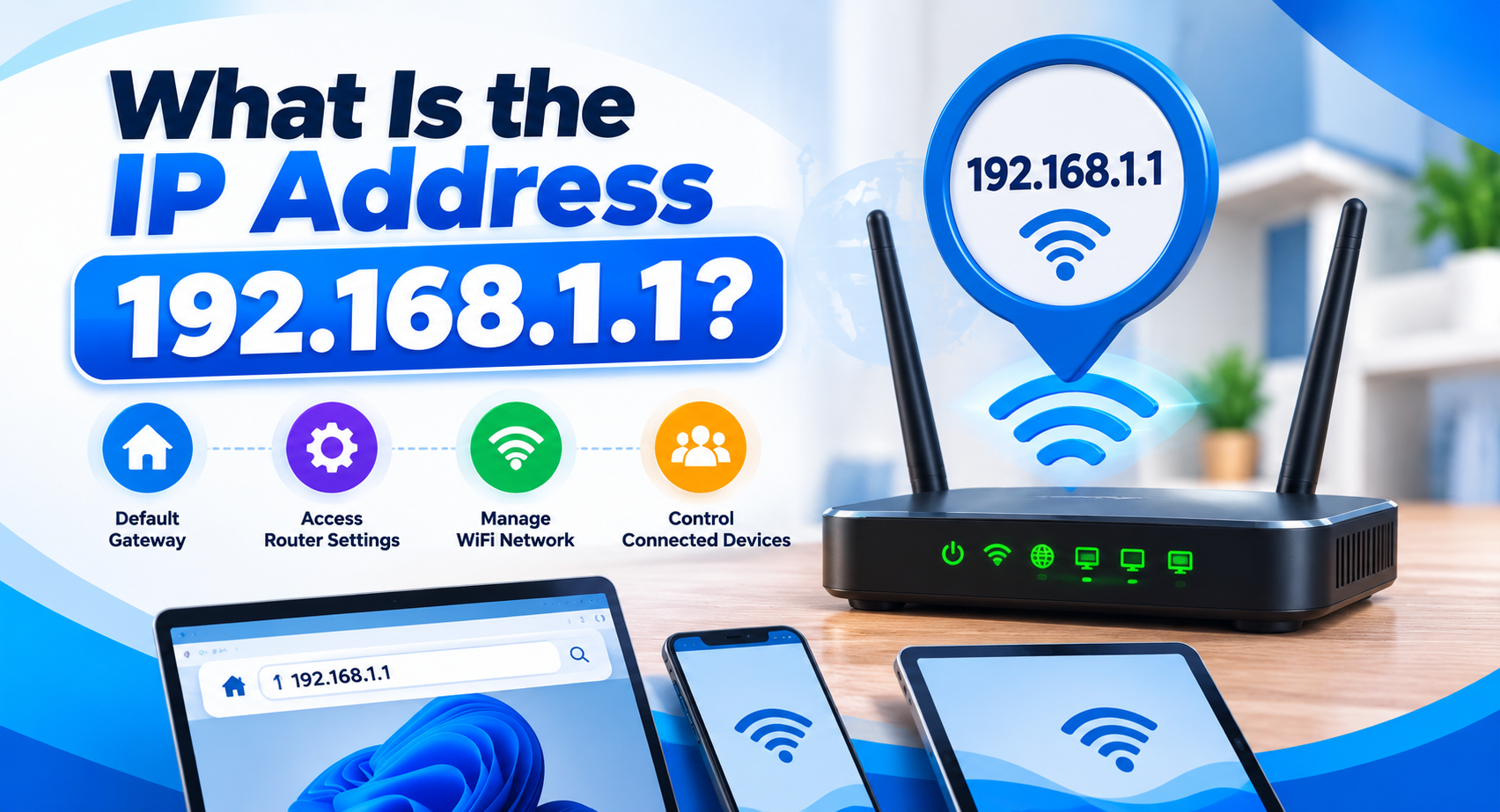
This IP belongs to a private IPv4 address range used inside networks.
A router may use this address as its gateway or management address. Devices connected to the network can then communicate with the router through that address.
192.168.1.1 is not automatically the address of every router. A network can use another default IP address, and the gateway can also be manually changed.
Is 192.168.1.1 a Public IP?
No. It is a private IP address.
Private addresses are used inside home, office and other local networks. They are different from the IP address your internet connection uses to communicate with services on the internet. This is why opening 192.168.1.1 is different from visiting a website.
Does 192.168.1.1 Require Internet Access?
Usually an active internet connection is not required to open a router’s administration interface. Your device does, however, need a working connection to the router.
For example, your ISP connection can be down while the router login page still opens over WiFi or Ethernet.
192.168.1.1 Admin Password
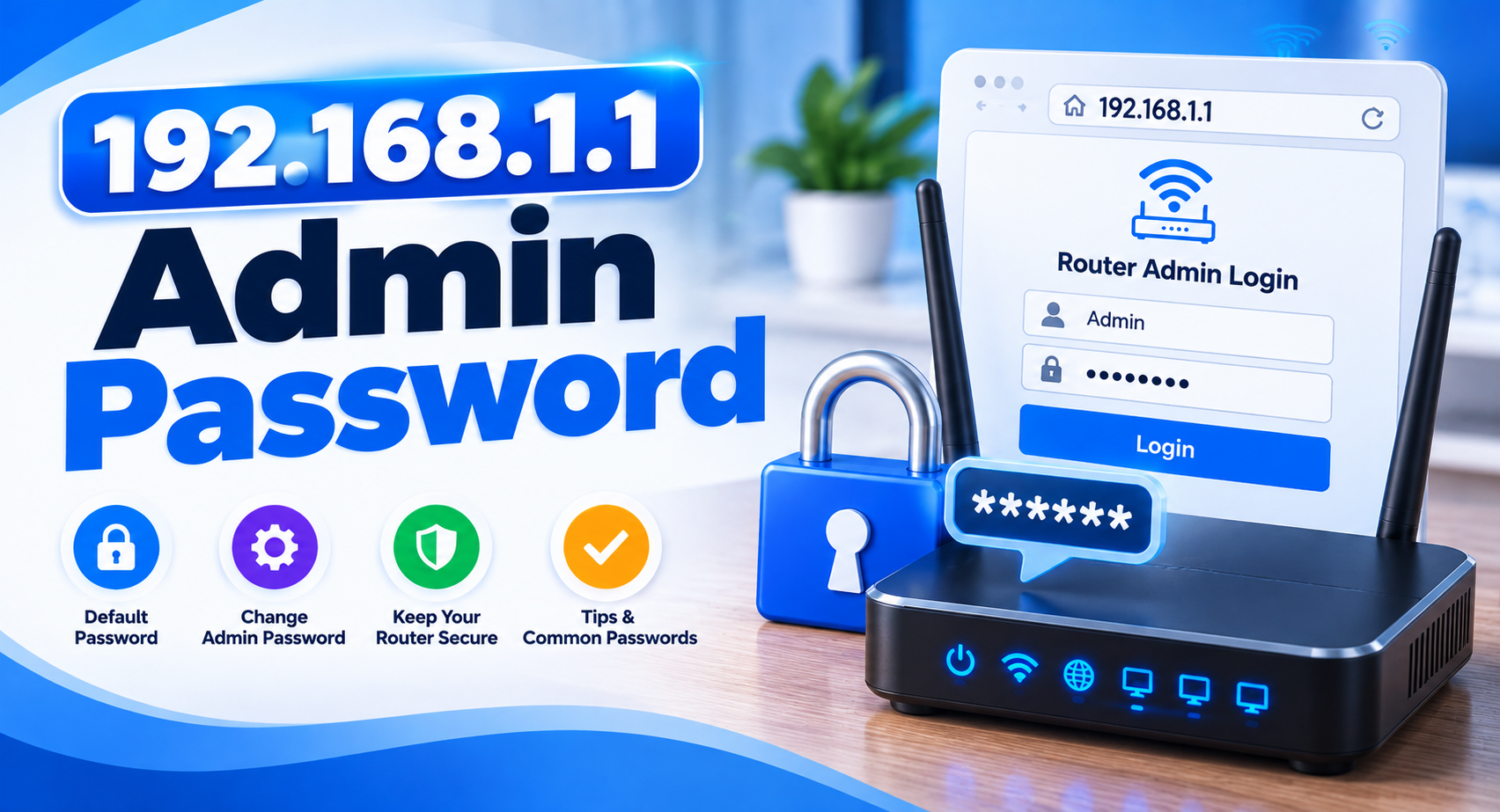
There is no username and password that works for every router using this address. Credentials depend on the manufacturer, model, ISP configuration and whether someone has previously changed them.
Admin Password vs WiFi Password
This is a common source of confusion.
| Password | What it does |
|---|---|
| Admin Password | Protects the router settings. |
| WiFi Password | Used when phones, computers and other devices connect to the network. |
They can be the same on some configurations, but they do not have to be. If your phone connects successfully to WiFi but that password fails on the router login screen, the router may have a separate administrator password.
Where to Find Router Login Credentials
Check these sources before guessing:
- The label on the router or modem
- The original user manual
- Setup documents supplied by your ISP
- The router manufacturer’s instructions
- Credentials created when the router was first configured
If someone changed the password, the printed default credentials may no longer work.
Why Default Credentials May Not Work
A default-looking username and password can fail because:
- The admin password was changed
- The router was configured by your ISP
- The device requires a custom password created during setup
- Different hardware revisions use different login methods
- You are actually opening a different device on the network
Repeatedly trying passwords is usually less useful than confirming the correct device and credentials.
What Can You Change in the 192.168.1.1 Admin Panel?
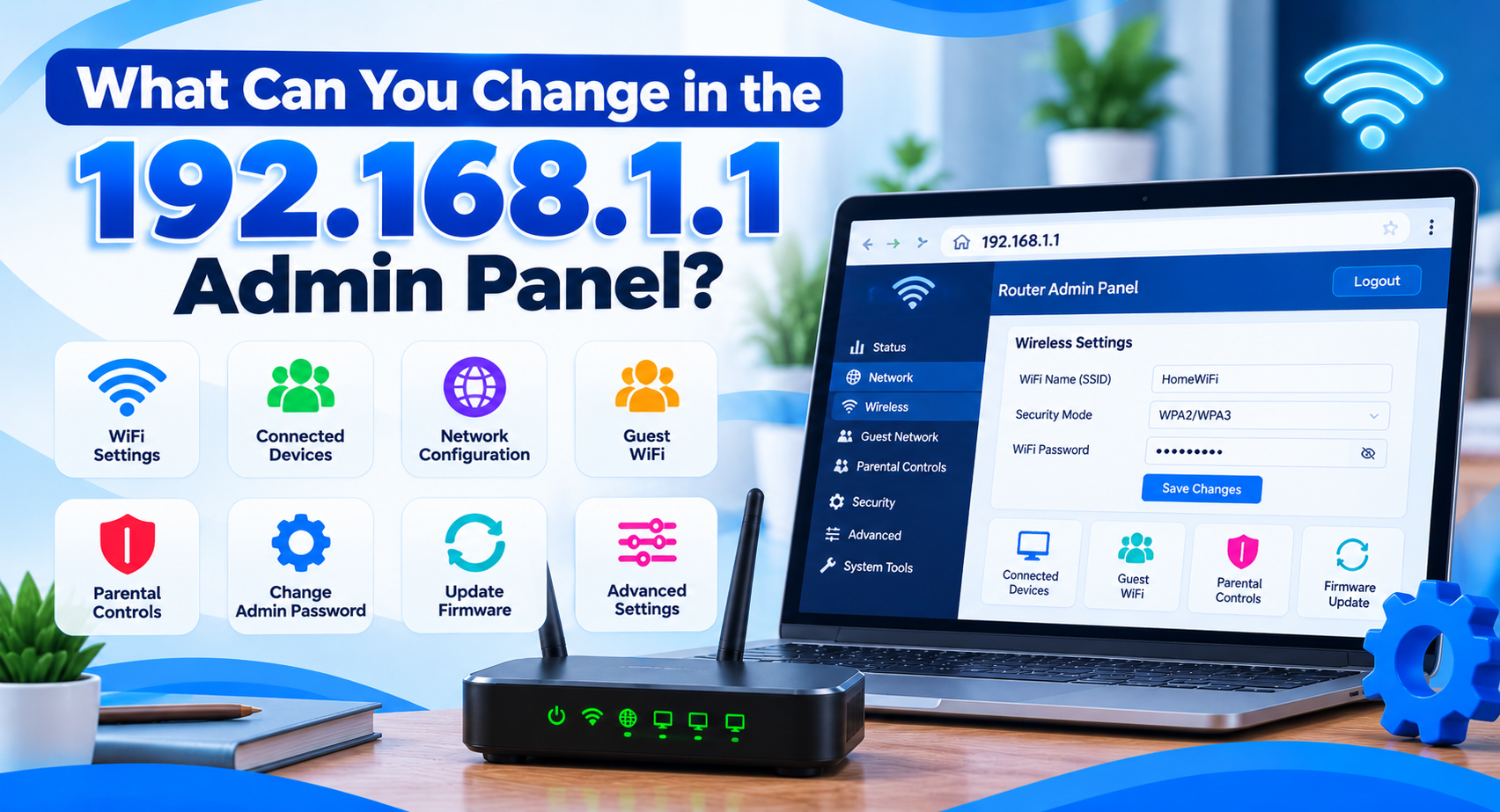
Available settings vary. A typical router dashboard can include these network controls.
Change the WiFi Name
The WiFi network name is commonly called the SSID. You may find it under a section called Wireless, WiFi or WLAN, depending on the router.
Changing the SSID can make your network easier to identify.
Change the WiFi Password
Wireless security settings usually contain an option to change the network password. Choose a password that is difficult to guess.
After saving, connected wireless devices may need to reconnect with the new password.
View Connected Devices
Many routers provide a client or device list showing phones, computers, televisions, cameras and other devices connected through WiFi or Ethernet.
An unfamiliar name does not automatically mean someone has accessed your network, because device names can be vague. Still, checking the list can help you review network activity.
Set Up a Guest Network
A supported router may allow you to create a separate guest WiFi network.
This is useful when you want visitors to access the internet without sharing the credentials of your main network.
Manage LAN and DHCP Settings
Advanced users may see options for LAN addresses, DHCP, IP address allocation, DNS and subnet settings.
Changing these incorrectly can make devices lose network access. Avoid altering values you do not understand.
Review WAN or Internet Settings
WAN settings control how the router connects to the internet or ISP, and may contain ISP information.
Do not change them simply to troubleshoot a WiFi password or login issue.
Update Router Firmware
Some routers provide firmware updates through the interface. Updates can fix bugs or security issues. The process differs between manufacturers, so use firmware intended for your exact router model and follow the manufacturer’s instructions.
How to Change the WiFi Password Through 192.168.1.1
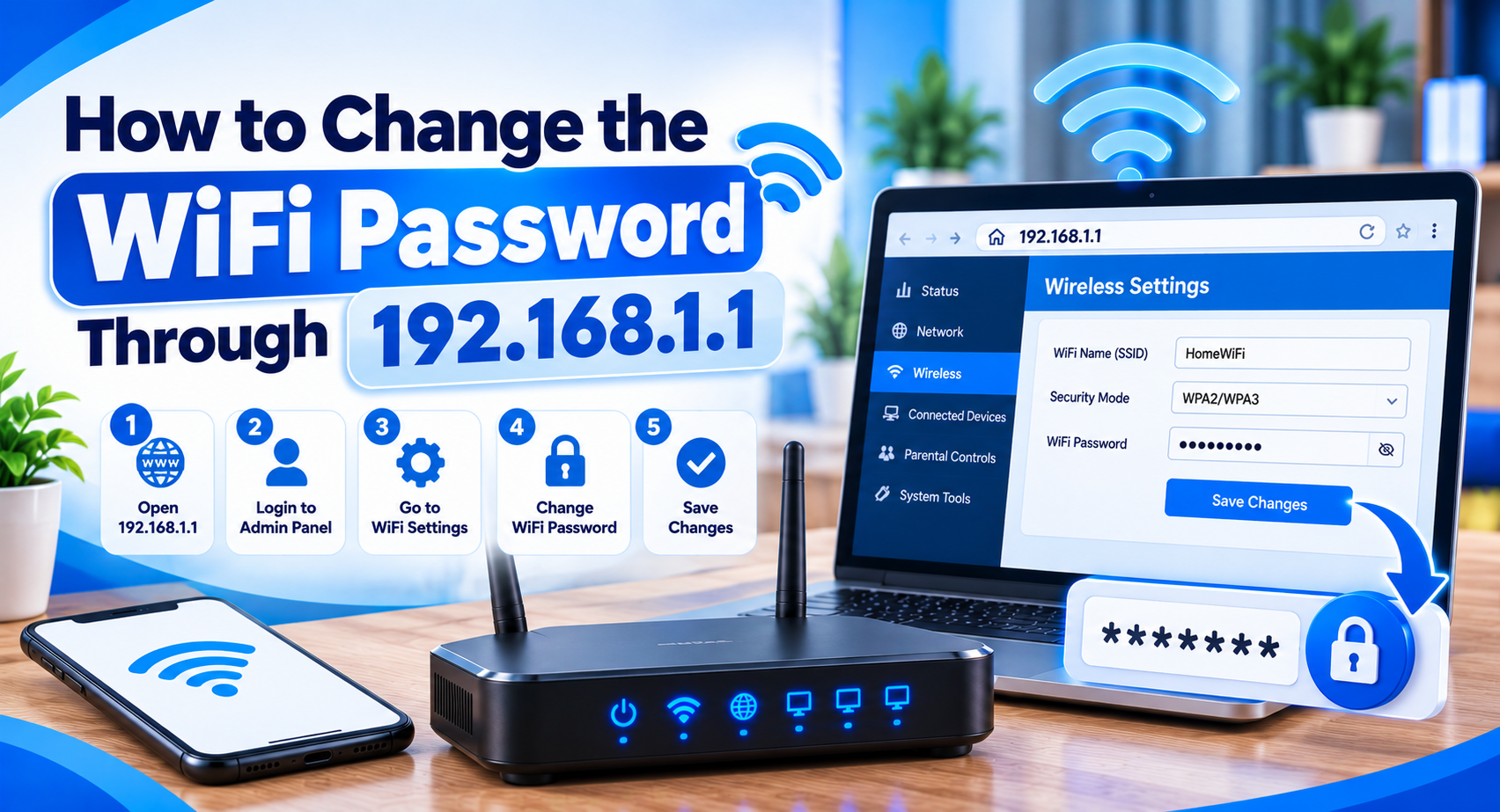
If your router uses this gateway, the general process is straightforward.
- Connect to the router.
- Open 192.168.1.1.
- Sign in with the admin credentials.
- Look for Wireless, WiFi, WLAN or a similar section.
- Open the wireless security settings.
- Enter your new WiFi password.
- Apply the changes.
The router may briefly restart its network. You will then need to reconnect your devices using the new password.
Do not rely on one menu path found online, because router interfaces differ. See our brand-by-brand guide on how to change WiFi password.
How to Change the WiFi Name or SSID
After logging in, look for Wireless, WLAN or WiFi settings. Find a field labelled something like:
Enter the new network name and save the settings. Your devices may temporarily disconnect because they will now see the network under its new name.
192.168.1.1 Login Not Working?
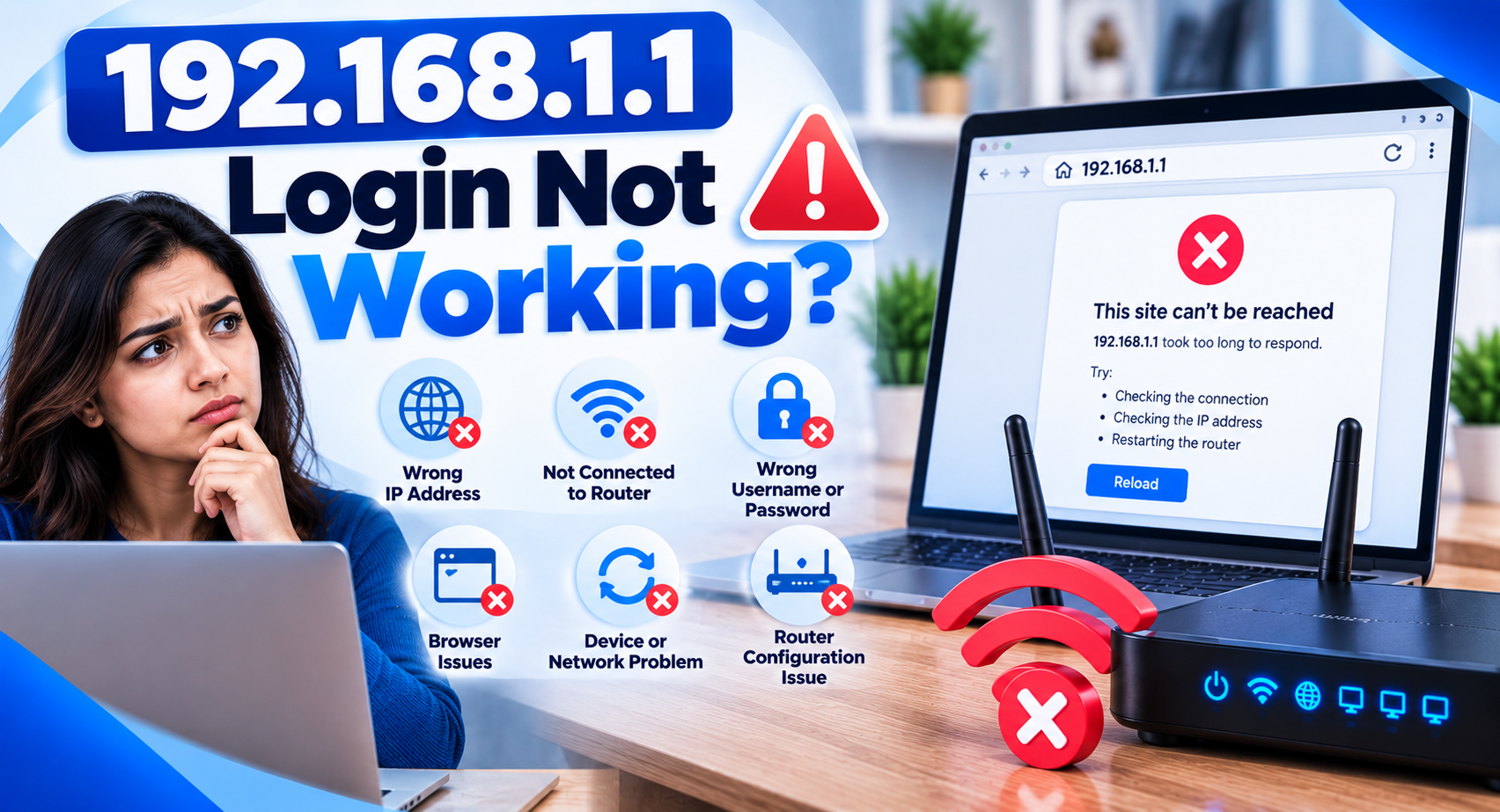
A failed 192.168.1.1 login does not always mean the router is broken. Different errors point to different problems.
192.168.1.1 Page Does Not Open
Check the basics first:
- Confirm you are connected to the router
- Type the address correctly
- Use the browser address bar
- Check that 192.168.1.1 is actually your gateway
- Try another browser
- Restart the router if the local network appears unresponsive
Do not factory reset the router as your first troubleshooting step.
Connection Refused
Your device reached the address, but no compatible management service accepted the connection. Possible reasons:
- The router uses another address
- Its management interface is configured differently
- Local administration is restricted
- Another device is using the address
- The router software is temporarily unavailable
Confirming the default gateway is usually more useful than refreshing the page.
Connection Timed Out
The browser did not receive a response within the expected time. Check whether:
- You are connected to the network
- The router is powered on
- Ethernet or WiFi is working
- The IP address is correct
- A different gateway is configured
Login Page Opens but the Password Does Not Work
This is an authentication problem, not an IP connectivity problem. If you can see the login page, your device has already reached the router. Check the administrator credentials rather than changing WiFi adapters, browsers or gateway addresses.
Try Another Browser or Device
A browser extension, stale local session or device-specific networking problem can sometimes interfere. Try the address from another browser or another device connected to the router.
Restart before you reset. Restarting simply powers the router off and back on. A factory reset is different and can erase your settings. Always try a restart first.
How to Find Your Router’s IP Address
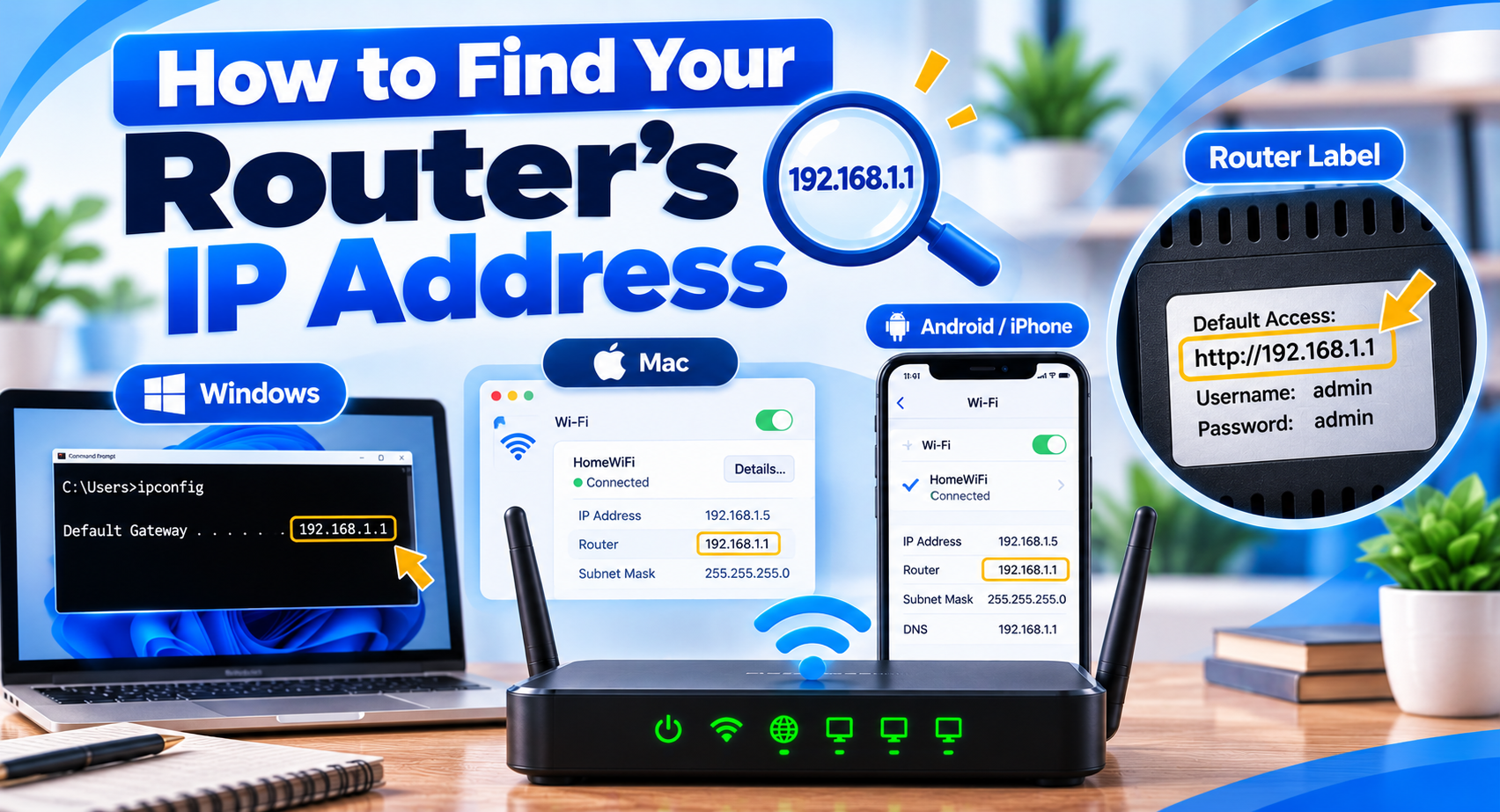
If 192.168.1.1 does not work, find the configured gateway instead of guessing.
On Windows, the router’s address normally appears as the Default Gateway. Check your network connection details or use Windows networking tools to identify the gateway assigned to your connection.
Open the details for your WiFi network. Depending on your Android version and phone manufacturer, look for a value labeled Gateway, Router or Network details.
Some phones show it under WiFi settings, others in the network info section.
Go to WiFi settings and tap the network you are connected to. Look for the field labeled Router. The address shown there is your gateway for that WiFi connection.
Open the details of your network connection and go to the TCP/IP section. The router address listed there is the gateway your Mac is using.
Check the system’s routing table to find the default route or gateway. The exact steps depend on your distribution and network manager. For example, run ip route or route -n in the terminal.
Why Checking the Correct Router IP Matters
Trying addresses one after another is not reliable. Your router might use any of these, or another gateway address:
The address shown directly by your device is more dependable than guessing based on router brand.
192.168.1.1 Typing and URL Mistakes
A small punctuation error can stop the browser from reaching the address.
Search terms like ip.192.168.1.1 or ip:192.168.1.1 include characters that are not part of the IP.
The leading dot is wrong. Use the IP without punctuation.
A comma at the end is not part of the IP address. Remove it before trying.
Two leading slashes are not how you enter the address. Type 192.168.1.1 and let the browser handle the connection format.
The address uses the number 1, not the lowercase letter l or uppercase I. Some fonts make these characters look similar.
Is 192.168.1.1/ correct? A browser might add a trailing slash after the IP address. That is fine. The simplest version remains the plain IP address.
192.168.1.1 Login for Popular Routers
192.168.1.1 TP-Link Router Login
Some TP-Link devices or setups may use 192.168.1.1, but you should not assume all TP-Link routers do. Your device might use another IP or a manufacturer-specific local hostname. Check the router label, documentation or your device’s default gateway first.
192.168.1.1 ZTE Router Login
Whether this address is correct for a ZTE router, modem or optical network device depends on the hardware and how the ISP configured it. If the page does not open, check the gateway assigned to your device. Don’t assume the ZTE equipment is faulty.
192.168.1.1 CBN Router Login
Some CBN routers or cable modems may be set up with this IP, while others use a different gateway. ISP-supplied equipment is especially likely to use custom settings, so check our router brands guide for your model. Confirm the gateway before entering login credentials.
192.168.1.1 Login for Iconnet
The correct IP and login method depend on the router or ONT installed for your Iconnet connection. Do not assume one Iconnet username, password or gateway works for every customer. Check the installed hardware first.
Forgot Your 192.168.1.1 Username or Password?
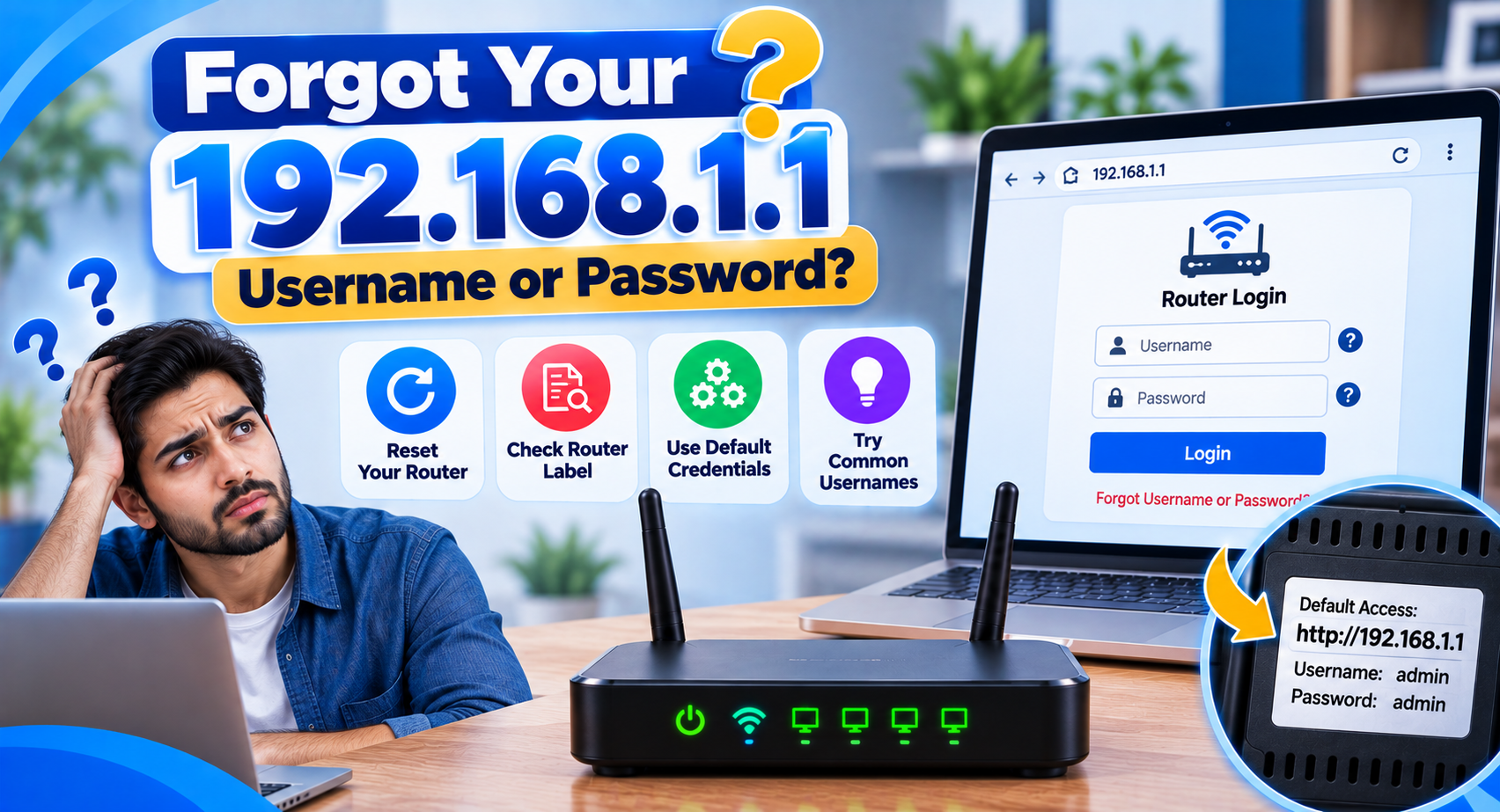
If you cannot sign in to the page, avoid guessing.
Check the Router Label
Some routers have login information printed on a sticker. Read it carefully, because WiFi and administrator credentials may be listed separately.
Check the Manual or ISP Info
ISP-supplied routers can use custom setup details. Review the documentation you got when the connection or router was installed.
Try Credentials You Created
If you changed the administrator password before, the original defaults will no longer work.
When Is a Factory Reset Necessary?
A factory reset may be needed if the admin password is completely lost and no recovery method is available. It should usually be the last option, because a restart and a factory reset do very different things.
Restart
Turns the router off and then back on.
Saved WiFi names, passwords and other settings usually stay the same. Restarting can fix some software or connection issues.
Factory Reset
Brings the router back to the settings it had when it was first made. Depending on the router, this can delete:
- WiFi network names and passwords
- Custom admin passwords
- DNS and port forwarding settings
- Parental control settings
- ISP or WAN settings
Resetting a router that is already working and set up by your internet provider, without knowing what to do next, can cause more problems than it solves.
How to Do a Factory Reset on a Router
The method depends on the brand and model.
Through the Admin Panel
Some devices have a factory reset option in the System, Administration, Maintenance or a similar menu. Read the warning message before choosing to reset.
Using the Reset Button
Many routers have a reset button. The steps and how long you need to hold it can differ, so follow the instructions for your router model.
What to Do After a Reset
You might need to set up again:
- WiFi name
- WiFi password
- Admin password
- Internet/WAN settings
- ISP details
If the router was given by your provider, find out whether any special setup is needed before you reset it.
Common Router IP Addresses
192.168.1.1 is one common gateway. Others include the following. Click any address to copy it.
Use the gateway your network actually uses. Do not pick one just because it is common.
192.168.1.1 vs 192.168.0.1
| 192.168.1.1 | 192.168.0.1 |
|---|---|
| A private IP address commonly used as a router gateway. | A different private IP address, also commonly used as a router gateway. |
Either one can be your router’s gateway. If your router uses 192.168.0.1, going to 192.168.1.1 will not take you to the admin page. Use the address your router actually uses.
How to Keep Your Router Admin Panel Safe
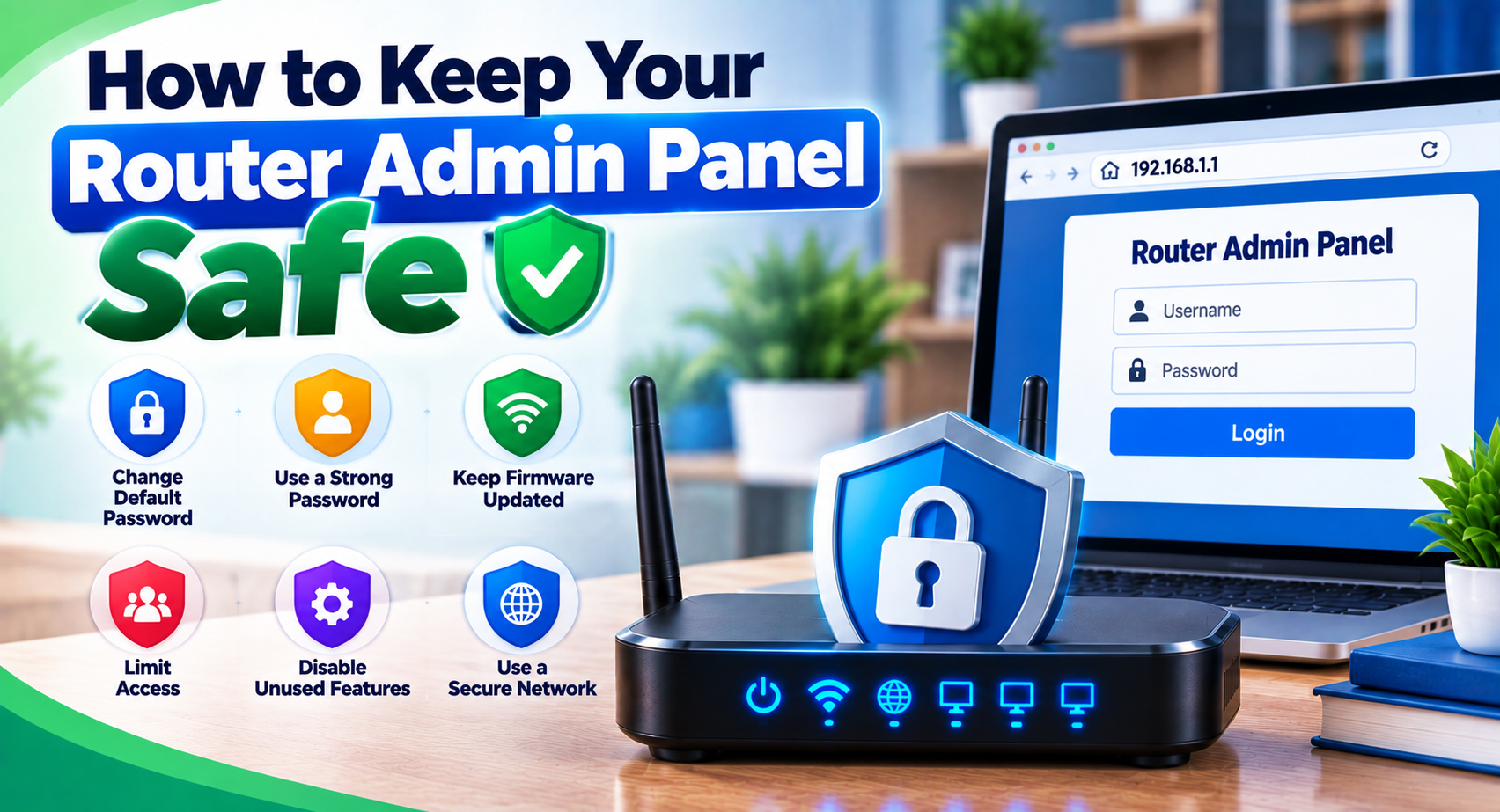
The router admin section controls your network settings, so it should be protected. Some simple steps can help:
- Change the default router admin password where possible
- Use a strong WiFi password
- Do not share router admin passwords unless needed
- Update router software only from trusted sources
- Check connected devices from time to time
- Turn off remote admin access if you do not need it
- Do not type router passwords into unrelated websites
- Use your own network when changing important settings
Remember: the real router interface is different from a website that just talks about router IP addresses.
Frequently Asked Questions About 192.168.1.1
What is 192.168.1.1?
192.168.1.1 is a private IPv4 address. Many routers use it as their default gateway or admin (control panel) address.
How do I log in to 192.168.1.1?
Connect your device to the router, open a web browser, type 192.168.1.1 in the address bar, and sign in with your router’s admin credentials.
What is the default username and password for 192.168.1.1?
There is no single username and password that works for every router using this address. Login details depend on the router maker, model, ISP, and any changes made during earlier setup. Check the label on your router first.
Why is 192.168.1.1 not working?
Your router may use a different gateway address, your device may not be connected to the router’s network, the address may be typed incorrectly, or the router may not be responding.
Why does 192.168.1.1 say connection refused?
This usually means the address can be reached, but the router is not accepting the connection. Make sure 192.168.1.1 is your actual gateway and that the router’s admin page is enabled.
Why does 192.168.1.1 time out?
A timeout usually means your device cannot reach the address. Check your network connection, make sure the router is powered on, and confirm your actual default gateway.
Can I use 192.168.1.1 without internet?
Usually, yes. You only need a working connection to the router. The router’s internet connection does not need to be active to open its admin page.
Is 192.168.1.1 the same as 192.168.0.1?
No. They are two different private IP addresses. Both are commonly used by routers for their admin settings, but your router will only use one of them.
Can I change my WiFi password through 192.168.1.1?
Yes, if your router uses 192.168.1.1 as its management address. The WiFi password is usually found under the Wireless or WLAN security settings.
Does TP-Link use 192.168.1.1?
Some TP-Link devices use 192.168.1.1, but not all of them. Many TP-Link routers use 192.168.0.1 or tplinkwifi.net instead, so check the label on your device.
Can ZTE routers use 192.168.1.1?
Yes, some ZTE devices are set up with this address. The actual gateway depends on the model and your ISP’s configuration.
Is 192.168.1.1 safe?
The address itself is just a private IP. What matters is that you are on your own network and only enter admin passwords into your real router interface, not into unrelated websites.
What should I do if I forgot my router admin password?
Check the router label, the manual, or your ISP, and try any passwords you set earlier. Only use a factory reset if nothing else works and you understand which settings will be lost.
Final Thoughts About 192.168.1.1 Login
The 192.168.1.1 login page lets you change your WiFi, security, and network settings, as long as your router is actually set up to use this address.
To get started, connect to your router’s network, type 192.168.1.1 into your browser, and sign in with your router’s admin login details.
If the 192.168.1.1 admin page does not open, check your default gateway first before changing any settings or resetting your router.