How to Change WiFi Password on Any Router (Step-by-Step)
Knowing how to change WiFi password settings is one of the easiest ways to keep unwanted people off your network. You might want to do it after moving into a new home, after sharing the password with too many people, or simply because your router still uses the password printed on its label.
The good news is that you can change WiFi password settings on almost any router in a few minutes. Menu names differ between brands, but the basic process is the same. This guide shows how to change WiFi password on router admin panels and from your phone, and how to fix the most common problems.
Quick Steps to Change WiFi Password
- Connect your phone or computer to the router.
- Open the router login page, such as 192.168.1.1, in a browser.
- Sign in with the router admin username and password.
- Open the Wireless, WiFi or WLAN settings.
- Find the Security section and type a new password.
- Save the settings and reconnect your devices.
Before You Start
You need two things:
- Access to the router admin panel. This is the settings page inside your router, not a website on the internet.
- The admin login details. These are not always the same as your WiFi password. If you are not sure what they are, see our guide to default router logins.
Tip: use a laptop connected with an Ethernet cable if you can. When you save a new WiFi password, every wireless device is disconnected, including the phone or laptop you are using to make the change. A cable connection stays online.
How to Change WiFi Password on Router (Step-by-Step)
Step 1: Connect to Your Router
Connect your device to the router’s WiFi network or plug in an Ethernet cable. Mobile data will not work, because the router admin page can only be reached from inside your own network.
Step 2: Open the Router Login Page
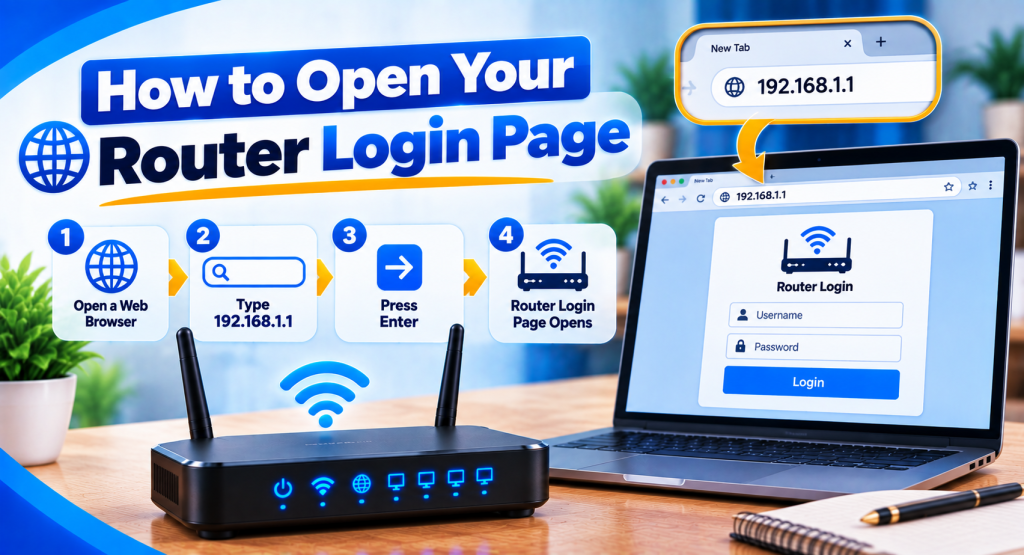
Open Chrome, Edge, Safari or any other browser and type your router’s IP address into the address bar, not the search box. The most common addresses are:
- 192.168.1.1
- 192.168.0.1
- 10.0.0.1
- 192.168.1.254
If none of these open, check the default gateway on your device. Our default IP address guide explains how to find it on Windows, Android, iPhone and Mac.
Step 3: Sign In to the Admin Panel
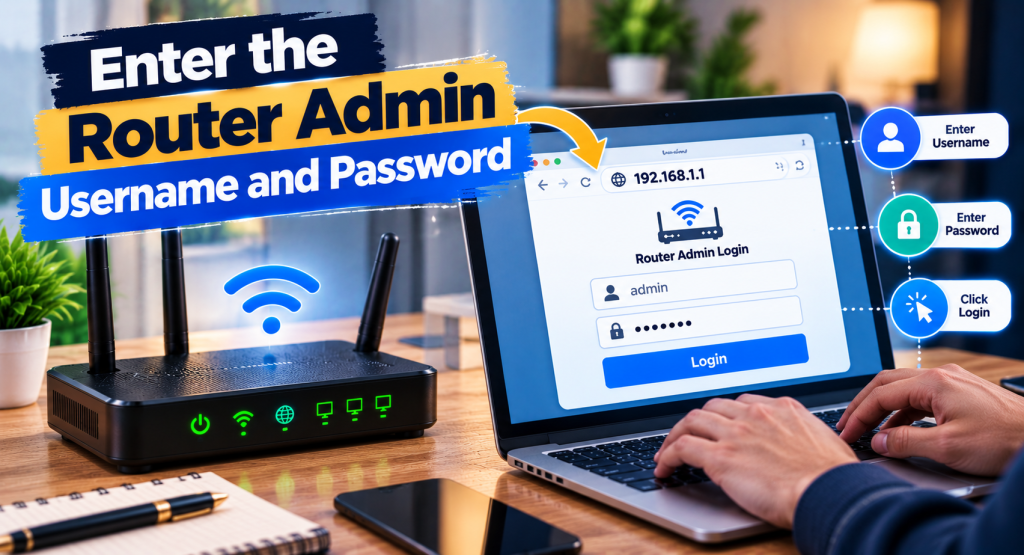
Enter the admin username and password. You can usually find them on the sticker on the back or bottom of the router, in the setup papers from your internet provider, or you may have created them when you first set up the router. If you get stuck here, read our full router login guide.
Step 4: Open the Wireless Security Settings
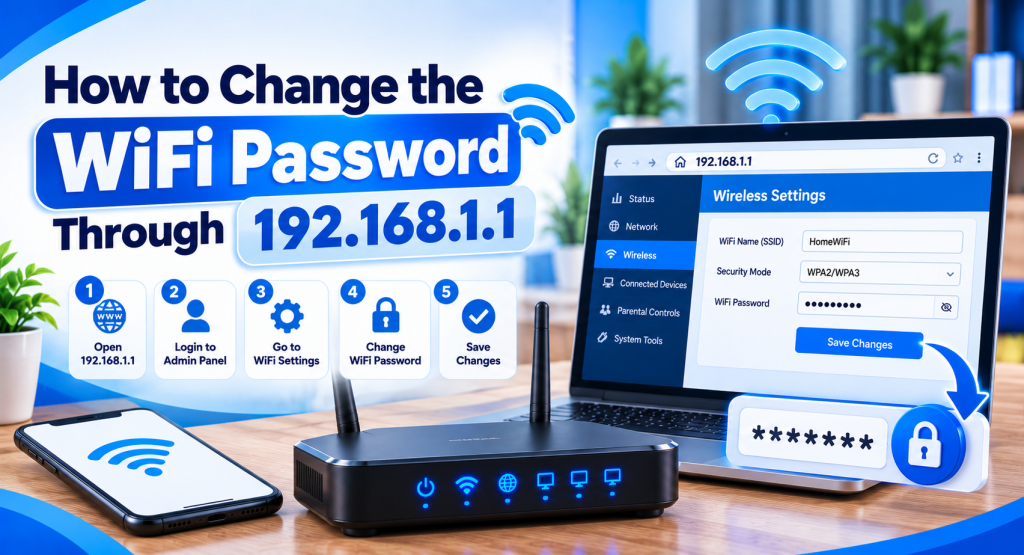
Look for a menu called Wireless, WiFi, WLAN or Wireless Settings. Inside it, find a section named Security, Wireless Security or something similar. The password field may be labelled:
- Password or WiFi Password
- Network Key
- Pre-Shared Key (PSK)
- WPA Passphrase
Each brand puts this setting in a slightly different place. The table below shows where to look on popular router brands.
| Router brand | Where to look (varies by model) |
|---|---|
| TP-Link | Wireless > Wireless Security, or Advanced > Wireless > Wireless Settings on newer models. The Tether or Deco app can also be used. |
| NETGEAR | Wireless or Wireless Settings, under Security Options. Supported models also work with the Nighthawk or Orbi app. |
| ASUS | Wireless > General, in the WPA Pre-Shared Key field. The ASUS Router app works on supported models. |
| ZTE | WLAN, or Network > WLAN, then the Security section. ISP firmware may look different. |
| Huawei | WLAN, WLAN Basic Configuration or WiFi Settings. ISP firmware may look different. |
| D-Link | Settings > Wireless, or Setup > Wireless Settings on older models. |
These are common locations, not exact paths for every model. Routers supplied by internet providers often use custom firmware. If your menus look different, look for the words Wireless or WLAN, and check our router brands guide for more help.
Step 5: Enter a New Password and Check the Security Type
To change WiFi password, delete the old password and type the new one. WPA2 and WPA3 WiFi passwords must be between 8 and 63 characters long.
While you are on this page, check the security mode:
- WPA3-Personal – the newest and most secure option, if all your devices support it. The Wi-Fi Alliance explains WPA3 in more detail.
- WPA2/WPA3 mixed – a good choice when some older devices cannot use WPA3.
- WPA2-Personal (AES) – still fine for most homes.
- Avoid WEP and WPA/TKIP. They are outdated and easy to break.
Step 6: Save and Reconnect Your Devices
Click Save or Apply. The router may restart its WiFi for a few seconds. Then reconnect each device with the new password. On some phones and laptops you may need to choose Forget this network first and then join again.
Dual-Band and Mesh Routers
Many routers broadcast two networks: 2.4 GHz and 5 GHz, and some newer models add 6 GHz. If your router shows these as separate networks, change WiFi password on each band. Mesh systems such as TP-Link Deco, NETGEAR Orbi or Google Nest usually update every unit together through their app.
How to Change WiFi Password from Phone
You do not need a computer. You can change WiFi password from phone in two ways:
- Using a browser: connect your phone to the WiFi, open Chrome or Safari, type the router IP and follow the same steps as above.
- Using the router app: many brands have their own apps, such as TP-Link Tether, TP-Link Deco, NETGEAR Nighthawk, ASUS Router and Huawei AI Life. Sign in, open the WiFi settings and change the password.
Some internet providers also let you change WiFi password settings from their own app or customer portal.
How to Choose a Strong WiFi Password
- Use at least 12 characters.
- Mix words, numbers and symbols. A short phrase of unrelated words with a number is easy to remember and hard to guess.
- Do not use your name, phone number, house number or birthday.
- Do not use the same password for WiFi and the router admin panel.
- Share it only with people you trust. For visitors, set up a guest network instead.
What to Do After Changing the WiFi Password
- Reconnect your phones, laptops and tablets.
- Update smart devices such as TVs, cameras, smart plugs and printers. Some of them need to be set up again in their own app.
- Check the connected devices list in the router to make sure only your devices are online.
- Keep the new password somewhere safe.
- Change the router admin password too if it is still the default one. Our default logins guide explains why.
WiFi Password Change Not Working? Common Problems
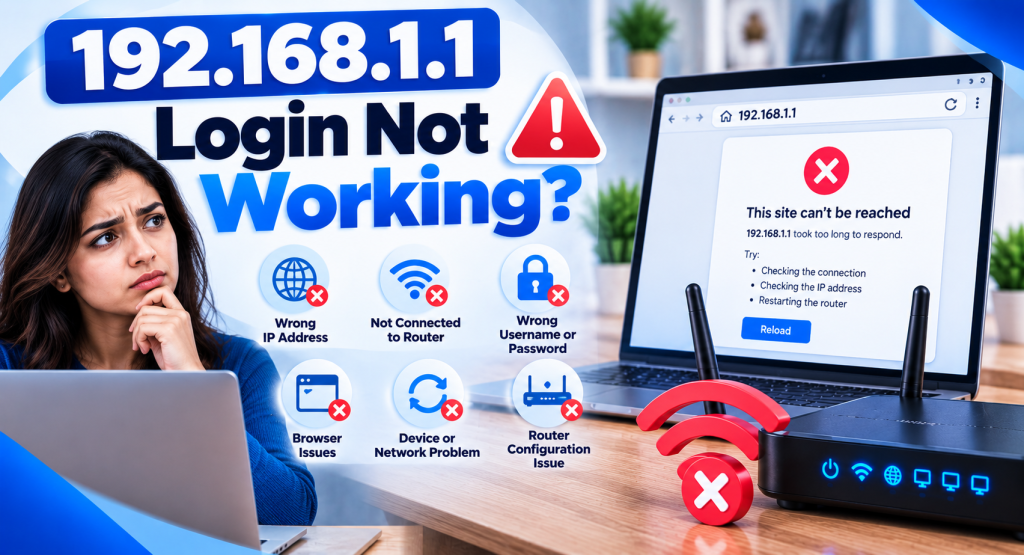
The Router Login Page Does Not Open
Make sure you are connected to the router and that you typed the IP address in the address bar. If 192.168.1.1 does not open, your router may use a different gateway address. Check the default gateway on your device instead of guessing.
The Admin Password Is Wrong
The WiFi password and the admin password are often different. Check the router label or the papers from your internet provider. A factory reset should be your last option, because it erases all of your settings.
Devices Will Not Connect After the Change
Forget the saved network on the device and join again with the new password. Restart the device if it still fails. Very old devices may not support WPA3, so switch the router to WPA2/WPA3 mixed mode.
The New Password Does Not Save
Some ISP routers lock certain settings. Try another browser, make sure the password is 8 to 63 characters long, or contact your internet provider.
Frequently Asked Questions
Can I change WiFi password without logging in to the router?
Usually not. You need the router admin panel, the router’s mobile app or your internet provider’s app. Without one of these you cannot change WiFi password settings.
Will changing the WiFi password disconnect everyone?
Yes. All wireless devices are disconnected and need the new password to join again. Devices connected with a cable stay online.
How often should I change WiFi password?
There is no fixed rule. Change it when you think someone unwanted knows the password, after moving into a home with an existing router, or if you are still using the default password from the label.
Is the WiFi password the same as the router password?
Not always. The WiFi password connects devices to the network. The router admin password opens the settings page. They can be different on the same router.
Does a factory reset change the WiFi password?
Yes. A reset brings back the default WiFi name and password printed on the router label, and it also erases all your other settings.
Final Words
To change WiFi password settings, log in to your router, open the wireless security section, enter a strong new password and save. It only takes a few minutes and helps keep your network safe. If you get stuck at the login step, start with our 192.168.1.1 login guide.
One Comment