Router Login – Access Your Router Admin Panel
A router login lets you open the settings page of your home or office router. From there you can usually manage WiFi settings, change the password, rename the network, see devices and review other options the router supports.
- 1Connect your phone or computer to the router.
- 2Type your router IP, like
192.168.1.1, into the browser. - 3Enter the administrator username and password.
The login page is usually available when your phone or computer is connected to that router. You don’t always need the internet. You do need an active local connection to the device.
How to Open Your Router Login Page
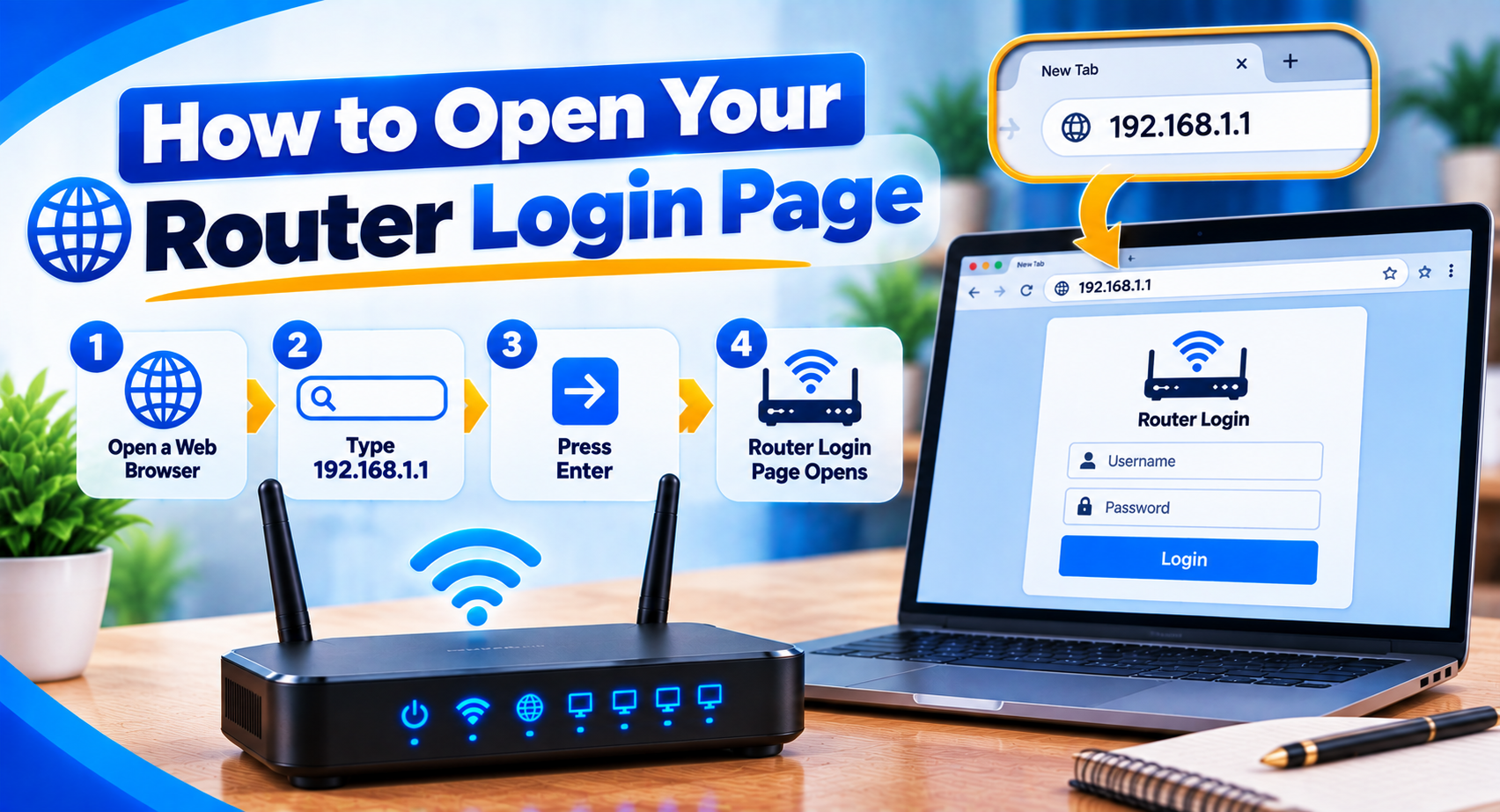
Most routers use an IP address or a local hostname for administration.
Start by connecting your device to the router via WiFi or an Ethernet cable. Then open a browser like Chrome, Edge, Safari or Firefox.
Type your router address into the browser address bar.
Common router addresses include:
These are only examples. Your router may use a different address.
If you enter the correct address, the router admin login screen should appear.
Enter the Router Admin Username and Password
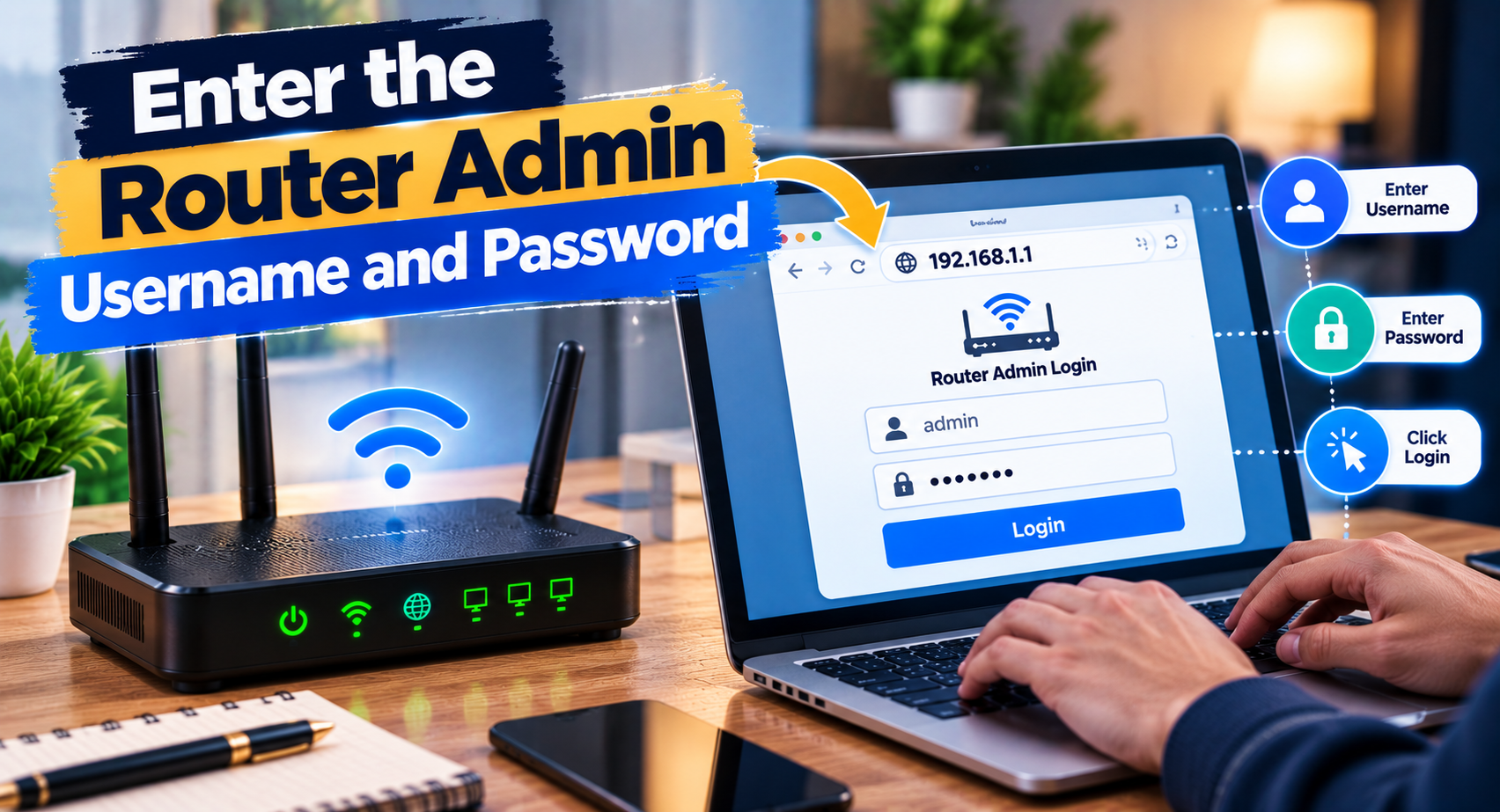
The login screen usually asks for an administrator username, password or both.
These are not always the same as your WiFi password.
A WiFi password lets phones, laptops, TVs and other devices connect to the network. The router admin password protects access to the router settings.
If you don’t know the login details check the label on the router, the user manual or any setup info from your internet service provider.
Some modern routers ask you to create a password during setup so a default password may not exist.
What Can You Do After Router Login?
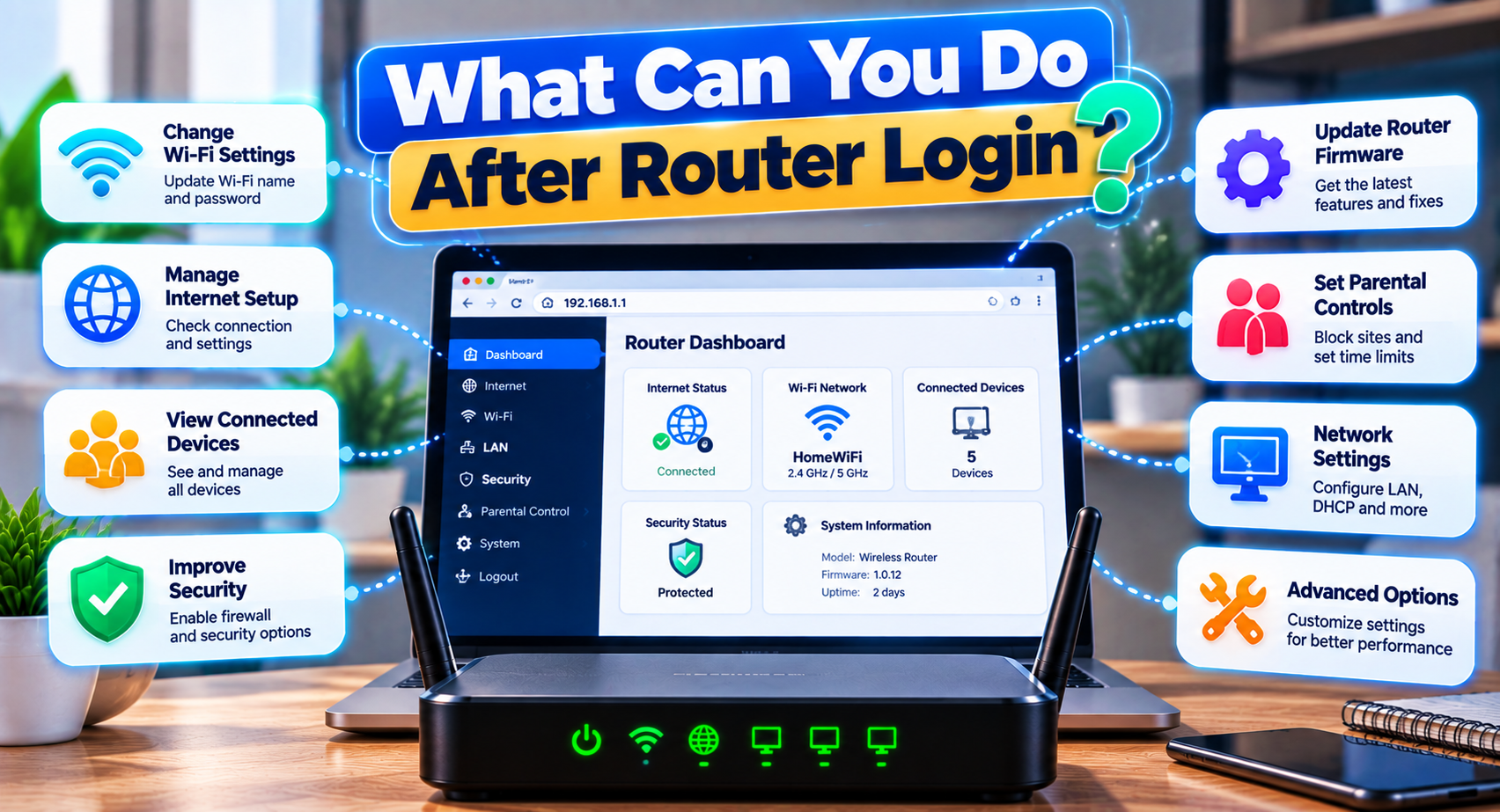
The settings you see depend on the router brand and firmware, but most admin panels offer similar basic controls.
Change the WiFi Password
One of the most common reasons to open the router dashboard is to update the WiFi password. Our step-by-step guide shows how to change WiFi password on popular router brands.
Look for a section named Wireless, WiFi, WLAN or Security. The wording varies between devices.
After saving the password, devices using the old one may disconnect. You’ll need to reconnect them with the updated password.
Rename the WiFi Network
Your network name is usually called the SSID.
Changing it can help you recognize your WiFi easily, especially if you’re near other networks with similar names.
Check Connected Devices
Many routers show a list of devices connected to the network.
You might see phones, laptops, smart TVs, cameras or other hardware. Device names aren’t always clear. An unfamiliar entry doesn’t automatically mean someone has accessed your network.
Manage Guest WiFi
Some routers support a guest network.
This is helpful when visitors need internet access but you don’t want to share your main WiFi password.
Review Advanced Settings
Depending on the router you may also find settings for:
- DHCP
- DNS
- LAN
- WAN
- Parental controls
- Port forwarding
- Access control
- Firmware updates
Avoid changing values unless you know what they do.
How to Find Your Router IP Address
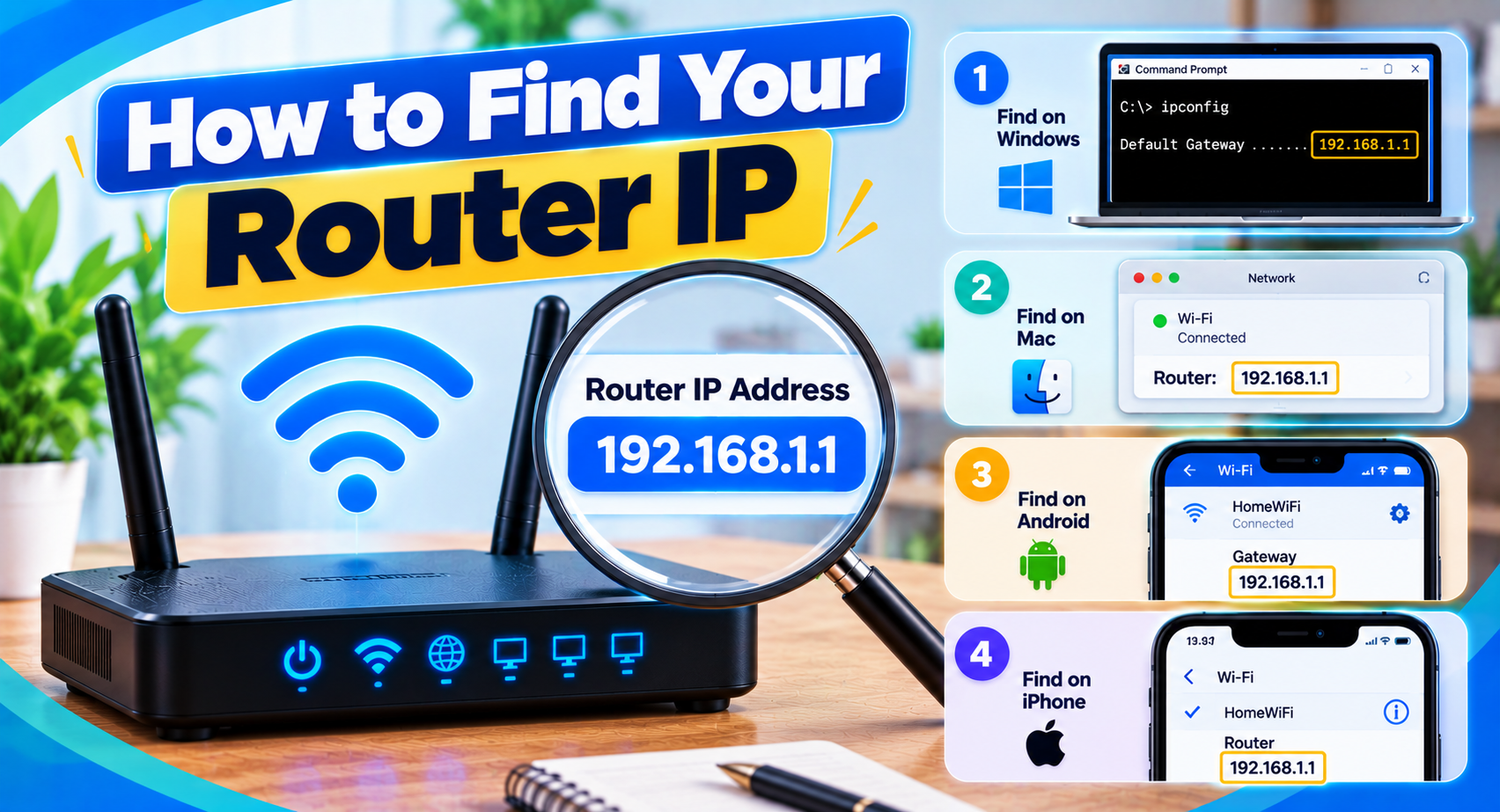
If none of the common router login addresses work, check the gateway used by your device.
On Windows
Open your network details. Look for Default Gateway. That address is usually your router’s IP.
On Android
Open the details of the WiFi network you are connected to. Depending on the phone the address may appear under Gateway, Router or Network Details.
On iPhone or iPad
Open WiFi settings and tap the network. Look for the field labeled Router.
On macOS
Open your network connection settings. Check the router or gateway information.
Using the gateway shown by your device is more reliable than guessing addresses. Our guide explains how to find router IP address details on Windows, Mac, iPhone and Android.
Router Login Page Not Opening
A login page can fail for different reasons. The fix depends on what you see.
Check the Network Connection
Make sure you are connected to the router you want to manage. A phone using data usually can’t open a local router page.
Check the Address
Typing mistakes happen. For example the letter "l" can look like the number "1" in addresses like 192.168.1.1. Extra commas, dots, spaces or adding "www" can also cause problems.
Try Another Browser
If the page doesn’t load in one browser try another. This can help rule out browser cache, extensions or a local session issue.
Restart the Router
A normal restart can clear network problems. Restarting is not the same as factory resetting. A restart usually keeps your existing WiFi and network settings.
Router Login Page Opens but the Password Does Not Work
If you can see the login screen your device has already reached the router. At that point the problem is usually with the credentials.
Check whether:
- The admin password was changed
- You’re using the WiFi password by mistake
- The router was set up by your ISP
- The router requires a password created during setup
Don’t factory reset the router just because the password fails.
Forgot the Router Admin Password?
Start with the least disruptive options. Check the router label, manual, ISP documentation or any password you created during setup.
If no recovery method works, a factory reset may restore the device to its default or provider-defined settings. This can erase WiFi settings, admin credentials, custom DNS values and ISP-specific configuration.
For that reason, a factory reset should usually be the last option.
Router Login Security Tips
The router dashboard controls your network settings so keeping it protected is important.
Use a strong administrator password if your router allows you to change it. Keep the WiFi password secure, install official firmware updates when available and avoid typing router credentials into unrelated websites.
If remote administration is enabled and you don’t use it, consider disabling it according to your router manufacturer’s instructions.
Frequently Asked Questions
What is a router login?
A router login is the process of opening the router’s admin page and signing in with administrator credentials.
Do I need the internet to open the router login page?
Usually not. A local connection to the router is often enough.
Is the router password the same as the WiFi password?
Not always. They can be two different passwords.
Why is my router login page not opening?
The router may use a different IP address, your device may not be on the router’s network, or the address may be typed incorrectly.
Can I change my WiFi password after router login?
Yes, if your router provides WiFi settings in the admin panel.
Should I reset the router if I forgot the admin password?
Only after checking recovery options. A factory reset can erase network settings.
Final Words
A router login gives you access to your router’s settings but the correct login address and credentials vary between devices.
Start by connecting to the network, confirm the router IP and use the administrator credentials assigned to your device. If something goes wrong troubleshoot the connection and login details before considering a factory reset.