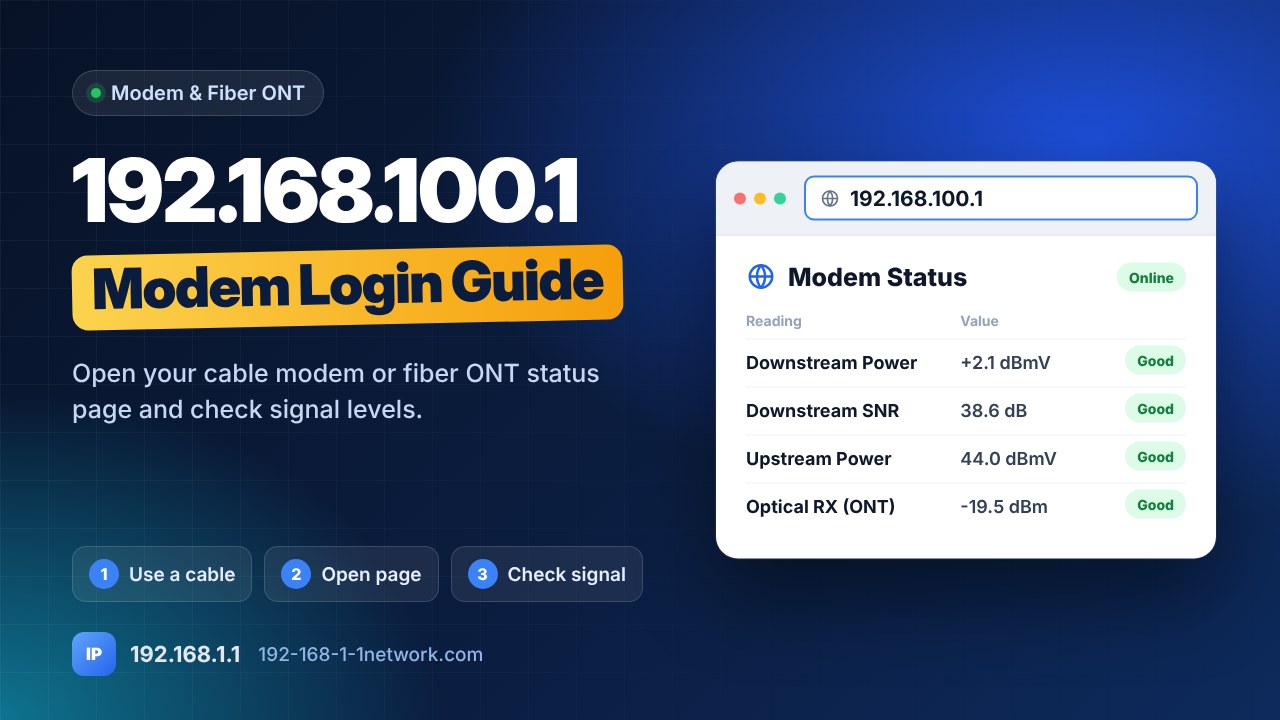
192.168.100.1 Login – Modem and Fiber ONT Admin Guide
192.168.100.1 is a private IP address used by many cable modems and fiber optic terminals (ONTs). Instead of the router settings you see at 192.168.1.1, this address usually opens the modem’s own status page, where you can check signal levels, event logs and the connection to your internet provider.
It is one of the most useful pages to know when your internet keeps dropping, because it shows whether the problem is inside your home or on the provider’s line. This guide explains how to open 192.168.100.1, what the default login is and how to read the information you find there.
How to Log In to 192.168.100.1
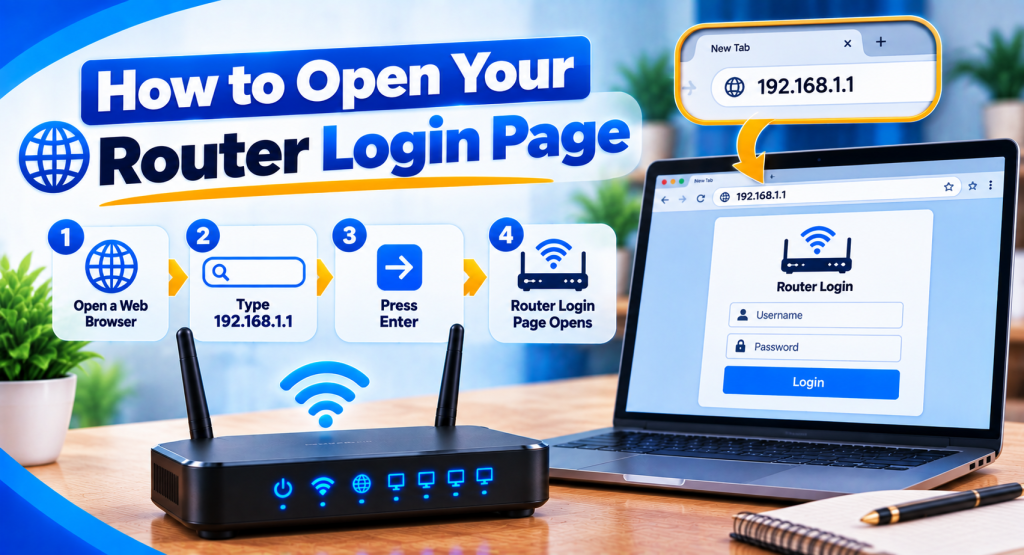
- Connect your computer or phone to your network. A wired Ethernet connection is best.
- Open a web browser.
- Type 192.168.100.1 in the address bar and press Enter.
- If a login screen appears, enter the username and password from the device label.
- Open the Status, Connection or Event Log pages to see your modem’s details.
On many cable modems the status page opens even when the modem is connected to a separate WiFi router, because the router passes the request through to the modem.
Which Devices Use 192.168.100.1?
| Device Type | Examples | What You See |
|---|---|---|
| Cable modems | ARRIS/SURFboard, Motorola, Netgear CM series, Technicolor | Signal levels, event log, software version |
| Fiber ONT / GPON terminals | Huawei HG8245 and HG8546 series, EG8145 series and other ISP ONTs | Optical signal, WAN status, WiFi and LAN settings |
| ISP gateways in bridge mode | Various provider-supplied devices | Basic status and diagnostics |
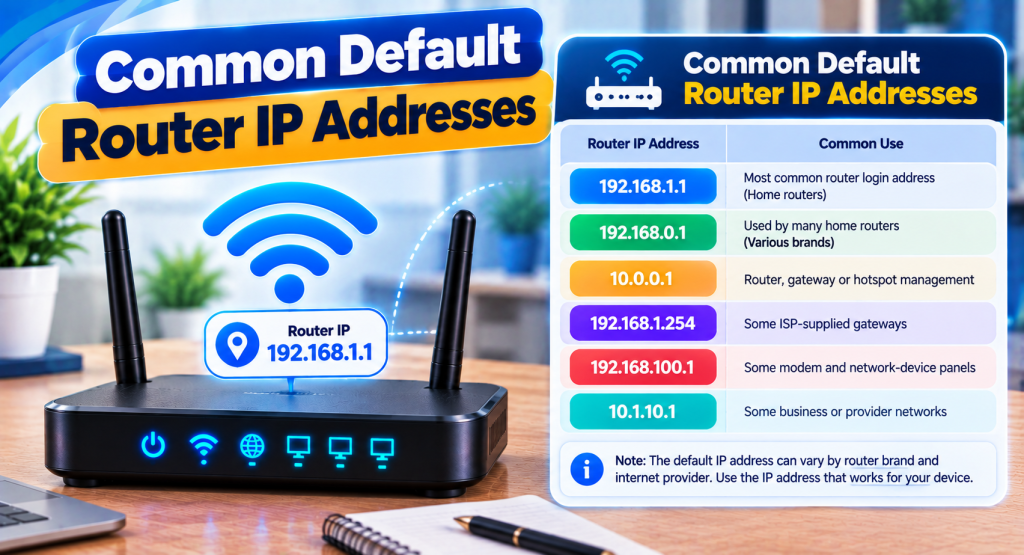
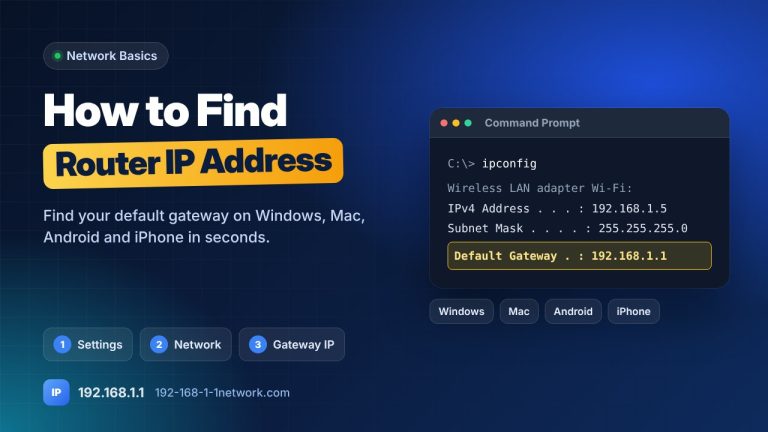
If 192.168.100.1 does not open, your device may use a different address such as 192.168.0.1 or 10.0.0.1. Check our list of default IP addresses or follow the steps to find router IP address.
192.168.100.1 Default Username and Password
The login depends on the device and on your internet provider:
- Cable modems: many SURFboard and similar modems show the status page without any login. Where a login is needed, older models often use admin with the password password, while newer firmware may use a password printed on the label or ask you to create one.
- Huawei fiber ONTs: the username and password are normally printed on the label on the back or bottom of the device. Many ISPs set their own login, so the label is the best source.
- ISP-branded devices: your internet provider sets the login. If it is not on the label, ask their support team.
Some providers lock advanced settings so only their technicians can change them. You can still view basic status information. For other brands, see our default router logins list.
How to Read Your Cable Modem Signal Levels
The Status or Connection page shows a table of downstream and upstream channels. These numbers tell you whether the cable line into your home is healthy. Exact limits vary by provider and modem, but these ranges are a useful guide:
| Reading | Generally Good | Possible Problem |
|---|---|---|
| Downstream power | About -7 to +7 dBmV | Below -15 or above +15 dBmV |
| Downstream SNR | About 33 dB or higher | Below 30 dB |
| Upstream power | About 35 to 51 dBmV | Above 51 dBmV or very low |
If your readings are far outside these ranges, or the event log shows many “T3 timeout” or “no ranging response” errors, the problem is usually the cable, splitter or provider line. Take a screenshot of the page and share it with your internet provider. It helps them find the fault faster.
How to Read Your Fiber ONT Status
On fiber ONTs, look for Optical Information or PON Status. The receive (RX) optical power shows how strong the light signal is. Many GPON devices work well with an RX power roughly between -8 and -27 dBm, and a value close to or below -27 dBm can cause drops. Also check the LOS light on the device. If it is red or blinking, the fiber signal is lost and you should contact your provider.
What Else Can You Do on 192.168.100.1?
- Restart the modem from the configuration page.
- View the event log to see when and why the connection dropped.
- Check the software version your provider has installed.
- Change WiFi settings on ONTs that have built-in WiFi. Our guide to change WiFi password covers the general steps.
- Factory reset the device from the settings page if your provider allows it.
Cable modems do not let you update firmware yourself. Your provider pushes updates automatically.
192.168.100.1 vs 192.168.1.1: Modem or Router?
Many homes have two devices: a modem or ONT that brings the internet in, and a router that creates the WiFi network. They usually have different addresses.
- 192.168.100.1 is common for the modem or ONT status page. Use it to check signal, connection status and logs.
- 192.168.1.1 or 192.168.0.1 is common for the router. Use it for WiFi, passwords and connected devices.
- If you have one combined gateway from your provider, such as an Xfinity gateway, there may be only one address, often 10.0.0.1.
So if you want to change WiFi settings, you need the router address, not 192.168.100.1. If that router page will not load, see our 192.168.1.1 not working guide.
How to Use 192.168.100.1 to Troubleshoot Slow Internet
The modem status page is one of the best tools for slow or dropping internet. Before you call your provider, check these points:
- Look at the downstream and upstream power and SNR values. Readings far outside the normal range point to a line or cable problem.
- Watch the uncorrectable codewords count. A number that keeps rising quickly often means signal noise.
- Open the event log and look for repeated T3 or T4 timeouts, which point to upstream problems.
- Check all coaxial connections, remove splitters you do not need, and restart the modem.
If your readings look normal but the internet is still slow, the problem may be WiFi rather than the line. Test with a computer connected to the router by cable. If the wired speed is fine, look at router placement, the WiFi channel and the number of connected devices.
Take a screenshot of the 192.168.100.1 status page when the problem happens. It gives your internet provider useful details and can speed up a support visit.
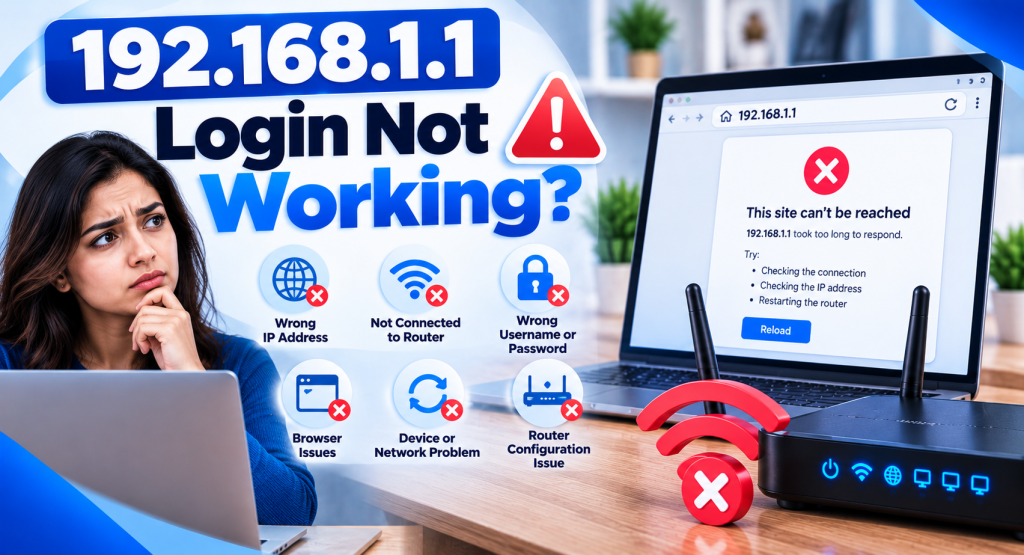
192.168.100.1 Not Opening? Try These Fixes
Connect Directly to the Modem
Plug your computer into the modem with an Ethernet cable. This removes the router from the picture and is the most reliable way to reach the modem page.
Set a Static IP for Fiber ONTs in Bridge Mode
Some ONTs in bridge mode do not hand out an address in the 192.168.100.x range. Set your computer to a static IP such as 192.168.100.10 with subnet mask 255.255.255.0, connect by cable, and try again. Remember to switch back to automatic (DHCP) afterwards.
Turn Off VPN and Proxy
A VPN sends your traffic out to the internet, so local addresses cannot be reached. Disconnect it before opening the page.
Check Your Router Settings
Some routers block access to the modem’s address range. If you can open the page with a direct cable but not through WiFi, the router is the cause.
Restart the Modem
Unplug the modem’s power cable, wait 30 seconds and plug it back in. Wait until the online or internet light is steady before trying again.
Reset the Device
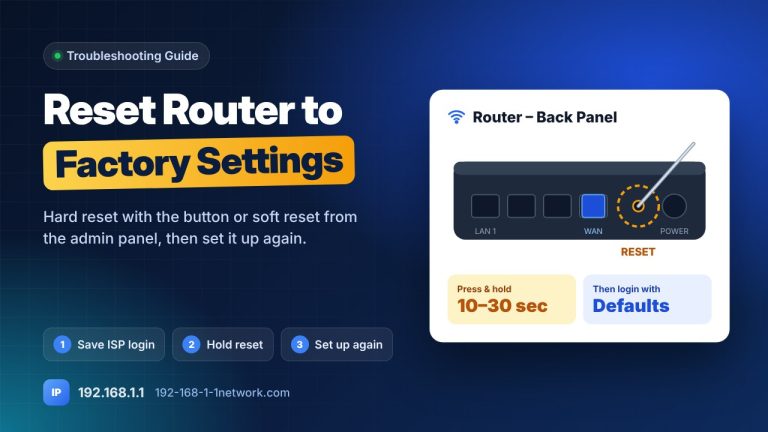
If you changed the login and forgot it, a factory reset restores the defaults. On cable modems, a reset is rarely needed and can take the modem offline until the provider re-registers it, so contact your provider first. For routers, see our guide on how to reset router to factory settings.
192.168.100.1 is a private address from the ranges listed in RFC 1918, so it only works from inside your home network. While you are working on your network, it is also smart to change router admin password details on your router and check who is connected to my WiFi.
Frequently Asked Questions
What is 192.168.100.1?
It is a private IP address used to open the status page of many cable modems and fiber ONTs. It shows connection details between your home and your internet provider.
Why can’t I log in to 192.168.100.1?
Your device may use a different address, you may be connected through a VPN, or your provider may have locked the page. Try a direct cable connection and check the label for login details.
Is 192.168.100.1 the same as my router?
Not always. If you have a separate modem and WiFi router, 192.168.100.1 usually opens the modem, while 192.168.1.1 or 192.168.0.1 opens the router.
Can I change WiFi settings at 192.168.100.1?
Only if the device has built-in WiFi, such as many fiber ONTs and gateway devices. Plain cable modems do not have WiFi settings.
Should I share my modem status page with my ISP?
Yes. Signal levels and the event log help support teams find line problems quickly, and they contain no passwords.
Does a 4G router use 192.168.100.1?
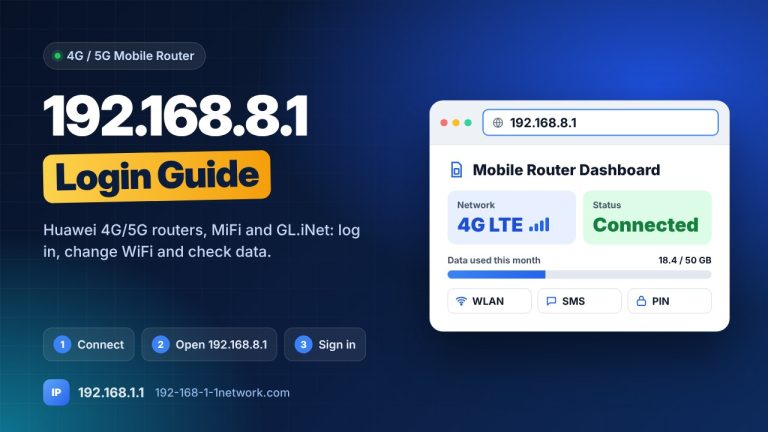
Usually not. Most 4G and 5G mobile routers use 192.168.8.1 for their admin page. 192.168.100.1 is mainly used by cable modems and some fiber ONTs.
Why does 192.168.100.1 not ask for a password?
Older cable modems often show the status page without a login because it only displays information. Many newer models ask for a password first. If yours does, check the label on the modem or your provider’s instructions.
2 Comments