How to Reset Router to Factory Settings (Step-by-Step)
If you forgot the router admin password, the internet keeps dropping, or you bought a used router, the fastest fix is often to reset router to factory settings. A factory reset erases everything you or your internet provider changed and puts the router back the way it left the factory.
That makes it a powerful fix, but also one you should not do by accident. This guide explains the difference between restarting and resetting, shows both reset methods, and walks you through what to do after the reset so you are back online quickly.
Restart vs Reset: Know the Difference
People often mix these two up, and they do very different things.
| Action | What It Does | Settings Kept? |
|---|---|---|
| Restart (reboot) | Turns the router off and on again | Yes, nothing is lost |
| Factory reset | Erases all custom settings and restores defaults | No, everything is wiped |
If your internet is just slow or a device will not connect, try a restart first. Unplug the router, wait 30 seconds, plug it back in and wait two to three minutes. Only move on to a factory reset when a restart does not help or you are locked out of the admin panel.
When Should You Reset Your Router?
A factory reset makes sense in these situations:
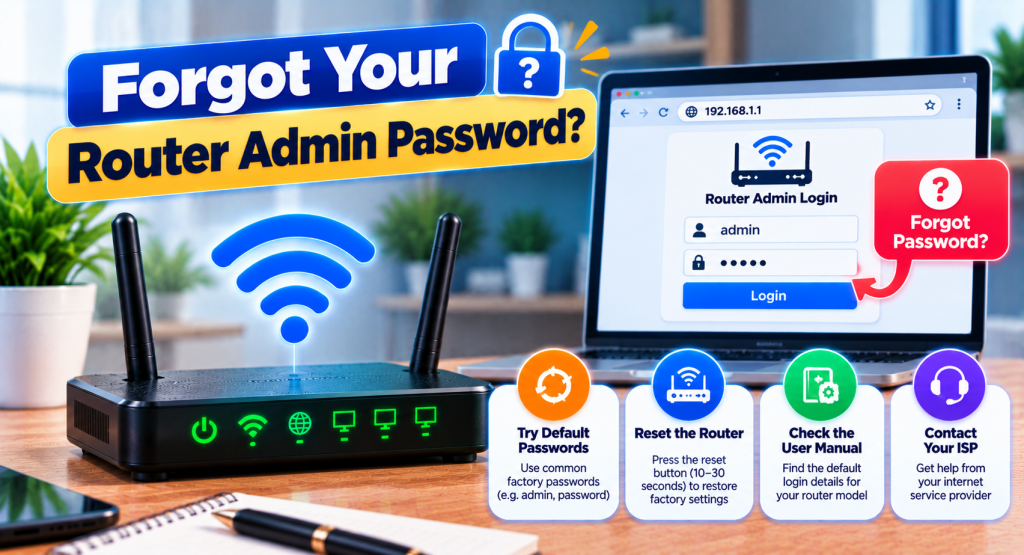
- You forgot the router admin password and cannot log in at 192.168.1.1 or your router’s IP address.
- Someone changed settings and you do not know what was changed.
- The router keeps freezing, dropping WiFi or ignoring new settings even after a restart.
- You bought or were given a used router and want to remove the previous owner’s settings.
- You are going to sell, return or recycle the router and want to clear your personal setup.
- Your internet provider’s support team asked you to do it.
Before You Reset: Save These Details
A reset deletes your internet login settings too. On many fiber and DSL connections the router needs a PPPoE username and password from your internet provider to get online. If you lose these, you will have no internet until the provider gives them to you again.
Before you press the reset button, try to note down:
- Your internet connection type (DHCP/dynamic IP, PPPoE or static IP).
- The PPPoE username and password, if your connection uses one. These are often in the welcome letter or email from your provider.
- Your current WiFi name and password, so you can reuse them and avoid reconnecting every device.
- Any port forwarding, DNS or parental control rules you set up.
If you can still log in to the admin panel, look for a Backup or Save Settings option. Many routers can export a settings file that you can restore later.
Method 1: Reset Router with the Reset Button (Hard Reset)
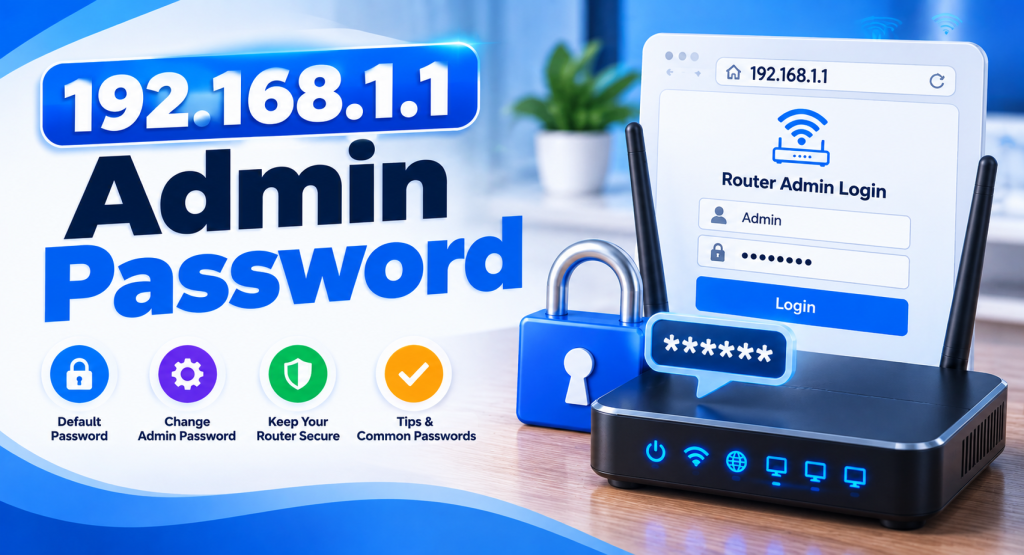
This method works even when you cannot log in to the router. It is the standard way to reset a router when the admin password is lost.
Step 1: Find the Reset Button
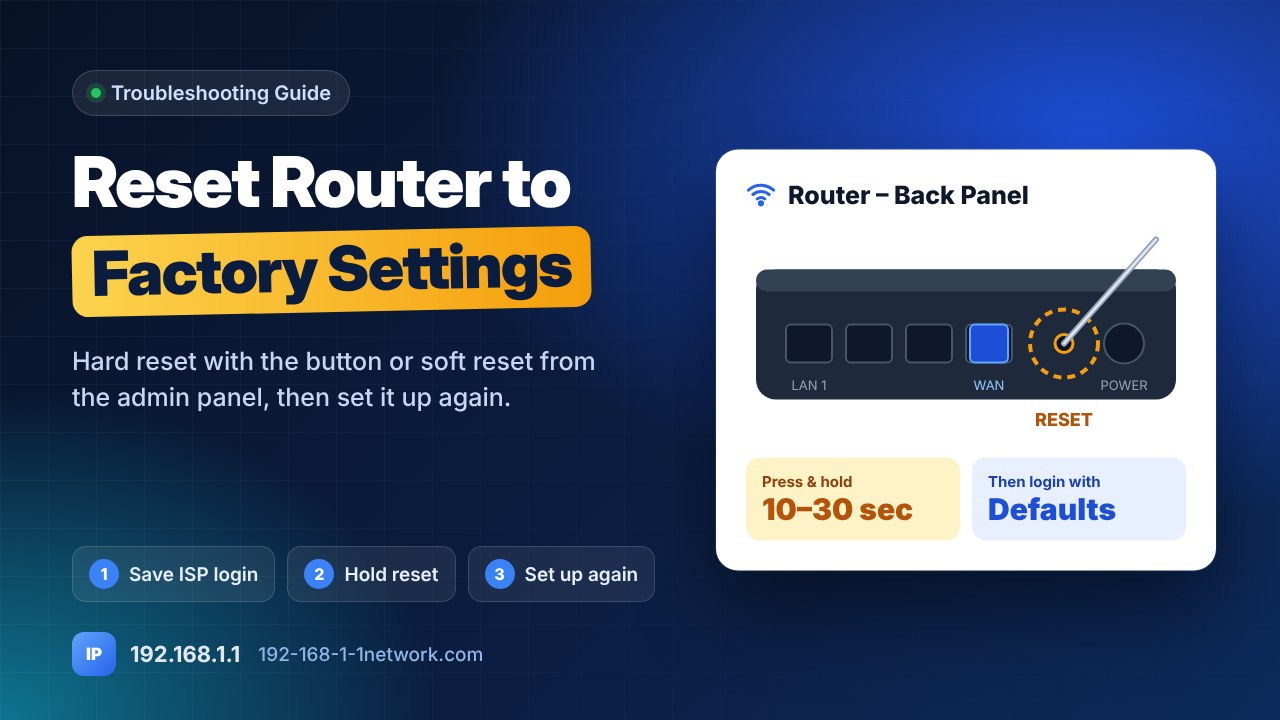
Look on the back or bottom of the router for a small hole or button labeled Reset or RST. Some routers combine it with the WPS button. On most models the button sits inside a pinhole so it cannot be pressed by accident.
Step 2: Keep the Router Powered On
The router must be switched on for the reset to work. Wait until the power light is steady before you start.
Step 3: Press and Hold the Button
Use a straightened paperclip or SIM ejector pin to press and hold the reset button for about 10 seconds. Some models need 5 seconds and a few need up to 30 seconds. Keep holding until the lights on the front flash or all turn off and on again.
Step 4: Let the Router Restart
Release the button and leave the router alone for two to five minutes. Do not unplug it during this time. When the power and internet lights settle, the reset is complete.
What About the 30-30-30 Reset?
You may see advice to hold the button for 30 seconds, unplug the router for 30 seconds while still holding it, then plug it back in and hold for another 30 seconds. This 30-30-30 method was popular for older routers and custom firmware. Modern routers do not need it, and a normal 10 to 30 second hold is enough in almost every case. Check your router’s manual if a normal reset does not work.
Method 2: Reset Router from the Admin Panel (Soft Reset)
If you can still log in, resetting from the settings page is easier and does not need a pin. Open your browser, go to the router login page and sign in, then look for the factory reset option. Common locations are:
| Brand | Where to Find Factory Reset |
|---|---|
| TP-Link | System Tools > Factory Defaults, or Advanced > System > Backup & Restore |
| Netgear | Advanced > Administration > Backup Settings > Erase |
| ASUS | Administration > Restore/Save/Upload Setting > Factory default |
| Linksys | Configuration (or Troubleshooting) > Factory Reset |
| D-Link | Management > System, or Tools > System > Restore to Factory Default |
Menu names change between firmware versions, so if you do not see these exact labels, look under System, Administration, Maintenance or Tools. Confirm the reset when asked and wait for the router to reboot.
For mesh systems such as Deco, eero, Google Nest WiFi or Orbi, you can usually reset from the brand’s app as well as with the button on each unit.
What Happens After a Factory Reset?
Once the router restarts, it behaves like a brand new device:
- The WiFi name and password go back to the ones printed on the router label.
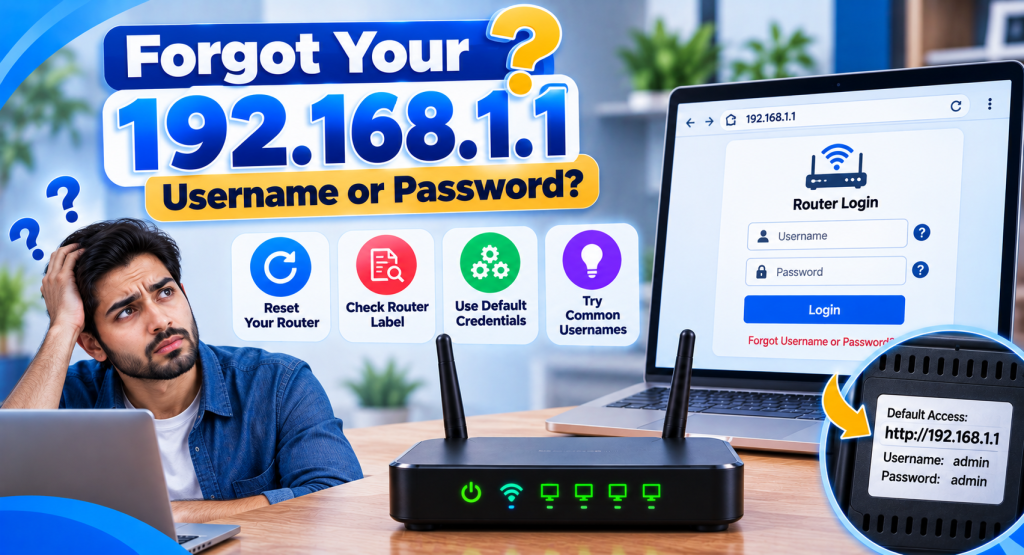
- The admin username and password return to the defaults. See our list of default router logins if the label is missing.
- The router IP goes back to its default, usually 192.168.1.1 or 192.168.0.1. Our default IP address page lists the common ones.
- Internet login details, port forwarding, DNS and parental controls are erased.
- Firmware is not rolled back. A reset only clears settings, not updates.
How to Set Up Your Router Again
Follow these steps to get back online after the reset:
- Connect your phone or computer to the default WiFi name on the router label, or use an Ethernet cable.
- Open a browser and go to the default IP address, such as 192.168.1.1 or 192.168.0.1.
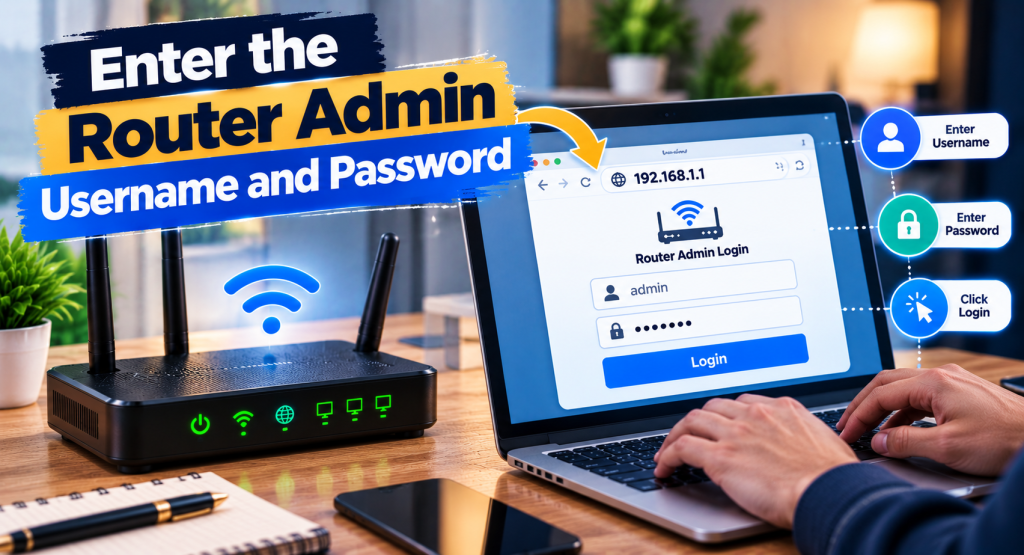
- Log in with the default admin username and password from the label.
- Run the setup wizard if one appears, and choose your connection type. Enter the PPPoE username and password if your provider uses them.
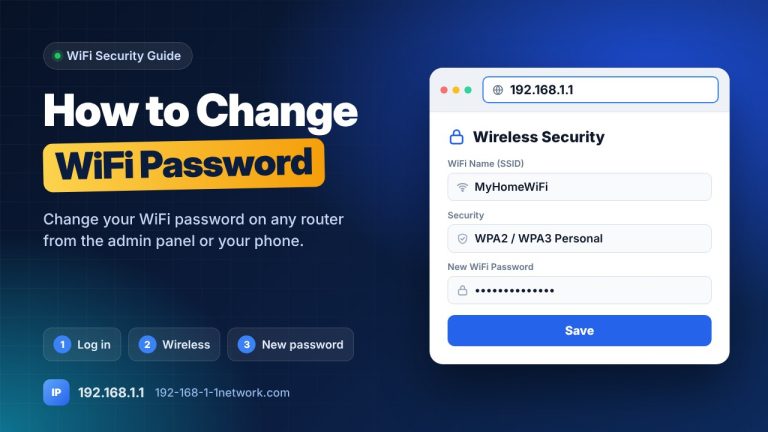
- Set a new WiFi name and a strong password. Our guide on how to change WiFi password covers this in detail.
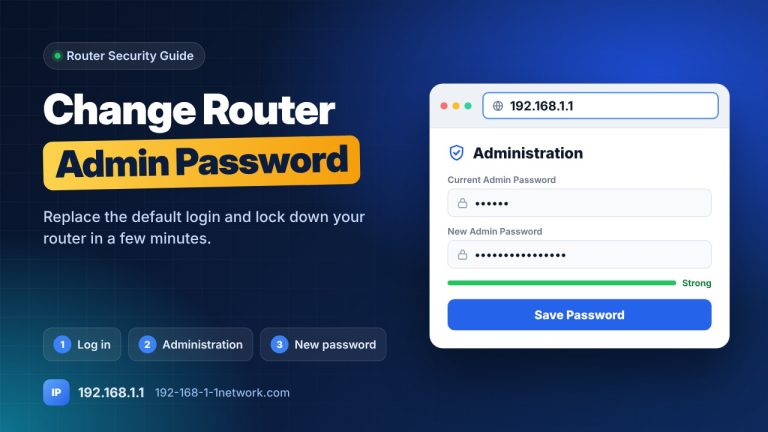
- Change the router admin password so nobody can use the default login.
- Check for a firmware update and install it if one is available.
If you used the same WiFi name and password as before, most of your devices will reconnect on their own.
Secure Your Router After a Factory Reset
A factory reset brings back the default WiFi name, WiFi password and admin login, which anyone with access to the router label can read. Right after you reset router settings, take these steps:
- Change router admin password details first, so nobody else can open the settings.
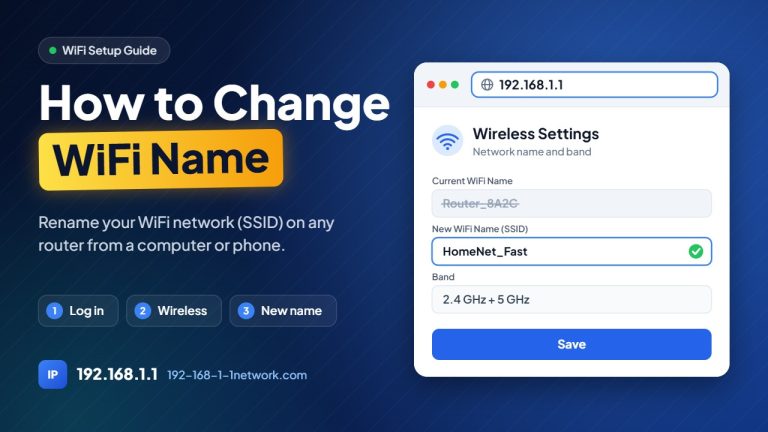
- Set a new network name. Our guide shows how to change WiFi name (SSID) on any router.
- Choose a strong new WiFi password. See how to change WiFi password step by step.
- After a few days, check who is connected to my WiFi to make sure only your devices are online.
Brands handle the reset a little differently. For example, NETGEAR’s factory reset guide says most models need the reset button held for about seven seconds, while some models need at least 10 seconds.
Reset Not Working? Common Problems
The Lights Do Not Flash
You may not be pressing the button fully, or you may be holding it for too short a time. Make sure the router is powered on, then hold the button for a full 30 seconds.
The Old Password Still Works
The reset did not complete. Some routers will not reset if the button is released too early or the router is unplugged during the reboot. Try again and wait at least five minutes before unplugging.
No Internet After the Reset
This usually means the router needs your provider’s login details again. Enter the PPPoE username and password, or call your internet provider and ask them to send the settings. Some providers need to re-register the router on their side.
The Default Login Does Not Work
The router may use a unique password printed on its label instead of admin/admin. If the label is unreadable, check the manual on the manufacturer’s website or our router brands page.
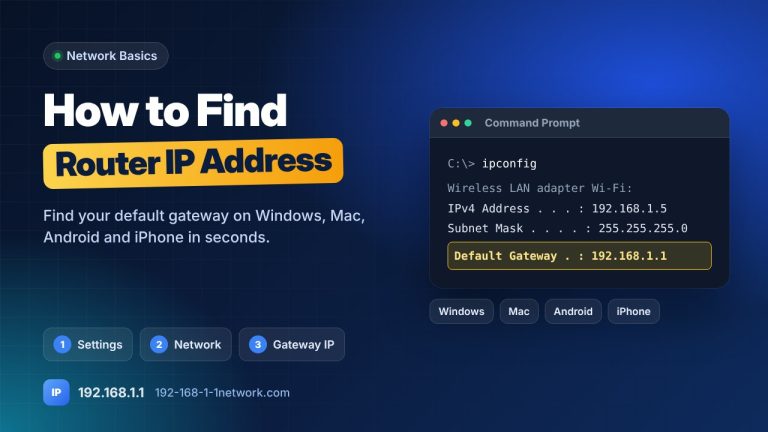
If the login page does not open at all after you reset your router, confirm the address with our guide to find router IP address details, or follow our 192.168.1.1 not working fixes. Mobile routers often use 192.168.8.1 after a factory reset.
Frequently Asked Questions
Will resetting my router delete my internet?
It deletes your internet settings, not your internet plan. If your connection uses a PPPoE login, you will need to enter those details again before the internet works.
How long should I hold the reset button?
About 10 seconds works for most routers. If nothing happens, hold it for up to 30 seconds while the router is powered on.
Does a factory reset make my router faster?
It can fix slowdowns caused by wrong settings or a stuck system, but it will not increase the speed of your internet plan.
Is it safe to reset an ISP router?
Yes, but the router may need your provider’s settings again afterwards. Some providers also push settings automatically after a reset. If you are unsure, contact them before you reset.
Can I reset a router without the reset button?
Yes, if you can still log in. Use the factory reset option inside the admin panel or the router’s mobile app.
Should I reset router settings to fix slow internet?
Usually not as a first step. A simple restart fixes most slowdowns. Only use a factory reset if the router keeps crashing, the settings are broken or you forgot the admin password, because you will need to set everything up again.
5 Comments