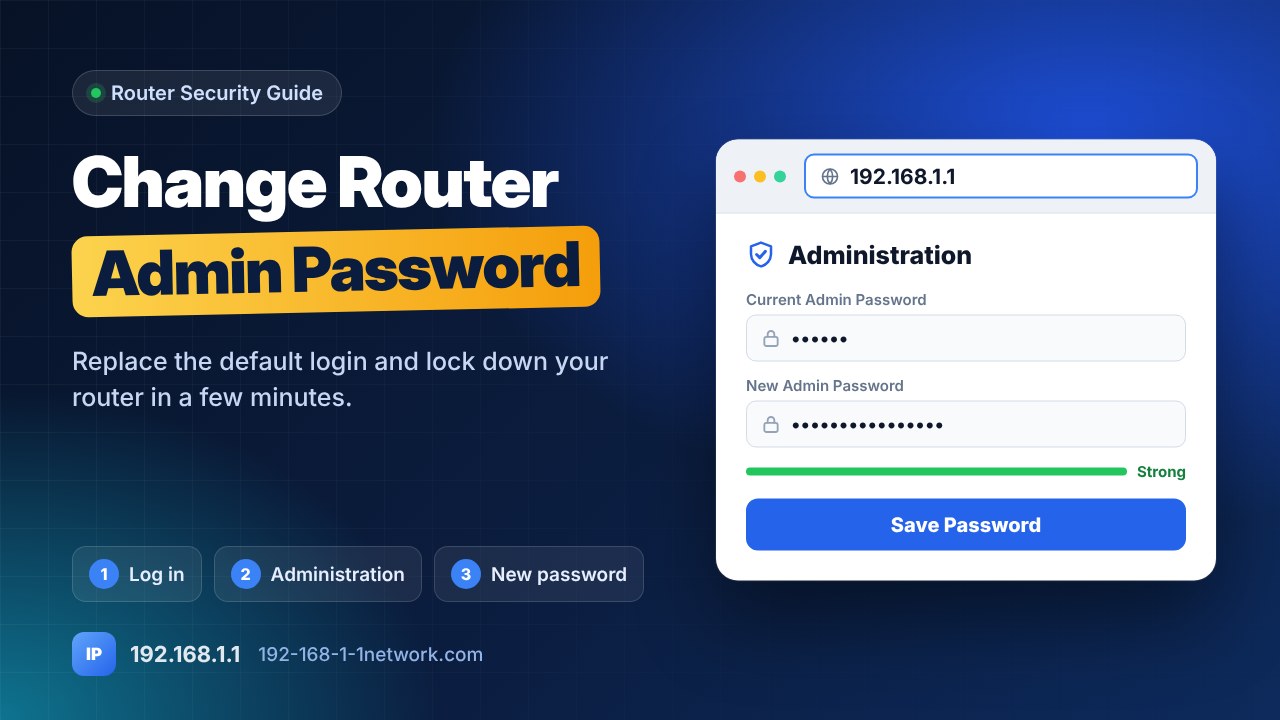
How to Change Router Admin Password and Secure Your Router
Your router has two different passwords. The WiFi password lets devices join your network, and the router admin password lets someone open the settings page and change everything, from the WiFi password to the internet settings. Many people change the first one and forget the second.
If your router still uses a default login such as admin/admin, anyone connected to your WiFi could log in and take control. This guide shows how to change router admin password on popular brands and which other settings to check while you are there.
WiFi Password vs Router Admin Password
| WiFi Password | Router Admin Password | |
|---|---|---|
| What it protects | Access to your wireless network | Access to the router settings page |
| Who needs it | Everyone who uses your WiFi | Only you |
| Where it is used | When a device joins the WiFi | At the login page, such as 192.168.1.1 |
| Should they match? | No | No |
Never use the same password for both. Guests need your WiFi password, but nobody else should know the admin password.
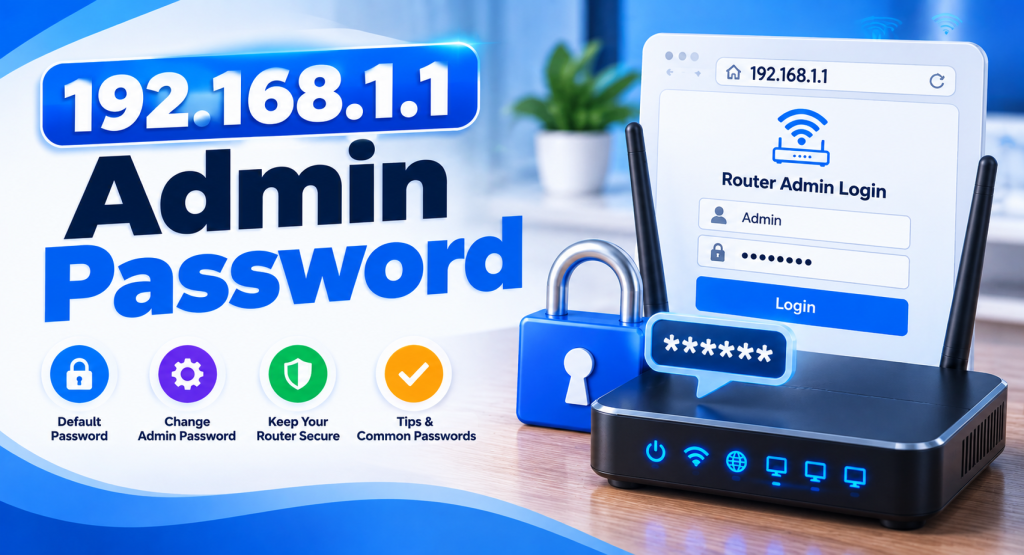
How to Change Router Admin Password (General Steps)
- Connect to your router by WiFi or Ethernet cable.
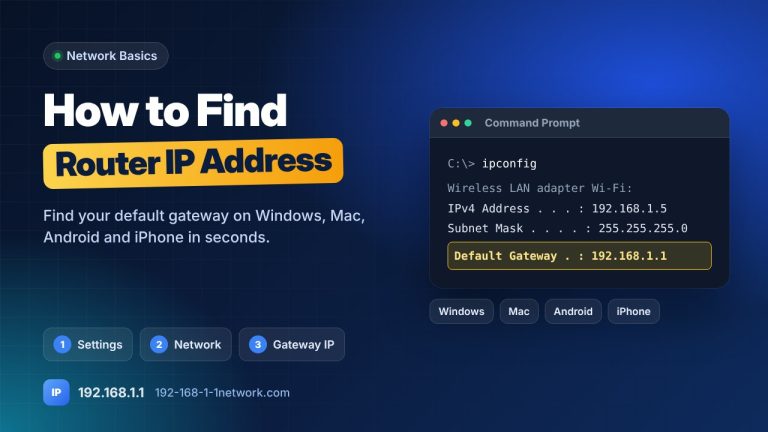
- Open a browser and go to your router address, such as 192.168.1.1 or 192.168.0.1.
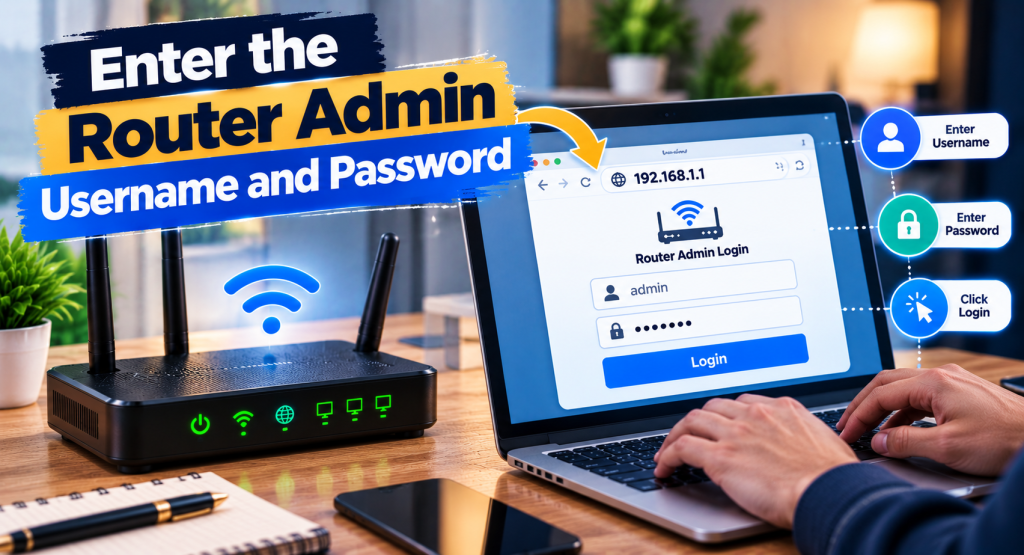
- Log in with your current admin username and password.
- Open the Administration, Management, System or Security section.
- Find the option called Router Password, Admin Password or Account.
- Enter the current password, then type the new password twice.
- Click Save or Apply. The router will log you out.
- Log in again with the new password to confirm it works.
If you are not sure of the router address, use our guide to find router IP address. If you never changed the login, the defaults are usually on the router label or in our default logins list.
Brand-by-Brand Steps
Menu names change between firmware versions, but these paths cover most current models:
| Brand | Where to Change the Admin Password |
|---|---|
| TP-Link | Advanced > System > Administration (older models: System Tools > Password) |
| Netgear | Advanced > Administration > Set Password |
| ASUS | Administration > System > Router Login Name and Password |
| Linksys | Connectivity > Basic > Router Password |
| D-Link | Management > Admin (older models: Tools > Admin) |
| Huawei | System > Modify Password, or Account Management |
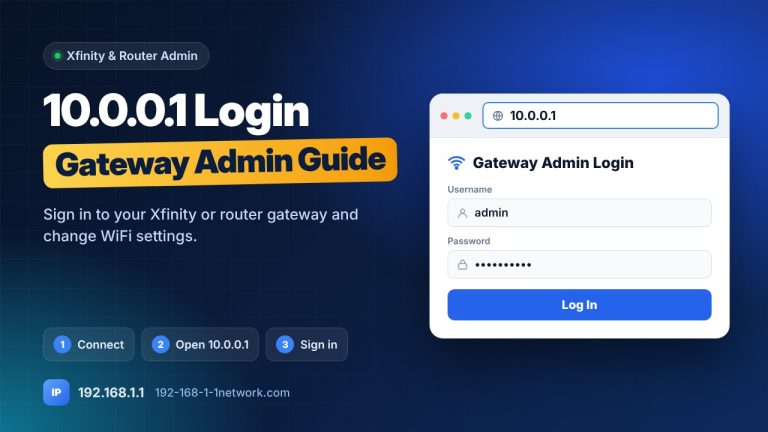
| Xfinity | Change Password in the admin tool at 10.0.0.1 |
For mesh systems such as Deco, eero, Orbi or Google Nest WiFi, the admin account is usually tied to your app login. Secure it with a strong password on that account and turn on two-step verification if the app offers it.
ASUS and a few other brands also let you change the admin username. Changing it from “admin” to something unique makes it harder for anyone to guess the login.
How to Choose a Strong Admin Password
- Use at least 12 characters.
- Mix uppercase and lowercase letters, numbers and symbols, or use a passphrase of four or more random words.
- Do not use your name, phone number, address or WiFi name.
- Do not reuse a password from your email or social media accounts.
- Store it in a password manager or write it down and keep it somewhere safe at home.
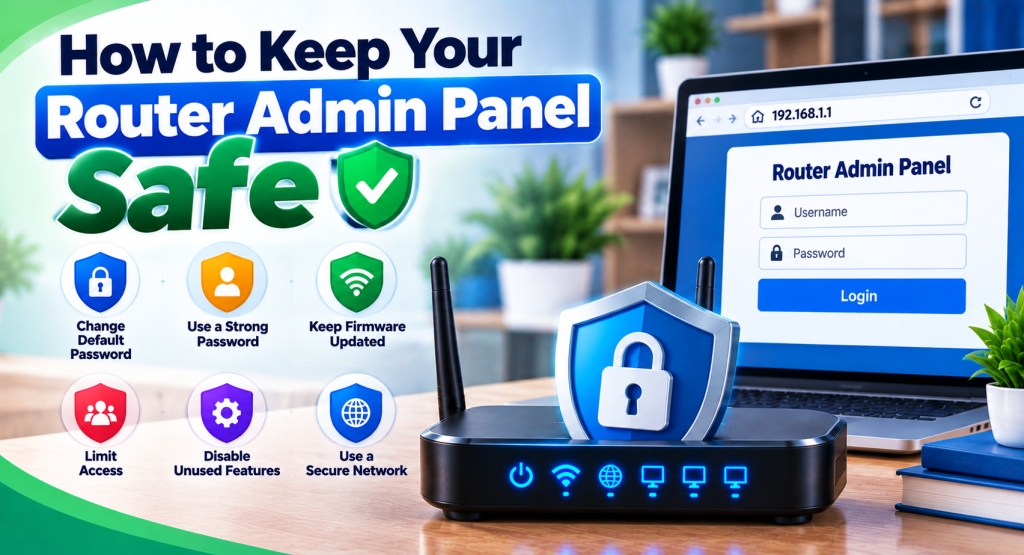
7 More Settings to Secure Your Router
While you are logged in, take a few minutes to check these settings as well.
1. Update the Firmware
Firmware updates fix security holes. Look for Firmware Update under System or Administration, or turn on automatic updates if your router supports them.
2. Use WPA2 or WPA3 Security
In the wireless settings, choose WPA3 or WPA2-PSK (AES). Avoid WEP, WPA (TKIP) and open networks. The Wi-Fi Alliance explains the differences between these security types.
3. Set a Strong WiFi Password
A weak WiFi password lets people join your network and reach the login page. Follow our guide to change WiFi password if yours is short or still the default.
4. Turn Off Remote Management
Remote management lets someone open your router settings from the internet. Unless you need it, turn it off. It is often found under Administration, Remote Access or Web Access.
5. Disable WPS
WPS PIN pairing has known weaknesses. Turn it off in the wireless settings and connect devices with the WiFi password instead.
6. Create a Guest Network
Give visitors and smart home devices their own guest network. This keeps them separate from your computers and phones.
7. Review Connected Devices
Check the device list for anything you do not recognize. Our guide on who is connected to my WiFi shows how to identify and block unknown devices.
How to Change Router Admin Password from Your Phone
You do not need a computer to change router admin password settings. There are two simple ways to do it from a phone:
- Router app: brands such as TP-Link (Tether), NETGEAR (Nighthawk) and ASUS (ASUS Router) offer apps. On some models the app uses your cloud account instead of a separate admin password, so the option may sit under account or system settings.
- Phone browser: connect to the WiFi, open Chrome or Safari and enter the router address, such as 192.168.1.1, 192.168.0.1 or 192.168.8.1. Then follow the same steps as on a computer.
If the phone shows the desktop layout, zoom in or turn the screen sideways to reach the system or administration menu.
What to Do After You Change the Admin Password
- Save the new admin password in a password manager, or write it down and keep it somewhere safe at home.
- Log out of the admin panel and sign in again to confirm the new admin password works.
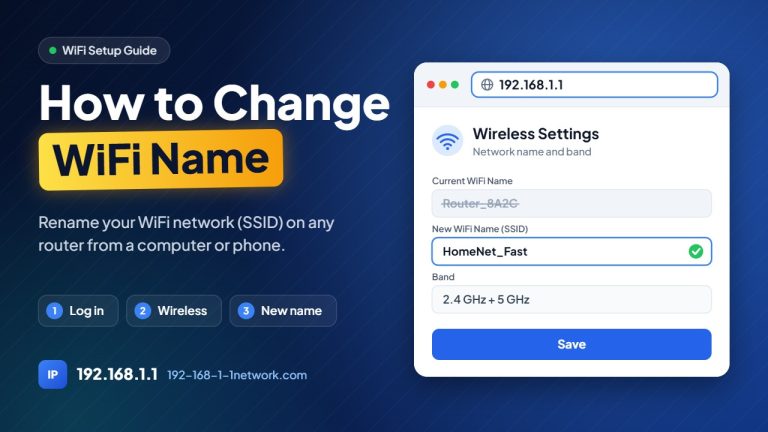
- Update the WiFi details too. See how to change WiFi password settings and change WiFi name details if your network still uses the defaults.
- Check who is connected to my WiFi and remove any device you do not recognise.
It is also a good idea to note the date. Changing the router admin password once or twice a year, or whenever someone who knew it moves out, keeps your settings private.
Signs Your Router Admin Password Was Changed by Someone Else
If someone else knows your router admin password, they can change settings without you noticing. Watch for these signs:
- Your saved admin password suddenly stops working.
- The WiFi name or WiFi password changed without your knowledge.
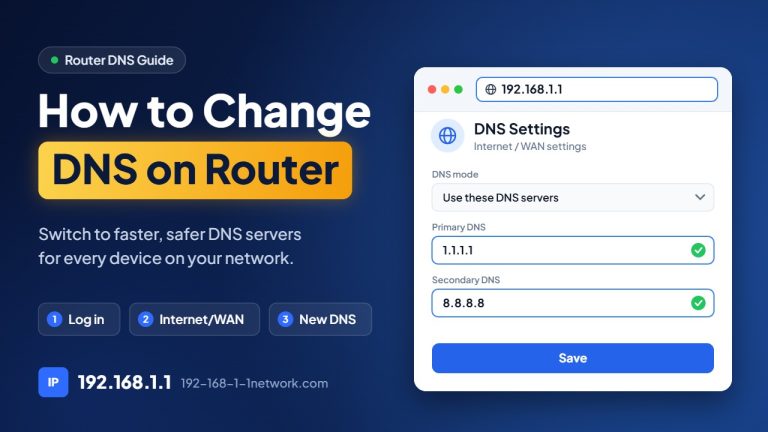
- The DNS settings point to servers you did not choose.
- Unknown devices or new port forwarding rules appear.
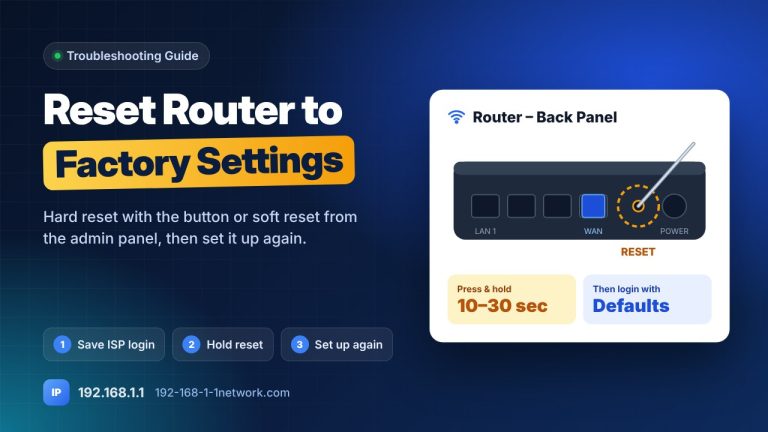
If you see any of these, reset router to factory settings, update the firmware and set a new admin password before you reconnect your devices.
Forgot Your New Router Admin Password?
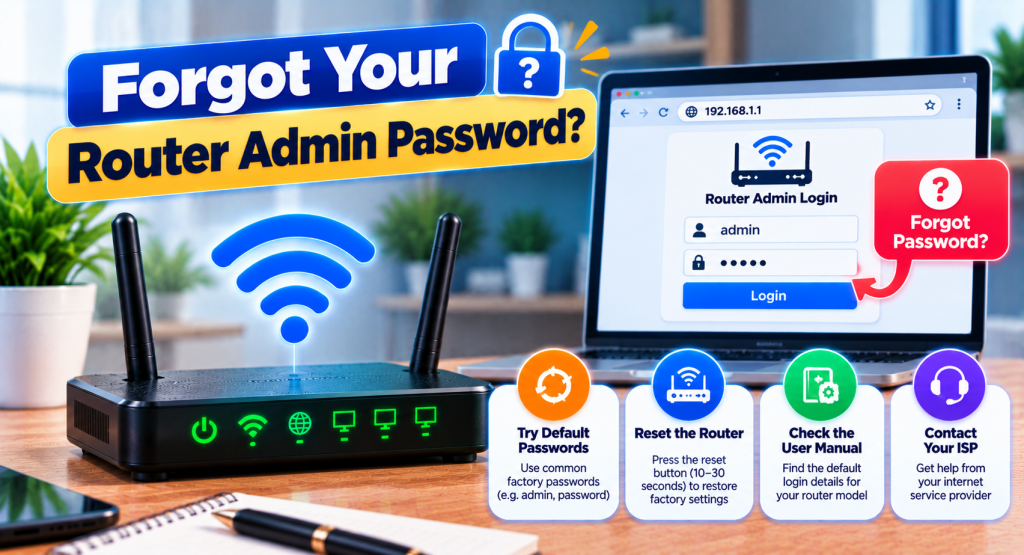
If you change the admin password and then forget it, there is no way to view it from another device. You will need to reset the router to factory settings, which restores the default admin login and WiFi password but erases your other settings. Follow our guide on how to reset router to factory settings, then log in with the default details and set a new password you will remember.
Common Problems When Changing the Admin Password
The Save Button Does Nothing
Some routers need the current password before they accept a new one. Make sure you filled in every field. If the page still does not save, try another browser or clear the browser cache.
The Router Logged Me Out
This is normal. The router signs you out after the password changes. Log in again with the new password.
The New Password Is Not Accepted
Some routers limit the length or the symbols you can use. Try a password with only letters and numbers, or check the rules shown on the page.
I Cannot Find the Password Setting
Look in the Administration, System, Management, Maintenance or Tools menus. On ISP routers, some settings may be locked by the provider. Contact them if you cannot find the option.
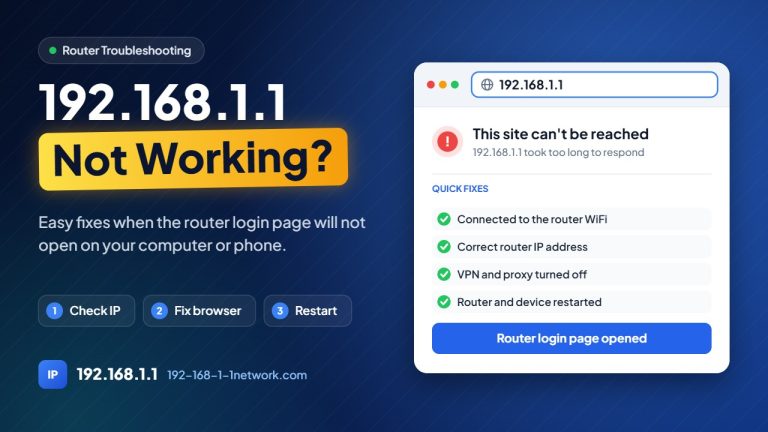
If the router login page itself does not open, follow our 192.168.1.1 not working fixes first.
Frequently Asked Questions
Is the router admin password the same as the WiFi password?
No. The WiFi password connects devices to your network, while the admin password opens the router settings page.
Will changing the admin password disconnect my devices?
No. Changing the admin password does not affect your WiFi connection. Only changing the WiFi password disconnects devices.
How often should I change my router admin password?
Change it as soon as you set up a new router, and again if you think someone else may know it. A strong, unique password does not need to be changed often.
What happens if I never change the default password?
Anyone on your network who knows the default login for your router model could change your settings, lock you out or redirect your internet traffic.
Can I change the router admin password from my phone?
Yes. Connect your phone to the WiFi, open the router address in a browser or use the router’s app, and follow the same steps.
Can I change router admin password without the old password?
Usually not. Most routers ask for the current admin password before you can set a new one. If you no longer know it, a factory reset restores the default login printed on the router label, and you can then choose a new admin password.
5 Comments