192.168.2.1 Login – Bell, Speedport and Belkin Router Admin Guide
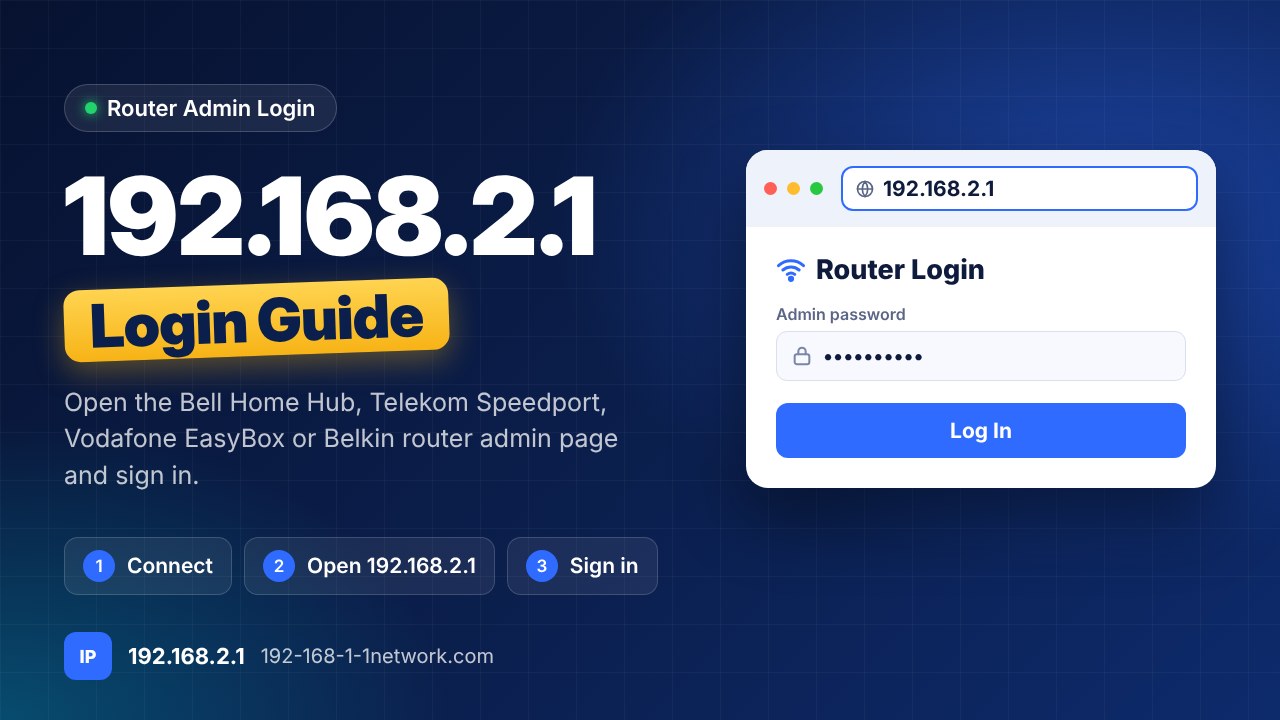
192.168.2.1 login opens the admin page of routers that use 192.168.2.1 as their default gateway. Bell Home Hub and Giga Hub modems in Canada, Telekom Speedport routers in Germany, Vodafone EasyBox routers and many Belkin and Edimax routers use this address. Once you are in, you can change your WiFi name and password, see connected devices and update other settings.
If you expected 192.168.1.1 or 192.168.0.1, there is nothing wrong. 192.168.2.1 does the same job on a different network range. This guide shows how to log in, which routers use it, the default login for each brand and how to fix the page when it will not open.
Quick Steps for 192.168.2.1 Login
- Connect your device to the router by WiFi or Ethernet cable.
- Open a browser and type 192.168.2.1 in the address bar to reach the 192.168.2.1 login page.
- If the IP does not open, try your brand’s web name, such as bell.ca/mymodem, speedport.ip, easy.box or http://router.
- Enter the admin or device password from the router label.
- Change the settings you need and click Save.
What Is 192.168.2.1?
192.168.2.1 is a private IPv4 address from the 192.168.0.0/16 block reserved for local networks in RFC 1918. You can only reach the 192.168.2.1 login page from a device that is connected to your own router.
The third number (2) sets the network range. A router on 192.168.2.1 gives your devices addresses such as 192.168.2.100 and 192.168.2.101. Some brands choose this range on purpose so the router does not clash with a modem that already uses 192.168.1.1 or 192.168.0.1.
Before you try 192.168.2.1 login, check the default gateway on your device to confirm that your router really uses this address. Our guide to find router IP address shows how on every major device.
Which Routers Use 192.168.2.1?
| Brand / ISP | Common models | Web name that also works |
|---|---|---|
| Bell (Canada) | Home Hub 2000, 3000, 4000, Giga Hub | bell.ca/mymodem |
| Telekom (Germany) | Speedport routers | speedport.ip |
| Vodafone (Germany) | EasyBox routers | easy.box |
| Belkin | Many home routers | http://router |
| Edimax | Many older routers | – |
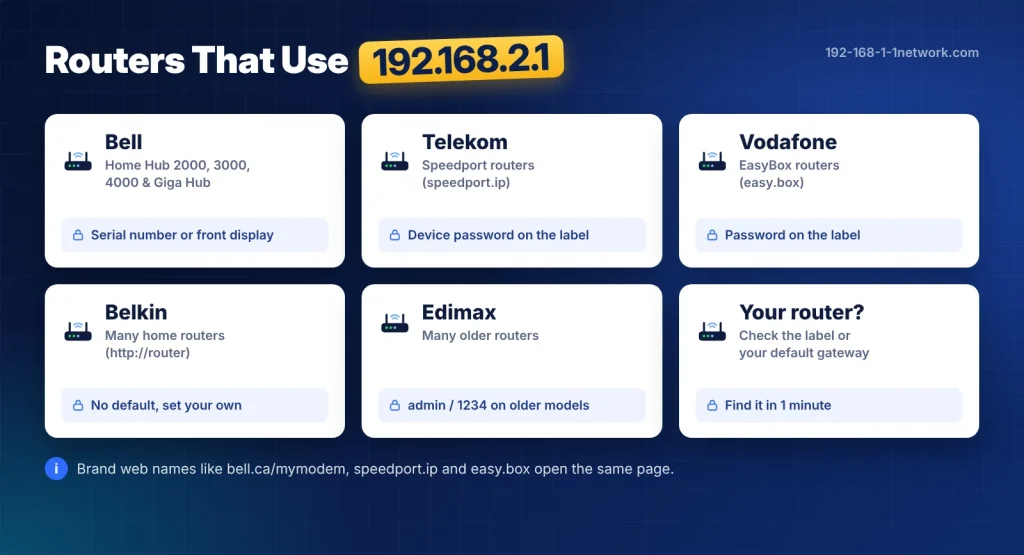
If your router is not here, look at the label on the bottom or back, or check our router brands page. Other routers may use 192.168.1.254, 10.0.0.1 or another address from our default IP address list.
How to Log In to 192.168.2.1 (Step-by-Step)
Step 1: Connect to Your Router
Join the router’s WiFi network or connect a computer to a LAN port with an Ethernet cable. Turn off mobile data and any VPN, because both can send the request away from your home network.
Step 2: Open 192.168.2.1 or the Brand Web Name
Type 192.168.2.1 in the browser address bar and press Enter. Bell customers can also use bell.ca/mymodem, Speedport owners can use speedport.ip, EasyBox owners can use easy.box and Belkin owners can try http://router. These names open the same admin page.
Step 3: Enter the Admin Password
The 192.168.2.1 login screen asks for the router’s admin or device password. Most ISP routers on 192.168.2.1 do not need a username. Use the password from the label or from the table below. Type it carefully, as it is case-sensitive.
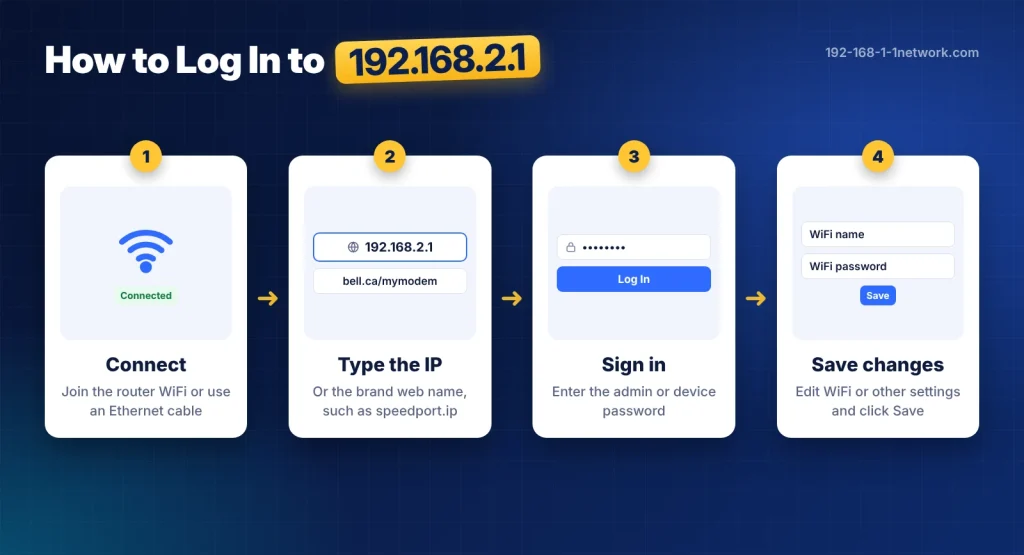
Step 4: Change Your Settings
The dashboard groups settings into sections such as WiFi, network and security. Open the section you need and make your change.
Step 5: Save and Reconnect
Click Save or Apply. If you changed the WiFi name or password, your devices disconnect and you need to join the network again with the new details.
192.168.2.1 Login for Popular Brands
Bell Home Hub and Giga Hub
Open 192.168.2.1 or bell.ca/mymodem while connected to the Bell modem. On the Home Hub 2000 and 3000, the admin password is the serial number on the sticker on the back. On the Home Hub 4000 and Giga Hub, use the arrow buttons on the front panel to select Modem Management and press OK to see it. You can switch the login page between English and French.
Telekom Speedport
Type speedport.ip or 192.168.2.1 in your browser. Enter the device password (Gerätepasswort) printed on the router label. It is a different password from the WiFi key on the same label.
Vodafone EasyBox
Open easy.box or 192.168.2.1 and sign in with the password on the router label. If it has been changed and lost, reset the EasyBox to bring back the label password.
Belkin
Open 192.168.2.1 or http://router. Belkin routers do not have a default admin password, so leave the password field blank on a new router, or use the password you created during setup.
Edimax
Many older Edimax routers open at 192.168.2.1 with username admin and password 1234. Newer models print their login details on the label.
192.168.2.1 Admin Username and Password
There is no single default 192.168.2.1 login. It depends on the router:
| Router | Username | Admin password |
|---|---|---|
| Bell Home Hub 2000 / 3000 | Not needed | Serial number on the sticker on the back |
| Bell Home Hub 4000 / Giga Hub | Not needed | Shown on the front display under Modem Management |
| Bell Home Hub 1000 | Not needed | admin |
| Telekom Speedport | Not needed | Device password on the router label |
| Vodafone EasyBox | Not needed | Password on the router label |
| Belkin | Blank | No default password. You set one during setup |
| Edimax (older models) | admin | 1234 |
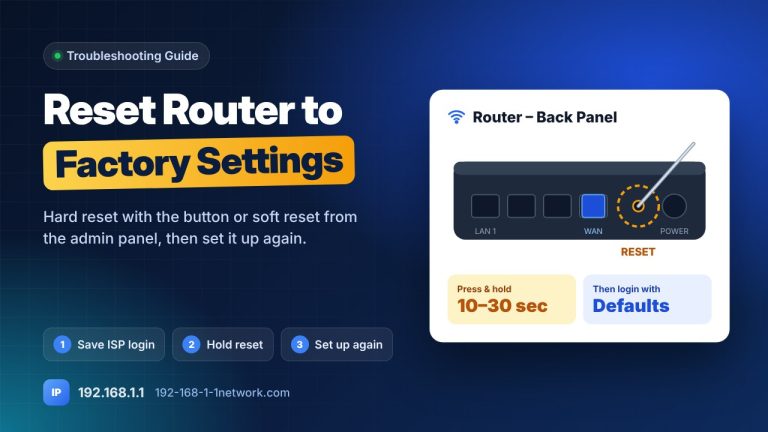
If the default 192.168.2.1 login password is rejected, it was probably changed during setup. After you log in, change router admin password to something only you know. If nobody remembers it, a factory reset brings back the default login. Follow our steps to reset router to factory settings, and see the default logins page for more help.
What You Can Do After 192.168.2.1 Login
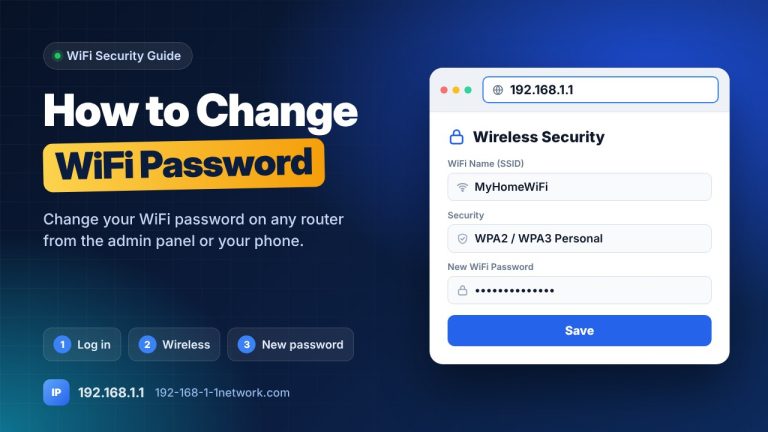
- Change WiFi password to keep unwanted users off your network.
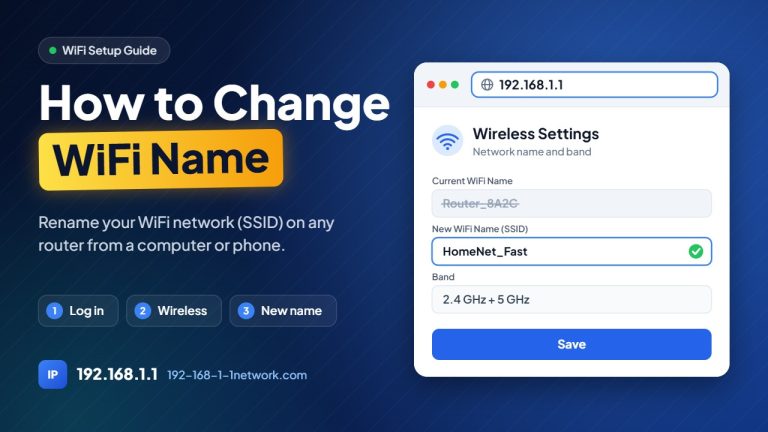
- Change WiFi name to make your network easy to find.
- See who is connected to my WiFi and block unknown devices.
- Change DNS on router for faster and safer browsing.
- Set up a guest network, parental controls or port forwarding.
- Follow our tips to boost WiFi signal in rooms with poor coverage.
192.168.2.1 vs 192.168.1.1 vs 192.168.0.1
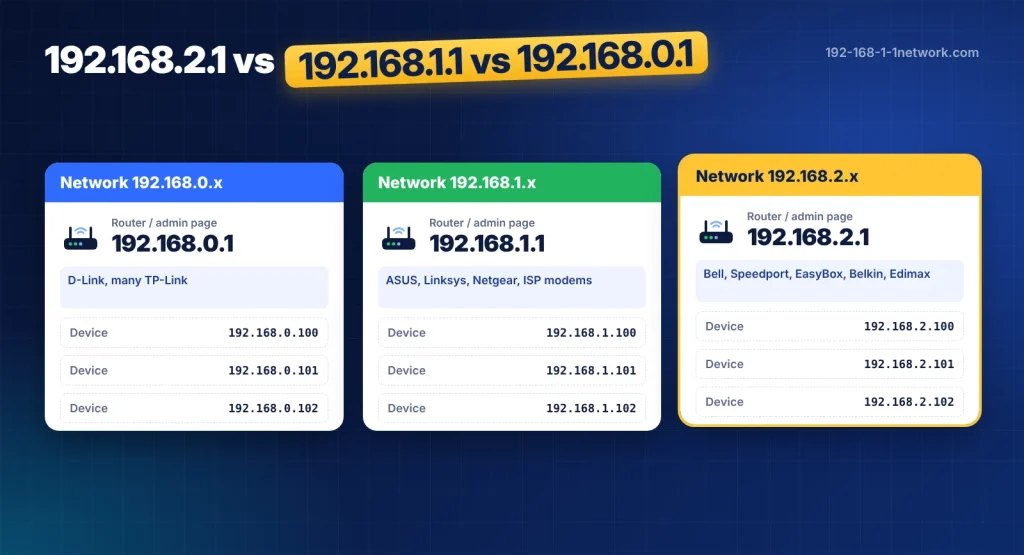
| Router IP | Network range | Commonly used by |
|---|---|---|
| 192.168.1.1 | 192.168.1.x | Many ASUS, Linksys and Netgear routers and ISP modems |
| 192.168.0.1 | 192.168.0.x | D-Link and many TP-Link routers |
| 192.168.2.1 | 192.168.2.x | Bell, Telekom Speedport, Vodafone EasyBox, Belkin and Edimax |
All three do the same job. What matters is which one your router uses. If you have a Belkin or Edimax router connected to an ISP modem, you may have two admin pages: one for the modem (often 192.168.1.1, 192.168.0.1 or 192.168.100.1) and one for the router on 192.168.2.1.
192.168.2.1 Login Not Working? Common Fixes
The Page Does Not Load
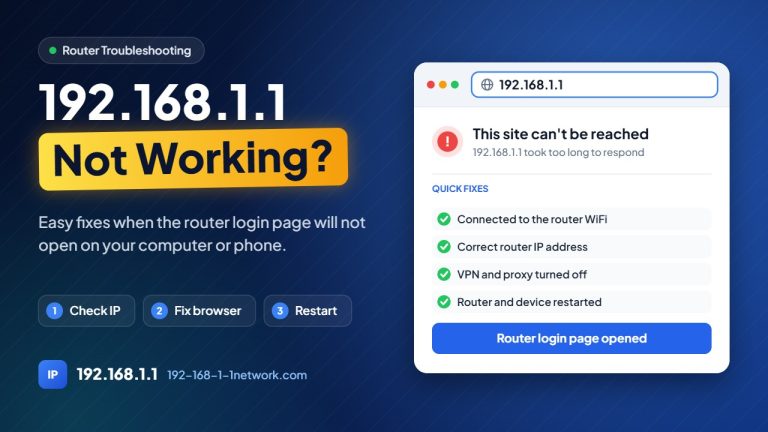
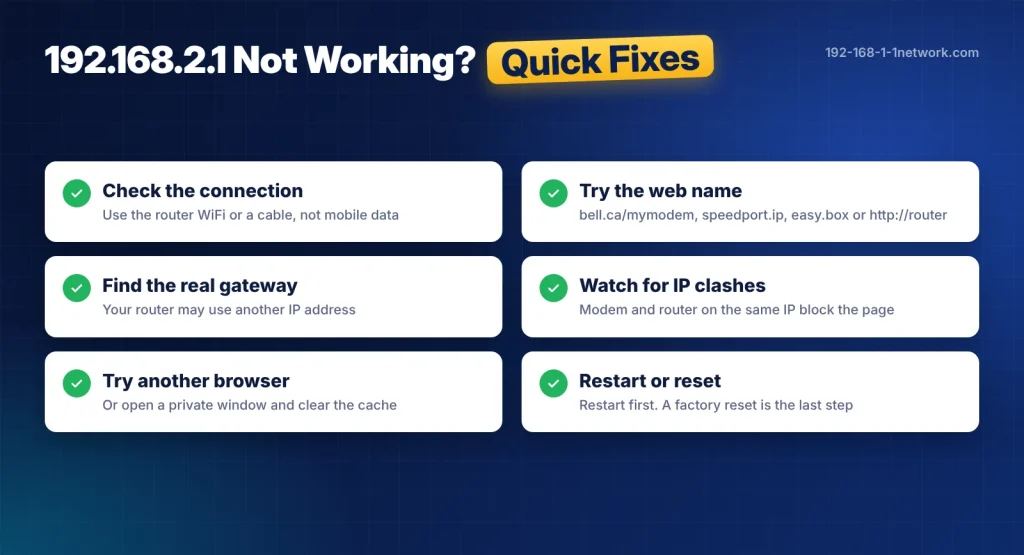
- Check that you are connected to the router’s own WiFi or cable.
- Turn off VPN and proxy apps.
- Open the page in another browser or a private window.
- Restart the router and your device, then try again.
Our 192.168.1.1 not working guide has more detailed fixes, and they work the same way for 192.168.2.1.
Your Router Uses Another IP Address
On Windows, run ipconfig in Command Prompt and read the Default Gateway. On Mac, open System Settings, then Network, then Details, then TCP/IP and read the Router line. On Android and iPhone, tap your WiFi network to see the router address. A 4G or 5G mobile router often uses 192.168.8.1.
The Web Name Does Not Work
Names such as speedport.ip or easy.box only work while you are connected to that router. If the name does not open, type 192.168.2.1 instead, and the other way round.
The Modem and Router Use the Same IP
If your modem and router both use 192.168.2.1, the page may not open or may show the wrong device. Belkin suggests turning the modem off or unplugging the cable between the modem and the router for a moment, then opening 192.168.2.1 again.
The Password Is Wrong
- Make sure you are entering the admin password, not the WiFi password.
- Check capital letters and look-alike characters such as 0 and O.
- If the password was changed and lost, a factory reset is the only fix.
Common 192.168.2.1 Typing Mistakes
- 192.168.2.l: a lowercase L instead of the number 1.
- 192.168.21 or 192.168.2.1.1: a missing or extra part.
- 192,168,2,1: commas instead of dots.
- www.192.168.2.1: an IP address never needs www.
Keep Your 192.168.2.1 Router Secure
- Replace the default admin password with a strong one.
- Use WPA2 or WPA3 for your WiFi.
- Install firmware updates when your router offers them.
- Turn off WPS and remote management if you do not use them.
- Review connected devices regularly.
Frequently Asked Questions
What is the default password for 192.168.2.1?
It depends on the router. Bell uses the serial number or a password shown on the modem, Speedport and EasyBox print it on the label, Belkin has no default password and older Edimax routers use admin and 1234.
Is 192.168.2.1 the same as 192.168.1.1?
No. They are on different network ranges, but both are used as router admin addresses. Use the one that matches your default gateway.
Does 192.168.2.1 login work on a phone?
Yes. Connect your phone to the router’s WiFi, then type 192.168.2.1 in Chrome or Safari.
Why does 192.168.2.1 say “refused to connect”?
Your device may be on a different network, the router may use another IP address, or a VPN may be on. Check your connection and default gateway, then try again.
Can I change my router IP from 192.168.2.1?
Yes. Most routers let you change the LAN IP in the network or LAN settings. After you save, open the admin page with the new address.
Do I need internet for 192.168.2.1 login?
No. The admin page runs on your router, so it opens even when your internet connection is down.
Final Words
192.168.2.1 login gives you access to Bell, Telekom Speedport, Vodafone EasyBox, Belkin and Edimax router settings. Connect to the router, open 192.168.2.1 or your brand’s web name and sign in with the password from the label. If it does not work, confirm your default gateway and try the fixes above. You can find more help in our router login guide.