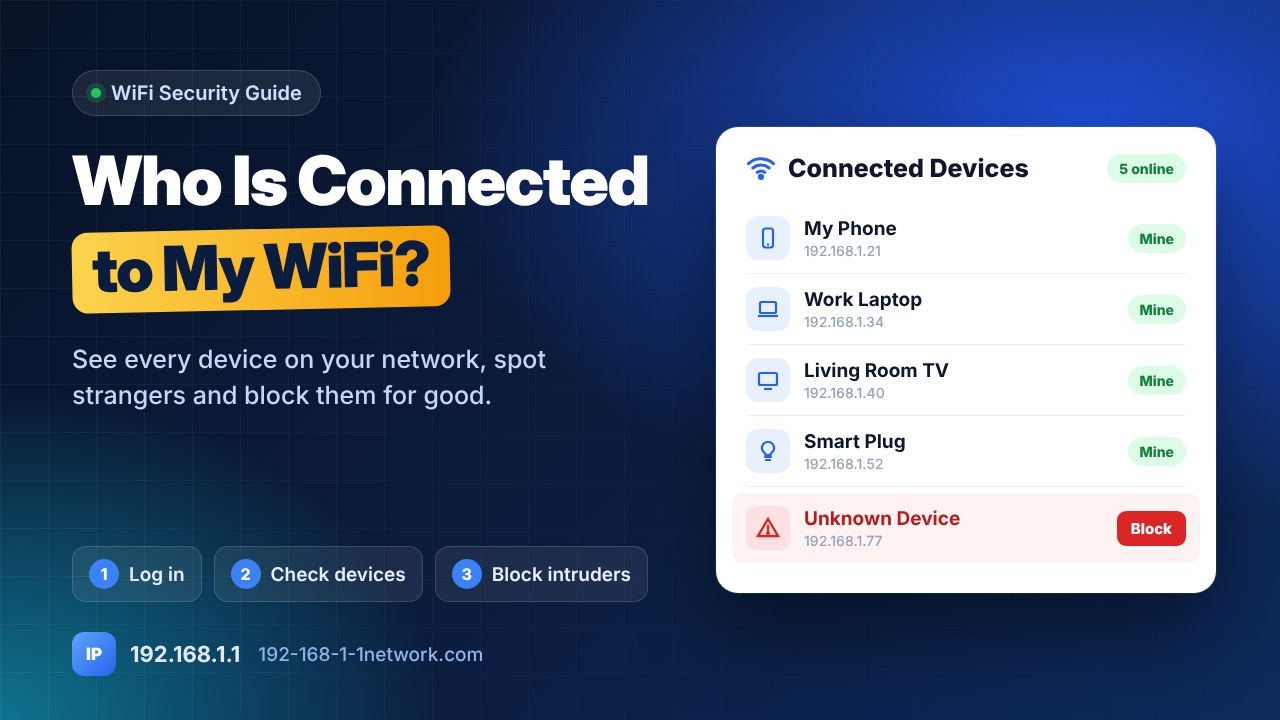
How to See Who Is Connected to My WiFi (and Block Them)
If your internet suddenly feels slow or your data usage looks higher than normal, it is natural to wonder who is connected to my WiFi. A neighbor who guessed your password, an old phone you forgot about or a smart plug you never renamed can all show up on your network.
The good news is that your router keeps a list of every device it is talking to. This guide shows how to see that list, how to work out which device is which, and how to remove anyone who should not be there.
Quick Way to Check Who Is Connected to My WiFi
- Connect to your WiFi with a phone or computer.
- Open a browser and go to your router’s IP address, such as 192.168.1.1.
- Log in with your router admin username and password.
- Open the page called Connected Devices, Attached Devices, Client List or DHCP Clients.
- Look through the list and compare each device with the ones you own.
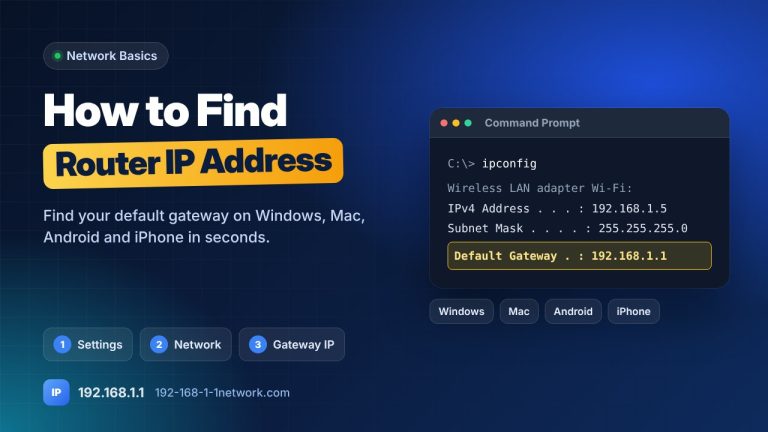
If you do not know the router address, follow our guide to find router IP address on any device first.
Method 1: Check Connected Devices in the Router Admin Panel
The router admin panel gives the most complete list because every device that joins your network has to go through the router.
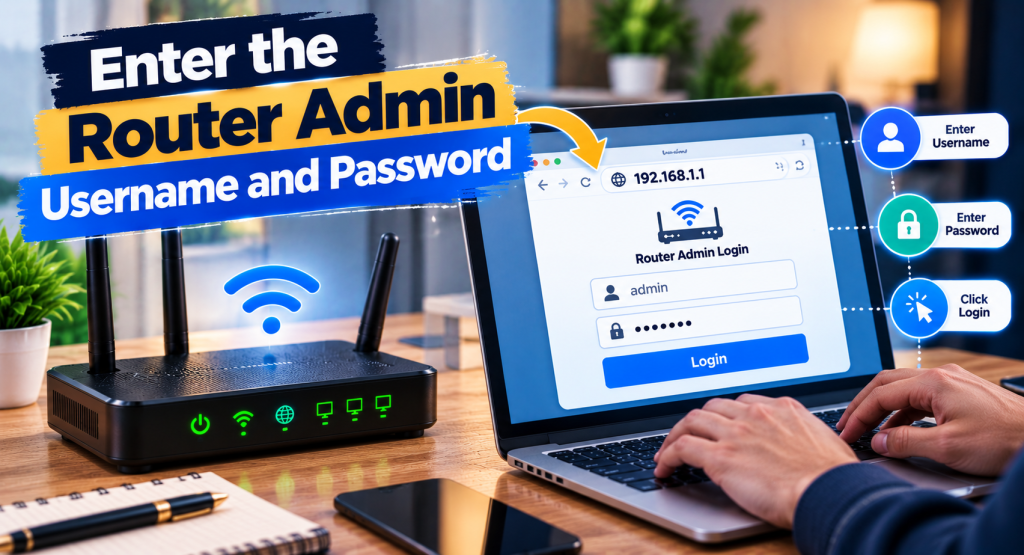
Step 1: Log In to the Router
Open the router login page in your browser and enter the admin details. If you never changed them, they are usually printed on a sticker on the router. Our default logins page lists common ones by brand.
Step 2: Find the Device List
Menu names vary by brand. Here is where to look on popular routers:
| Brand | Where to Find Connected Devices |
|---|---|
| TP-Link | Network Map > Clients, or Advanced > Network > DHCP Server > DHCP Client List |
| Netgear | Attached Devices (on the main dashboard or under Basic) |
| ASUS | Network Map > Clients |
| Linksys | Device List or Network Map |
| D-Link | Status > Client Info, or Connected Clients on the home screen |
| Xfinity | Connected Devices in the admin tool at 10.0.0.1, or the Xfinity app |
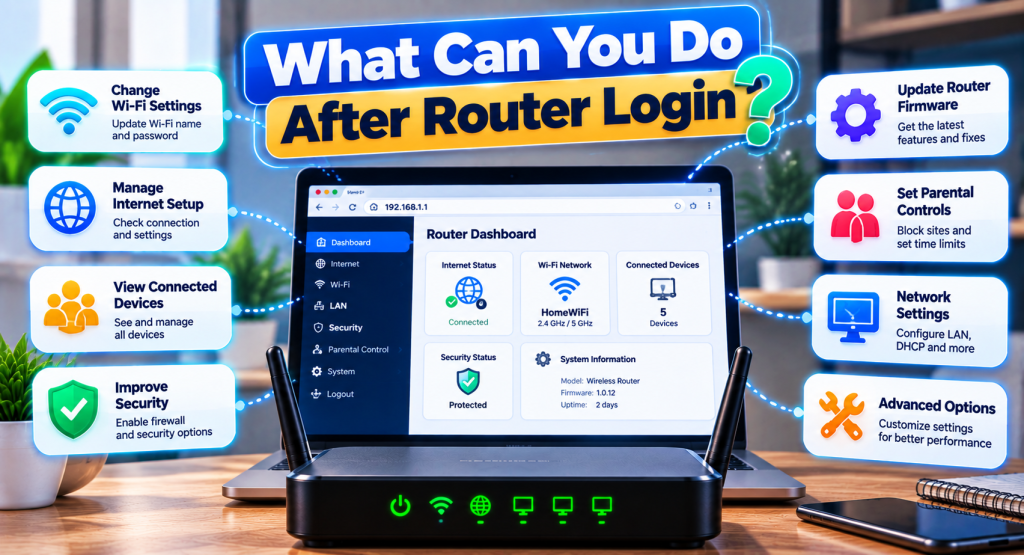
Step 3: Read the Details
Each entry usually shows a device name, an IP address and a MAC address. Some routers also show whether the device is on 2.4 GHz, 5 GHz or a wired port, how long it has been connected and how much data it is using.
Method 2: Use Your Router’s Mobile App
Many newer routers and mesh systems are managed from a phone app instead of a web page. These apps usually show connected devices on the home screen, often with icons for phones, TVs and laptops.
- TP-Link: Tether app or Deco app
- Netgear: Nighthawk app or Orbi app
- ASUS: ASUS Router app
- Google Nest WiFi: Google Home app
- eero: eero app
- Xfinity: Xfinity app
Apps are also the quickest way to pause or block a device, often with a single tap.
Signs Someone Else Is Using Your WiFi
You do not always need to log in to suspect a problem. If you notice any of these signs, ask yourself “who is connected to my WiFi?” and check the device list:
- Your internet feels slow even when nobody at home is using it.
- Your router shows more connected devices than you own.
- You see device names you do not recognise, such as random letters or unknown brands.
- Your data usage is higher than usual, which matters most on mobile or capped plans.
- Your WiFi password was shared widely or is still the one printed on the router label.
None of these prove that someone is stealing your WiFi, but each one is a good reason to review your connected devices.
How to Identify Unknown Devices
A device list full of names like “android-3f2a” or “ESP_8C1D” can look scary, but most unknown entries are your own gadgets. Here is how to work out what each one is:
- Check the device name. Phones, laptops and smart TVs often show the brand or the name you gave them.
- Match the MAC address. On your phone or laptop, open the WiFi details for your network and compare the MAC address with the router list.
- Watch for private addresses. iPhones and many Android phones use a private (random) MAC address for each network, so the address in the router may not match the one printed on the box. Look in the WiFi settings for the address used on your network.
- Turn devices off one at a time. Switch off WiFi on a device, refresh the router list, and see which entry disappears.
- Remember smart home gear. Smart plugs, bulbs, cameras, doorbells, speakers, printers and game consoles all count as devices. Names starting with ESP, Tuya or similar are usually smart home products.
If you have checked everything you own and a device is still unexplained, it is safest to treat it as an intruder.
How to Block Someone from Your WiFi
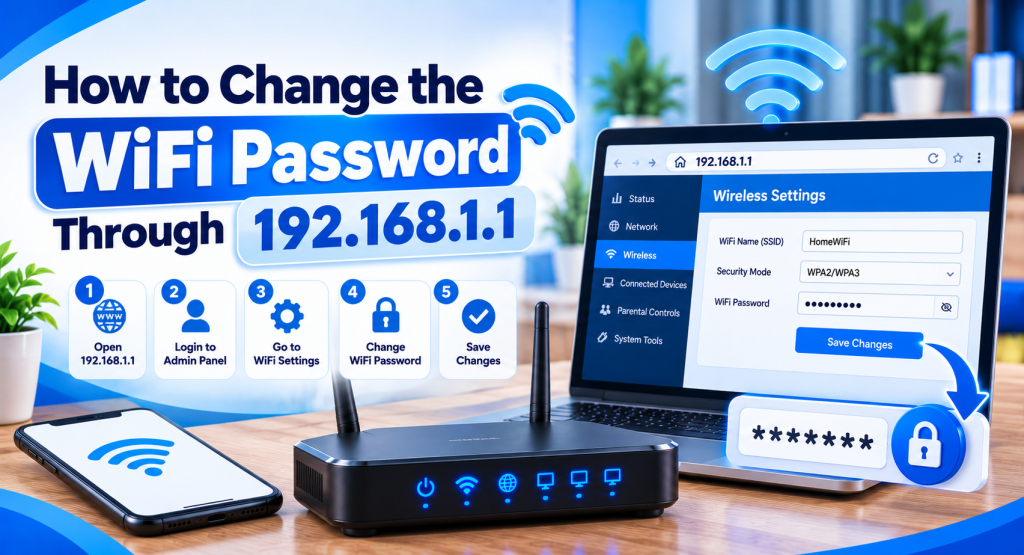
Option 1: Change Your WiFi Password (Most Effective)
Changing the password disconnects every device at once. Only people who know the new password can join again. Use a long password that is hard to guess and switch the security type to WPA2 or WPA3. Our step-by-step guide shows how to change WiFi password on any router.
Option 2: Block the Device in the Router
Most routers let you block a single device from the connected devices list. Look for a Block, Deny or Pause button next to it. Some routers call this Access Control or MAC Filtering. Blocking is handy for kicking off a known device, but a determined person can change their device’s MAC address, so combine it with a new password.
Option 3: Turn Off WPS
WPS lets devices join by pressing a button or entering an 8-digit PIN. The PIN method has known weaknesses, so turn WPS off in the wireless settings unless you really need it.
Option 4: Use a Guest Network
Give visitors access to a separate guest network instead of your main WiFi. You can change the guest password whenever you like without reconnecting all of your own devices.
How to Keep Unwanted Users Off Your Network
- Use WPA2 or WPA3 security, never WEP or an open network.
- Pick a WiFi password of at least 12 characters.
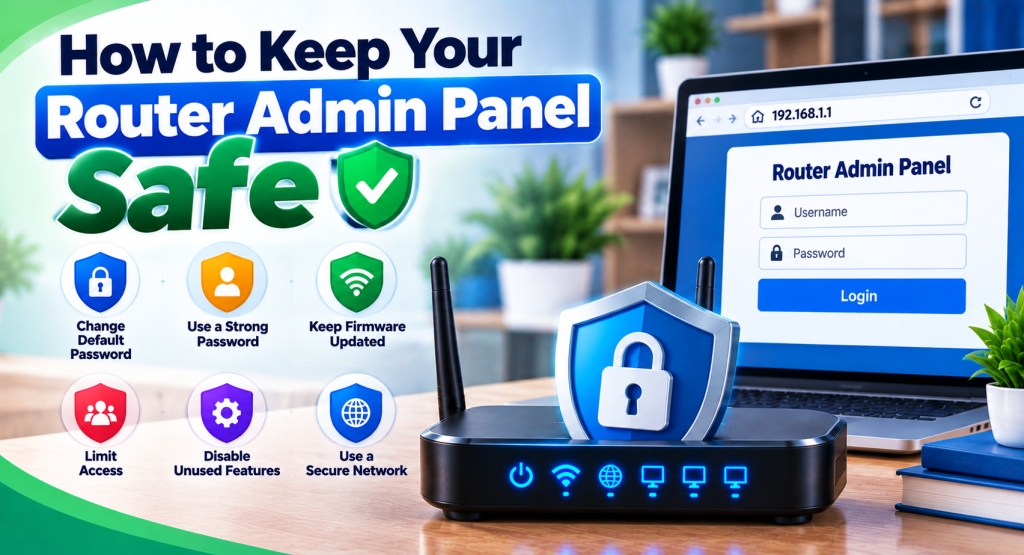
- Change the router admin password so nobody can log in and add themselves back.
- Keep the router firmware up to date.
- Check the connected devices list once a month.
- Turn off remote management unless you use it.
What to Do After You Find an Unknown Device
Once you know who is connected to my WiFi network and spot an unknown device you cannot explain, act in this order:
- Block the device in the router so it is removed straight away.
- Change WiFi password settings so the person cannot simply rejoin. Every device will need the new password.
- Change router admin password details too, in case someone also opened your router settings.
- Consider a fresh network name. Our guide shows how to change WiFi name settings in a few minutes.
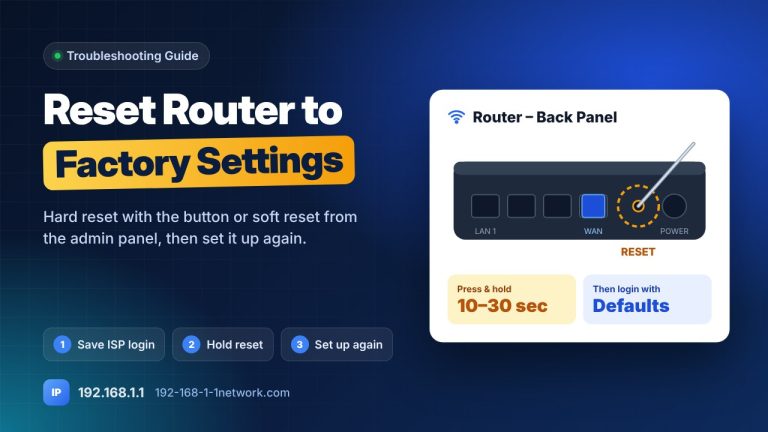
- If settings look changed and you cannot fix them, reset router to factory settings and set it up again from scratch.
Use WPA2 or WPA3 security for the strongest protection. The Wi-Fi Alliance explains how WPA3 protects home networks.
Can I See Connected Devices Without the Router Login?
Partly. On Windows, open Command Prompt and type arp -a to see devices your computer has recently talked to on the network. Network scanner apps for phones can also list devices on the same WiFi. These tools are useful, but they can miss devices that are asleep or blocking scans, and they cannot block anyone. For a complete list and full control, the router admin panel or app is the best option.
If you have lost the router admin password, you will need to reset router to factory settings and set it up again.
Frequently Asked Questions
Can someone use my WiFi without me knowing?
Yes, if they know or guess your password, or if your network uses weak security. Checking the connected devices list regularly is the easiest way to spot them.
Will changing my WiFi password kick everyone off?
Yes. Every device is disconnected and has to reconnect with the new password, including your own.
Why do I see devices I do not recognize?
Most of the time they are your own smart devices, older phones or devices using private MAC addresses. Turn devices off one by one to identify them before blocking anything.
Can I see what websites people visit on my WiFi?
Most home routers do not show browsing history. Some offer basic activity reports or parental controls, but modern websites use encryption, so the router cannot see page contents.
How many devices can connect to my WiFi?
Most home routers can handle dozens of devices, but speed is shared between them. If the internet slows down when many devices are online, consider a mesh system or a faster plan.
How do I check who is connected to my WiFi on my phone?
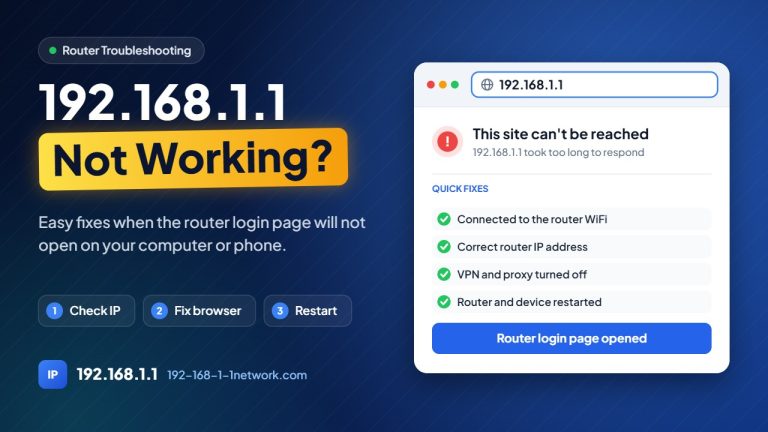
Install your router brand’s app, or open a phone browser and log in to the router address, such as 192.168.1.1, then open the list of connected devices. Xfinity users can use the Xfinity app or the 10.0.0.1 admin page, and 4G mobile routers often use 192.168.8.1. If the page does not open, see our 192.168.1.1 not working fixes.
Does hiding my WiFi name stop people from connecting?
No. A hidden network name can still be found with simple tools. A strong WiFi password and WPA2 or WPA3 security are what keep unwanted users out, so check your connected devices from time to time even if your network is hidden.
8 Comments