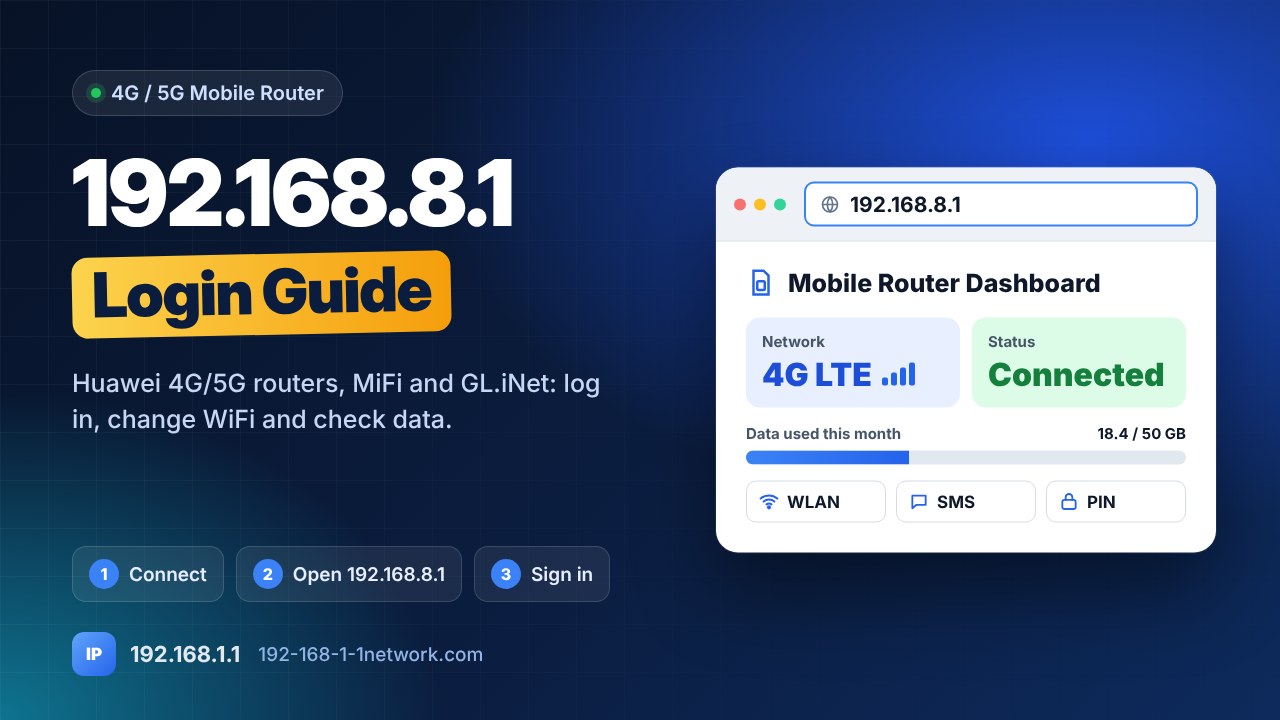
192.168.8.1 Login – 4G/5G Mobile Router Admin Guide
192.168.8.1 is a private IP address used to open the admin page of many mobile and travel routers. It is the default address on most Huawei 4G and 5G routers and pocket WiFi (MiFi) devices, and on GL.iNet travel routers. If your internet comes from a SIM card instead of a cable or fiber line, there is a good chance your router uses 192.168.8.1.
From the 192.168.8.1 login page you can change the WiFi name and password, check data usage, read SMS messages, set the network mode and manage the SIM. This guide explains how to log in and what to do when the page will not open.
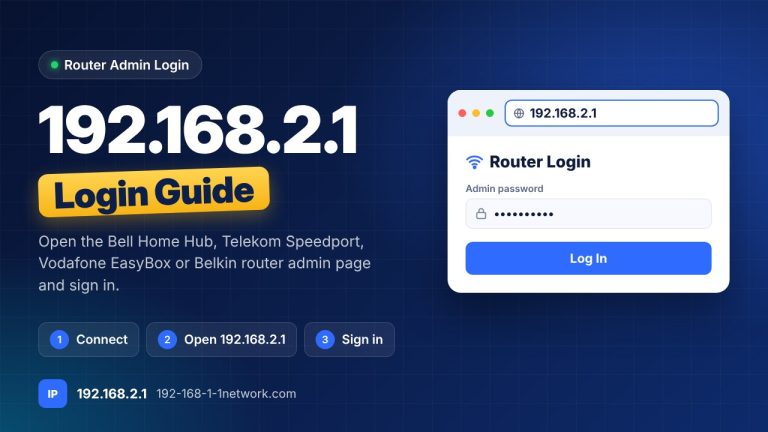
192.168.8.1 Login: How to Open the Admin Page
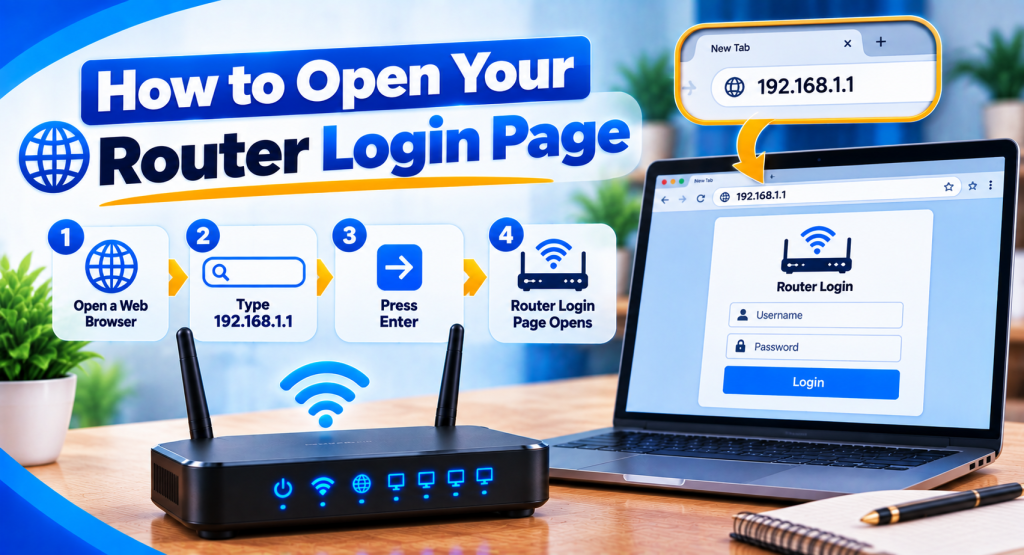
- Connect your phone or computer to the router’s WiFi or plug in a USB/Ethernet cable.
- Open a web browser such as Chrome, Edge, Safari or Firefox.
- Type 192.168.8.1 in the address bar (not the search box) and press Enter.
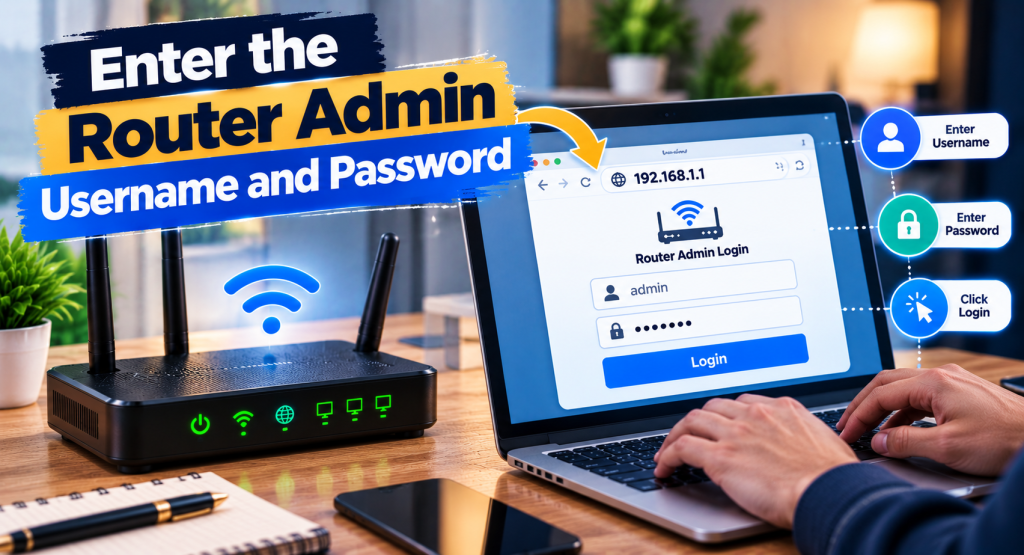
- Enter the admin username and password.
- Click Log In to open the dashboard.
Make sure you type the address with dots, exactly as shown. Common mistakes like 192.168.l.8, 192.168.8.l or 192.168.8.1.1 will not work.
Which Devices Use 192.168.8.1?
| Device Type | Examples | Notes |
|---|---|---|
| Huawei 4G/5G home routers | B310, B311, B315, B525, B535, B618, 5G CPE models | Admin page also works through the Huawei AI Life app on many models |
| Huawei pocket WiFi (MiFi) | E5573, E5576, E5577, E5783, E5785 | Battery-powered mobile hotspots |
| Huawei USB modems (HiLink) | E3372, E8372 | Open the page while the stick is plugged into the computer |
| GL.iNet travel routers | Beryl, Slate, Mango, Opal and others | Asks you to create an admin password on first visit |
| ISP-branded 4G devices | Many SIM routers supplied by mobile operators | Often rebranded Huawei hardware |
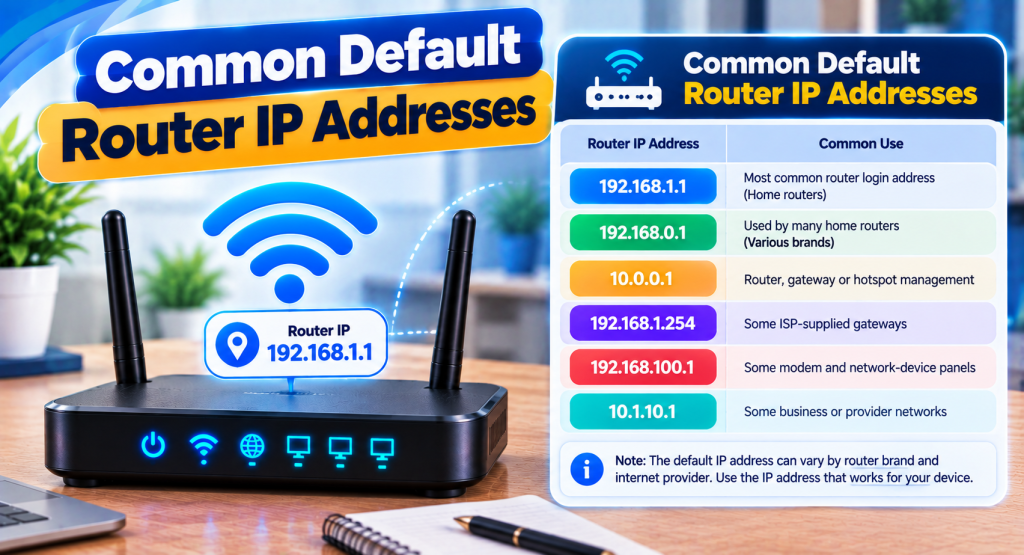
Not every mobile router uses this address. Some use 192.168.0.1 or 192.168.1.1 instead. If 192.168.8.1 does not open, check the label on your device or follow our guide to find router IP address.
192.168.8.1 Default Username and Password
Default login details depend on the model and firmware:
- Older Huawei devices: username admin and password admin.
- Newer Huawei devices: a unique password printed on the label, or a prompt to create your own password the first time you log in.
- GL.iNet routers: there is no default password. You set one during first setup.
- ISP-branded devices: check the sticker under the battery cover or on the back of the device.
Always look at the label first. If the default login has been changed and you do not know the new one, you will need a factory reset. See our list of default router logins for other brands.
What You Can Do on the 192.168.8.1 Admin Page
Change the WiFi Name and Password
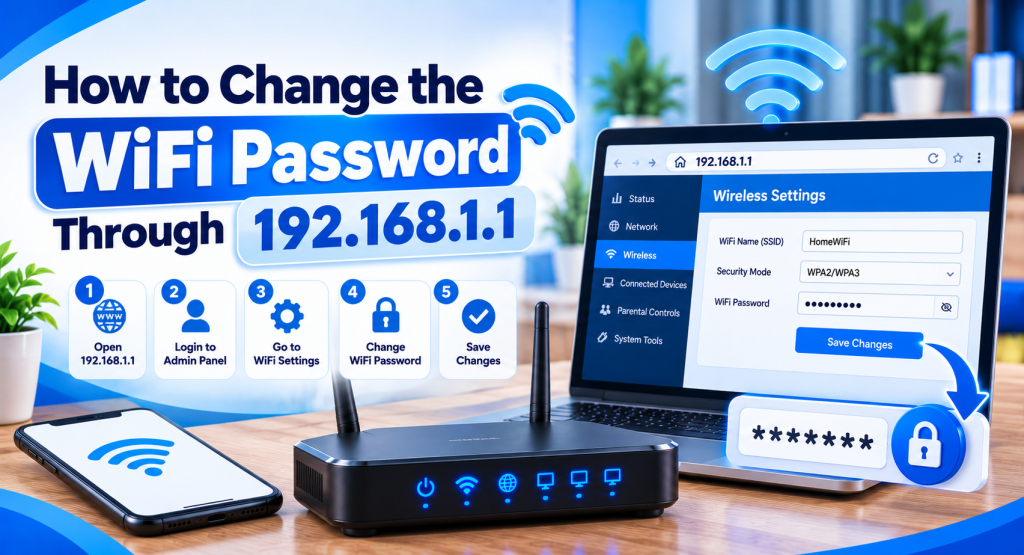
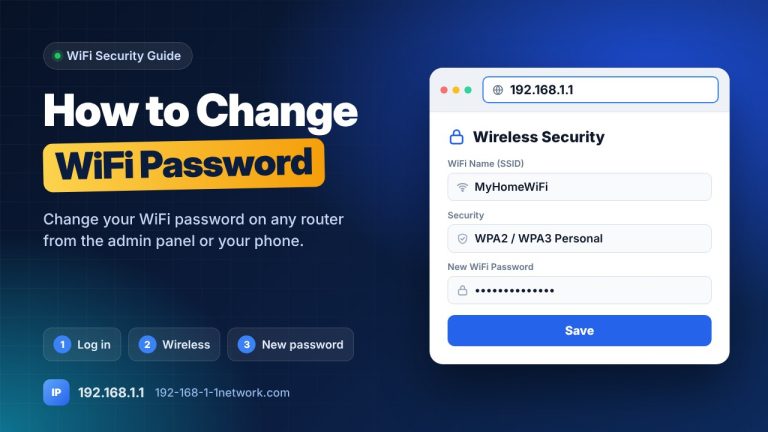
On most Huawei devices, go to Settings > WLAN > WLAN Basic Settings (on newer firmware look for WiFi Settings). Change the SSID (WiFi name) and the WiFi password, choose WPA2-PSK or WPA2/WPA3 security, then click Apply. All devices will disconnect and need the new password. Our guide to change WiFi password has more tips on choosing a strong one.
Check Data Usage
Mobile data plans have limits, so the Statistics or Data Usage page is useful. You can set a monthly limit and get a warning before you run out.
Read and Send SMS
Huawei mobile routers can show text messages sent to the SIM card. Open the SMS tab to read balance messages or bundle offers from your operator.
Set the Network Mode
Under Settings > Mobile Network you can choose between 4G only, 3G only or automatic mode. Locking the device to 4G can help if it keeps switching to a slower network.
Manage the APN and SIM PIN
If the device shows a signal but no internet, the APN profile may be wrong. Check Profile Management and make sure it matches your mobile operator’s APN. The PIN Management page lets you turn the SIM PIN on or off.
Change the Admin Password
Find the account or password option under System and replace the default login with a strong password. This stops anyone on your WiFi from logging in and changing your settings. Read more in our guide to change router admin password.
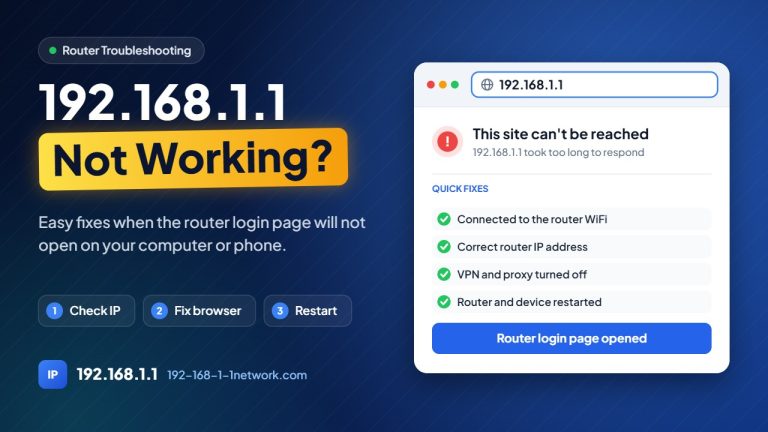
192.168.8.1 Not Opening? Try These Fixes
Check Your Connection
Your device must be connected to the router’s WiFi or cable. If your phone switched to mobile data or another WiFi network, the page will not load. Turn off mobile data on your phone while you log in.
Use the Correct Address
Type http://192.168.8.1 directly in the address bar. If the page still does not load, find the correct gateway address in your network settings. On Windows, open Command Prompt and type ipconfig. The Default Gateway is your router’s address.
Turn Off VPN or Proxy
VPN apps and proxy settings send your traffic somewhere else, so the local admin page cannot open. Disconnect the VPN and try again.
Try Another Browser or Private Window
Old cached pages can stop the login page from loading properly. Open a private or incognito window, or try a different browser.
Restart the Router
Turn the device off, wait 30 seconds and turn it back on. For battery-powered MiFi devices, hold the power button until it switches off, then switch it on again.
Reset to Factory Settings
If you forgot the admin password, press and hold the reset button for a few seconds until the device restarts. The exact time varies by model, so check the manual if nothing happens. A reset restores the default WiFi password and admin login but erases your custom settings. Our guide on how to reset router to factory settings explains what to expect.
Common 192.168.8.1 Typing Mistakes
Small typos stop the admin page from loading. Check for these common mistakes:
- 192.168.l.l or 192.168.8.l, with the letter L instead of the number 1.
- 192.168.8.1.1, with an extra number at the end.
- 192.168.8,1, with a comma instead of a dot.
- www.192.168.8.1, because no www is needed.
192.168.8.1 Login on a Phone
Many people manage a 4G or 5G router from a phone. Connect the phone to the router’s WiFi, turn off mobile data so the phone does not switch networks, then open Chrome or Safari and type http://192.168.8.1 in the address bar. The admin page usually works in a mobile browser, and some brands also offer an app for supported models.
If the page looks too small, switch the browser to desktop mode or turn the phone sideways. Remember to turn mobile data back on when you finish.
Keep Your 4G Router Secure
Mobile routers are often carried around and shared, so security matters. After your first 192.168.8.1 login, take a few minutes to:
- Change router admin password details, because the default admin login is easy to guess.
- Set your own network name. See how to change WiFi name settings.
- Use a strong password with WPA2 or WPA3. Our guide on how to change WiFi password settings explains the steps.
- Check who is connected to my WiFi from time to time, especially if your data runs out faster than expected.
- Install firmware updates when the admin page offers them.
192.168.8.1 vs 192.168.1.1
Both are private addresses used to open a router admin page. The only difference is which address the manufacturer chose as the default. Huawei mobile routers and GL.iNet routers use 192.168.8.1, while many home routers from TP-Link, Netgear, Linksys and ISPs use 192.168.1.1 or 192.168.0.1. See our full list of default IP addresses.
If your device uses 192.168.1.1 and that page does not open, follow our 192.168.1.1 not working guide. If you also have a cable modem, its status page is usually at 192.168.100.1. Both 192.168.8.1 and 192.168.1.1 are private addresses from the ranges set aside in RFC 1918, so they only work inside your own network.
Frequently Asked Questions
What is 192.168.8.1?
It is a private IP address used by many mobile routers, MiFi devices and travel routers to open their settings page. It only works on devices connected to that router.
What is the 192.168.8.1 password?
On older Huawei models it is usually admin/admin. Newer models use a unique password on the label or ask you to create one on first login.
Can I open 192.168.8.1 on my phone?
Yes. Connect your phone to the router’s WiFi, turn off mobile data and type 192.168.8.1 in the browser’s address bar.
Why does 192.168.8.1 say the password is wrong?
The default password may have been changed. Try the password on the label, then any password you may have set. If none work, reset the device to factory settings.
Is 192.168.8.1 safe?
Yes. It is a private address that can only be reached from inside your own network. Just make sure you change the default admin password so others on your WiFi cannot change your settings.
Can I do 192.168.8.1 login without a SIM card?
Yes. The admin page runs on the router itself, so you can open it without a SIM card or an internet connection. You only need to be connected to the router’s WiFi, or by USB cable on some pocket WiFi devices.
2 Comments