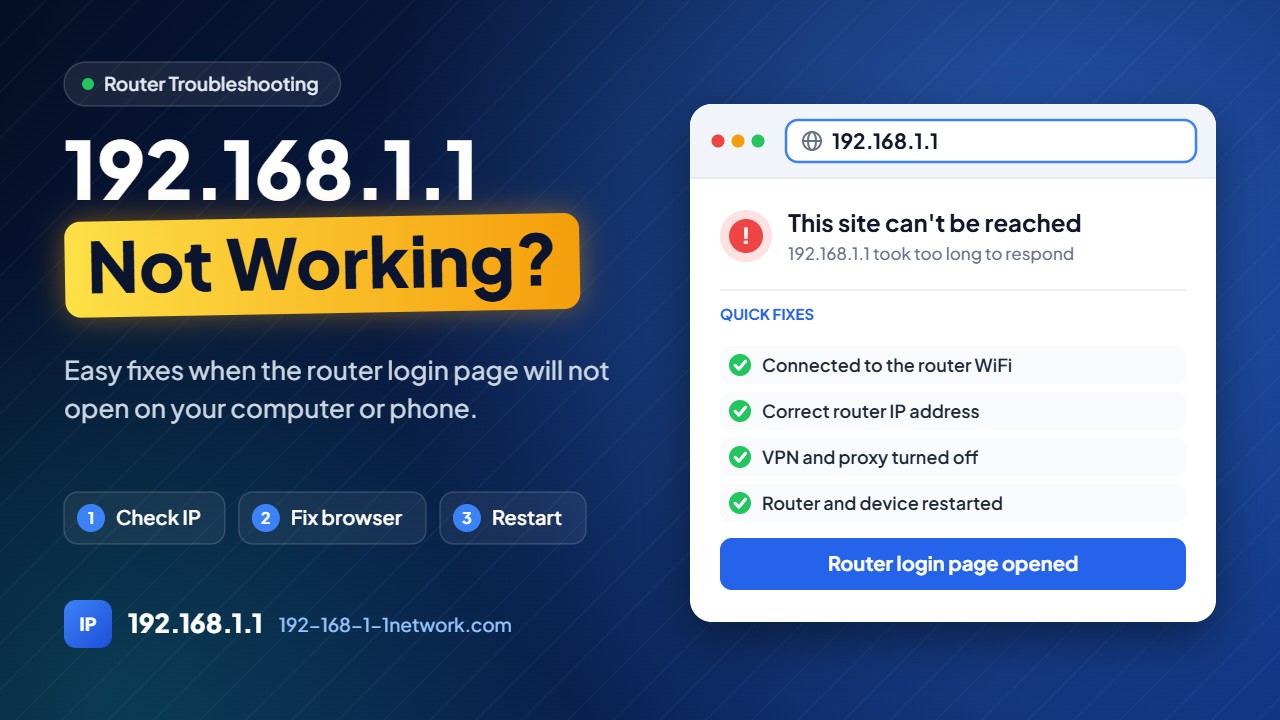
192.168.1.1 Not Working? 12 Fixes When the Router Login Page Won’t Open
Seeing 192.168.1.1 not working when you try to open your router settings is frustrating. You type the address, press Enter, and instead of the login page you get an error such as “This site can’t be reached”, a blank page or a page that keeps loading.
In most cases the router itself is fine. The problem is usually the connection, the browser or the IP address. This guide walks you through the fixes in order, from quick checks to a full reset, so you can get back into your router login page.
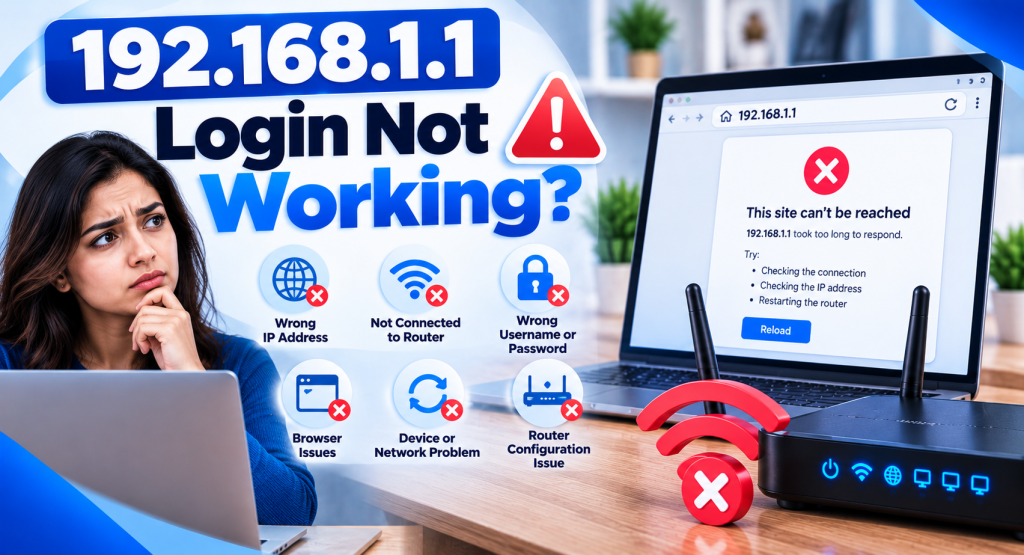
Why Is 192.168.1.1 Not Working?
192.168.1.1 is a private IP address. It only works inside your own network, and only if your router actually uses it. The most common reasons it fails are:
- Your device is not connected to the router, or it is using mobile data instead of WiFi.
- Your router uses a different address, such as 192.168.0.1 or 10.0.0.1.
- The address was typed incorrectly, for example 192.168.l.l with the letter L.
- A VPN, proxy or browser setting is sending the request somewhere else.
- Your device has an old or conflicting IP address.
- The router is frozen, or its settings were changed.
- Your internet provider or mesh system only allows changes through an app.
Quick Checks Before You Start
- Make sure the router is powered on and its lights look normal.
- Connect to your router’s WiFi or plug in an Ethernet cable.
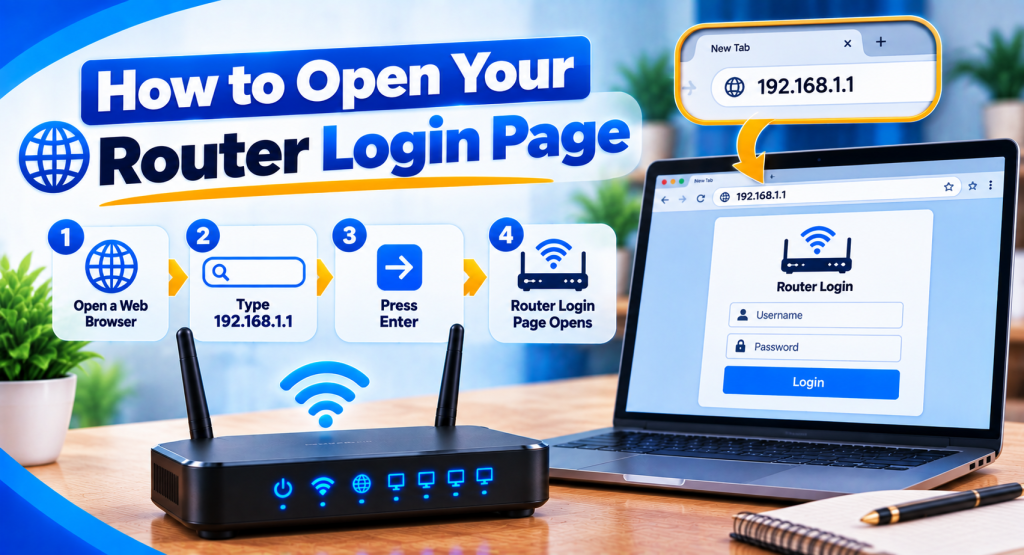
- Type http://192.168.1.1 in the address bar, not in a search box.
- Try a different browser or a private window.
- Restart the router and your device.
If 192.168.1.1 is still not opening, work through the fixes below one at a time and test the address after each step.
How to Fix 192.168.1.1 Not Working (Step-by-Step)
1. Connect to the Right Network
You can only reach 192.168.1.1 from a device that is connected to your router. If your laptop is on a neighbour’s WiFi, a phone hotspot or a guest network, the router login page will not load. Guest networks often block access to the admin panel on purpose. Connect to your main WiFi network or use a cable, then try again.
2. Type the Address Correctly
Small typing mistakes are one of the most common causes. Check for these:
- Use numbers only: 192.168.1.1, not 192.168.l.l or 192.168.1.l.
- Use dots, not commas or spaces.
- Do not add www. in front of the address.
- Type it in the browser address bar. If you type it in a search engine box, you will only see search results.
If the plain address does not work, type http://192.168.1.1 in full. Some routers also accept https://192.168.1.1.
3. Confirm Your Router Uses 192.168.1.1
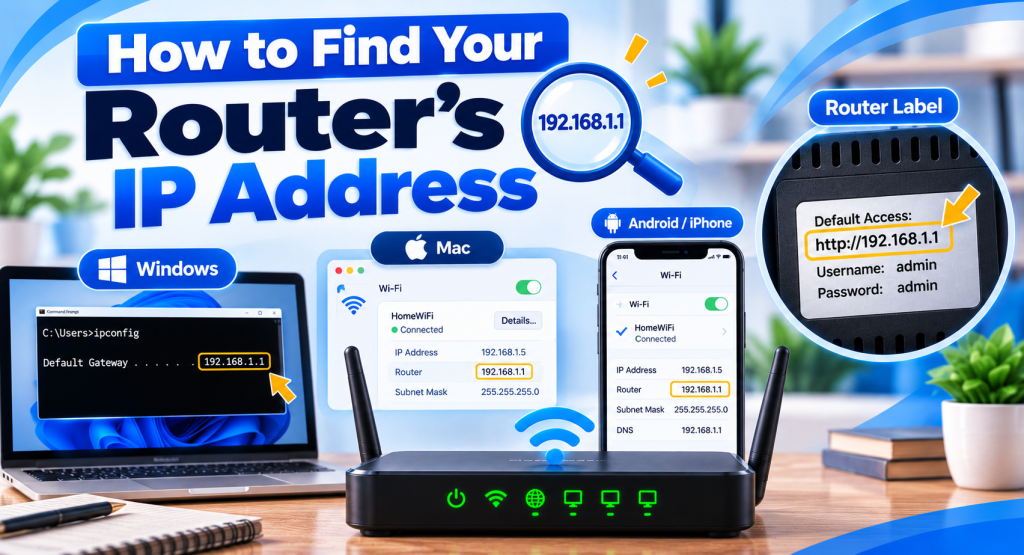
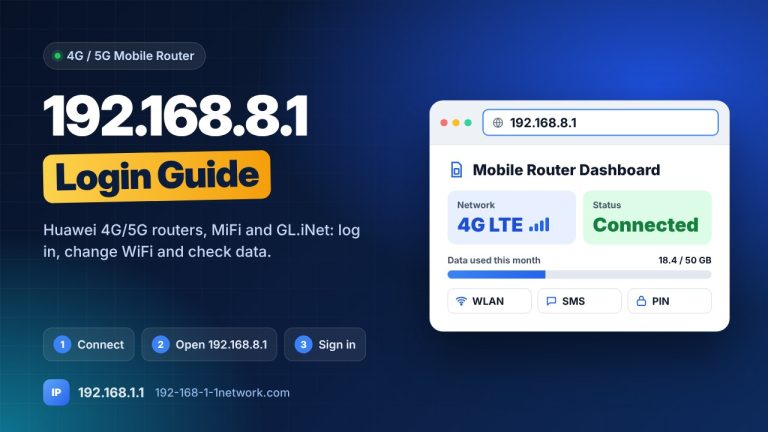
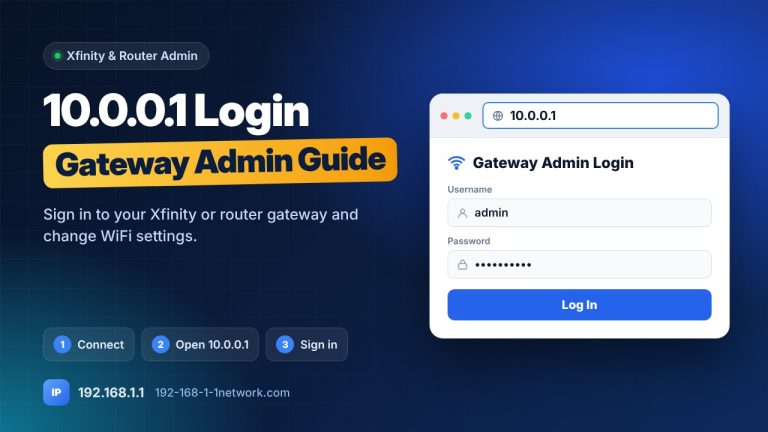
Not every router uses 192.168.1.1. Many D-Link and Tenda routers use 192.168.0.1, Xfinity gateways use 10.0.0.1 and many 4G mobile routers use 192.168.8.1. To find the correct address, check the default gateway on your device:
- Windows: open Command Prompt, type
ipconfigand press Enter. Look for Default Gateway. - Mac: open System Settings > Wi-Fi, click Details next to your network and open TCP/IP. The address is next to Router.
- Android: open WiFi settings and tap your network. The gateway or router address is shown in the network details, sometimes under Advanced.
- iPhone: go to Settings > Wi-Fi, tap the (i) icon next to your network and look for Router.
If the gateway is a different address, use that one instead. Our guide on how to find router IP address covers every device, and the default IP address list shows common addresses by brand.
If you have a separate cable modem, its status page is usually at 192.168.100.1, not 192.168.1.1. Use the router address for WiFi and password settings.
4. Try Another Browser or a Private Window
Old cache files and browser extensions can stop the login page from loading. Open a private or incognito window and try again. If that works, clear your browser cache and cookies, or turn off extensions such as ad blockers. You can also try another browser or another device to see if the problem is limited to one browser.
5. Turn Off VPN, Proxy and Secure DNS
A VPN sends your traffic through a remote server, so local addresses like 192.168.1.1 may not be reachable while it is on. Disconnect the VPN, turn off any proxy in your system settings, and pause security apps that route web traffic. If your router uses a web address such as tplinkwifi.net or routerlogin.net, turning off Secure DNS (DNS over HTTPS) in your browser can also help.
TP-Link lists the same steps, including turning off Secure DNS, in its router login troubleshooting guide.
6. Use a Wired Connection
Weak or unstable WiFi can make the page load slowly or not at all. Connect your computer to one of the router’s LAN ports with an Ethernet cable and try again. A cable is also the safest way to change router settings, because you will not lose the connection when WiFi settings are saved.
7. Restart Your Router and Device
Routers can freeze after running for weeks. Unplug the router, wait about 30 seconds, plug it back in and give it two to three minutes to start up fully. Restart your computer or phone as well, then reconnect and open 192.168.1.1 again.
8. Renew Your IP Address
If your device has an old or conflicting IP address, it cannot talk to the router properly. On Windows, open Command Prompt and run these commands one by one:
ipconfig /releaseipconfig /renewipconfig /flushdns
On a Mac, open the TCP/IP section of your WiFi details and click Renew DHCP Lease. On a phone, forget the WiFi network and connect to it again. Also make sure your network adapter is set to get an IP address automatically and not a fixed (static) one.
9. Check Your Firewall and Antivirus
Some firewall and antivirus programs block local network pages. Pause the protection for a few minutes, test 192.168.1.1, and turn it back on straight away. If the page opens, add the router address as an exception in your security software.
10. Accept the Security Warning (Only on Your Own Network)
Some routers use HTTPS with a self-signed certificate, so the browser shows a warning such as “Your connection is not private”. If you are connected to your own router and typed the address yourself, you can click Advanced and continue to the page. Never do this on a public or unknown network.
11. Check If Your Router Uses an App Instead
Some mesh systems, such as eero and Google Nest Wifi, are managed only through a mobile app and do not have a normal web login page. Some internet providers also lock the admin panel or move settings into their own app or customer account. If you use one of these systems, open the official app to change your settings.
12. Reset the Router to Factory Settings
If nothing else works, a factory reset restores the default IP address, admin login and WiFi settings. With the router switched on, press and hold the reset button for about 10 to 30 seconds (check your manual), then wait for it to restart. Afterwards, use the address and login printed on the router label. A reset erases your custom settings, so treat it as the last step. See our full guide on how to reset router to factory settings.
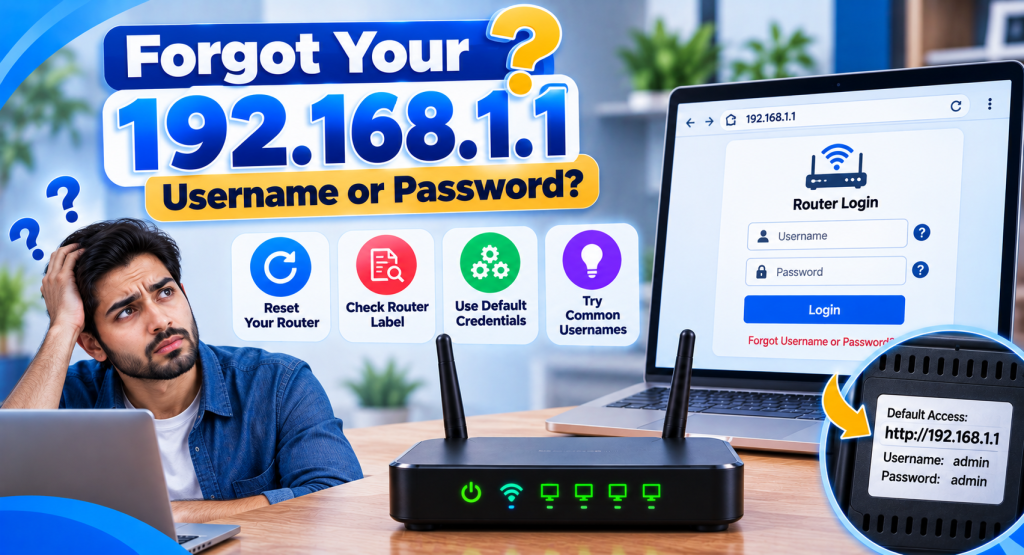
192.168.1.1 Opens but the Login Does Not Work
If the page loads but your username or password is rejected, the problem is the admin login, not the IP address. Try these steps:
- Check the sticker on the router for the default admin username and password.
- Try the common defaults for your brand from our default logins list.
- Remember that the admin password is not always the same as your WiFi password.
- If someone changed the password and nobody remembers it, a factory reset is the only way back in.
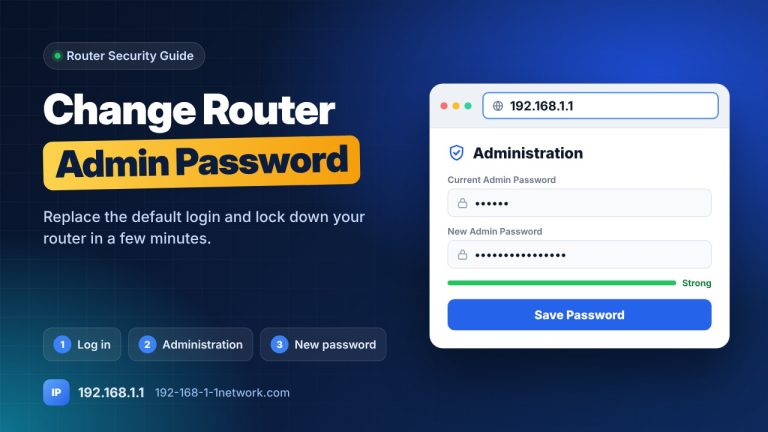
Once you are logged in, it is a good idea to change router admin password so other people cannot open your settings.
192.168.1.1 Not Working on Phone
On Android and iPhone the same fixes apply, but a few phone settings cause extra trouble:
- Turn off mobile data while you log in, so the phone does not switch away from WiFi.
- Turn off Wi-Fi Assist on iPhone, or the option to switch to mobile data automatically on Android, if your WiFi has no internet.
- Use the phone browser, such as Chrome or Safari, not a search app.
- Disconnect any VPN app.
Many routers also have their own app, which is often easier to use on a small screen.
Frequently Asked Questions
Why does 192.168.1.1 say “This site can’t be reached”?
This message usually means your device cannot find a router at that address. Either you are not connected to the router, or the router uses another IP address. Check your connection and default gateway first.
Can I open 192.168.1.1 from outside my home?
Not by default. 192.168.1.1 is a private address that only works on your local network. Some routers offer remote management, but it is usually turned off for security reasons.
Is 192.168.1.1 the same for every router?
No. It is one of the most common router addresses, but many routers use 192.168.0.1, 10.0.0.1, 192.168.8.1 or another address. The correct one is shown on the router label and as the default gateway on your device.
Why does 192.168.1.1 open a different page?
Some routers redirect the IP address to a web address such as tplinkwifi.net or routerlogin.net, or to your internet provider’s login page. This is normal as long as you are connected to your own network.
Will a factory reset fix 192.168.1.1 not working?
Often, yes, if the router IP address or login was changed. But a reset erases all your settings, including the WiFi name and password, so try the other fixes first.
Final Words
When 192.168.1.1 is not working, the cause is usually simple: the wrong network, the wrong IP address or a browser setting. Start with the quick checks, confirm your default gateway, and only reset the router if nothing else helps. Once you are back in, our 192.168.1.1 login guide shows what to do next.
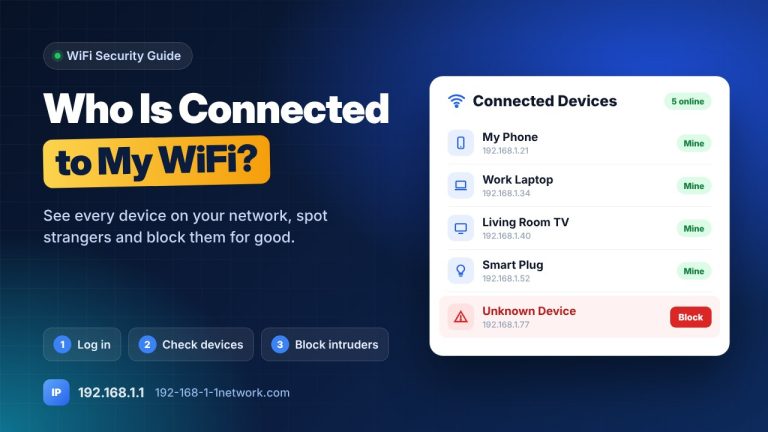
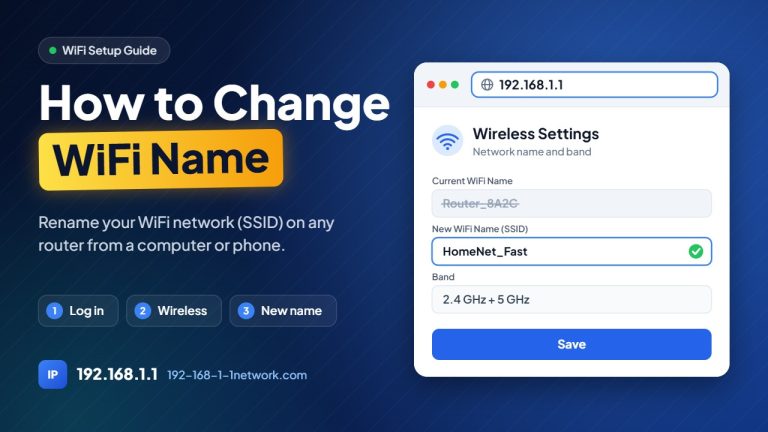
Once you are back in, it is a good time to change WiFi password settings, change WiFi name details and check who is connected to my WiFi.
5 Comments