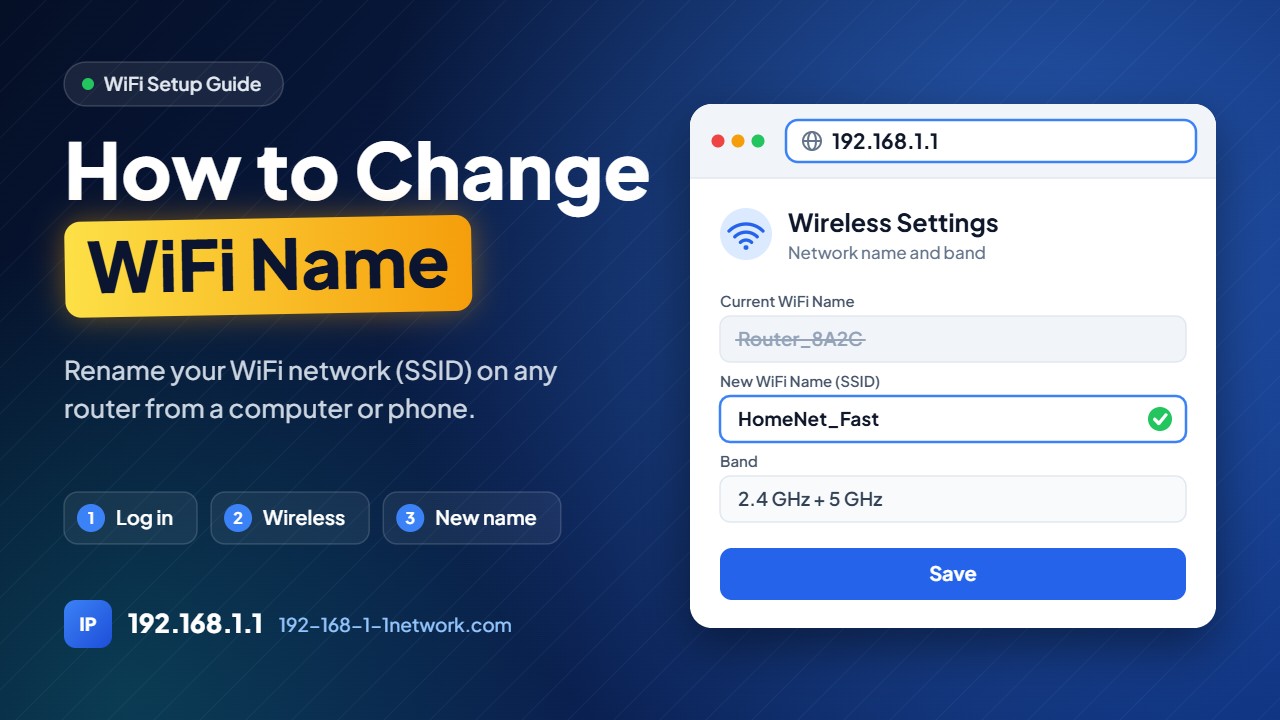
How to Change WiFi Name (SSID) on Any Router – Step-by-Step
Want to change WiFi name settings so your network is easier to find, or so it no longer shows your router brand? The WiFi name, also called the SSID, is the name people see when they look for networks on their phone or laptop. Most routers come with a default name made of the brand and a few random characters.
You can change WiFi name settings on almost any router in a few minutes, from the router admin panel or the router app. This guide shows the steps, where to find the setting on popular brands, and what to do if your devices do not reconnect.
What Is a WiFi Name (SSID)?
SSID stands for Service Set Identifier. It is simply the public name of your wireless network. Your router broadcasts it so nearby devices can see it in their WiFi list. An SSID can be up to 32 characters long. Changing it does not change your internet speed or your WiFi password, but it makes your network easier to recognise and harder to link to a specific router model.
Quick Steps to Change WiFi Name
- Connect your device to the router by WiFi or cable.
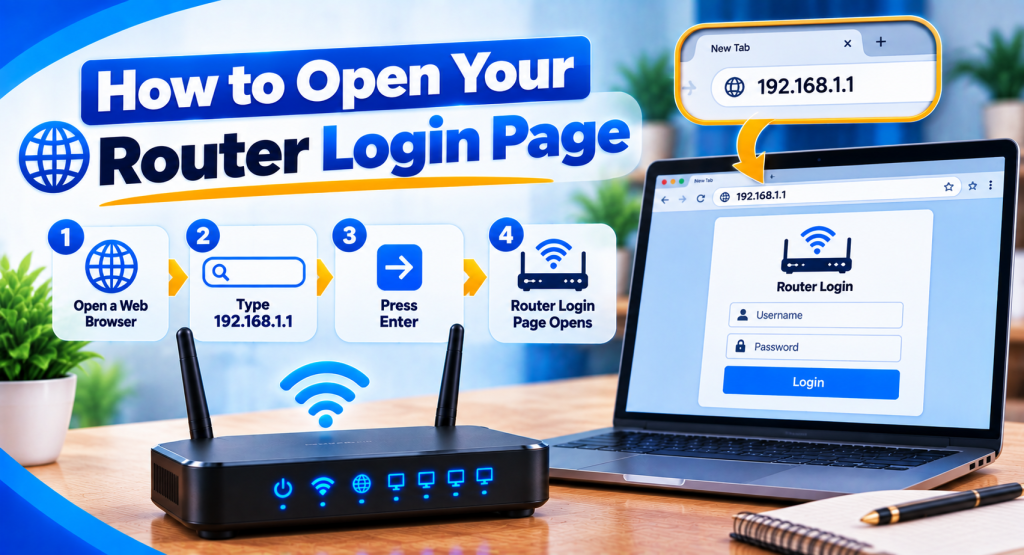
- Open a browser and go to your router IP address, such as 192.168.1.1.
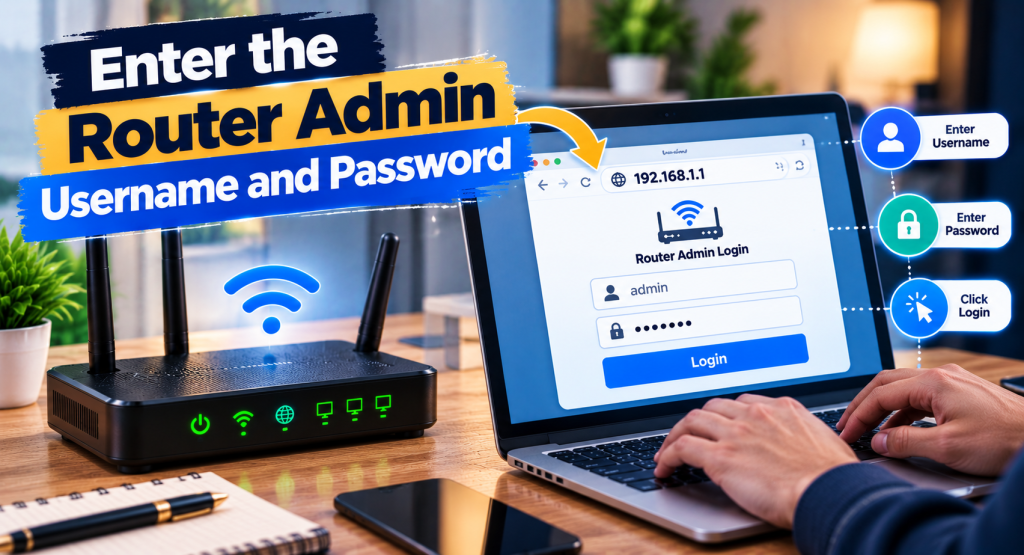
- Log in with the router admin username and password.
- Open the Wireless, WiFi or WLAN settings.
- Type a new name in the Network Name (SSID) field.
- Click Save or Apply, then reconnect your devices.
Before You Start
- Your router IP address. If you are not sure, see how to find router IP address.
- The router admin username and password, often printed on the router label. Our default logins page lists common defaults.
- A device connected to the router. A computer with an Ethernet cable is best, because it will not be disconnected when you save.
- A few minutes when nobody needs the internet, since all wireless devices will disconnect after the change.
How to Change WiFi Name on Router (Step-by-Step)
Step 1: Connect to Your Router
Connect your computer or phone to the router’s WiFi network, or plug in an Ethernet cable. You must be on the router’s own network to open its settings.
Step 2: Open the Router Login Page
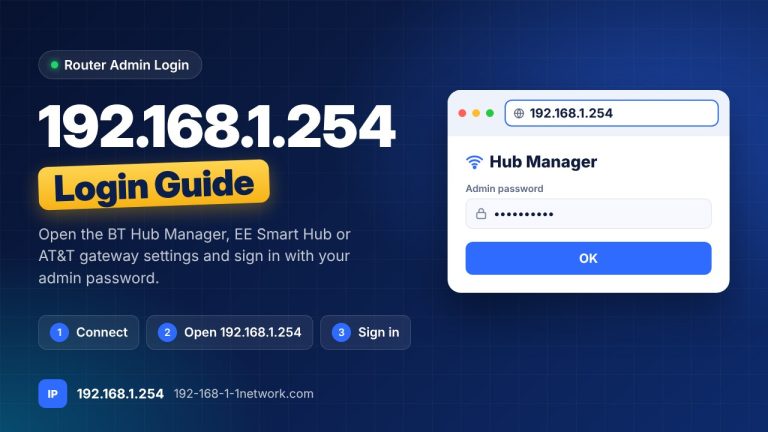
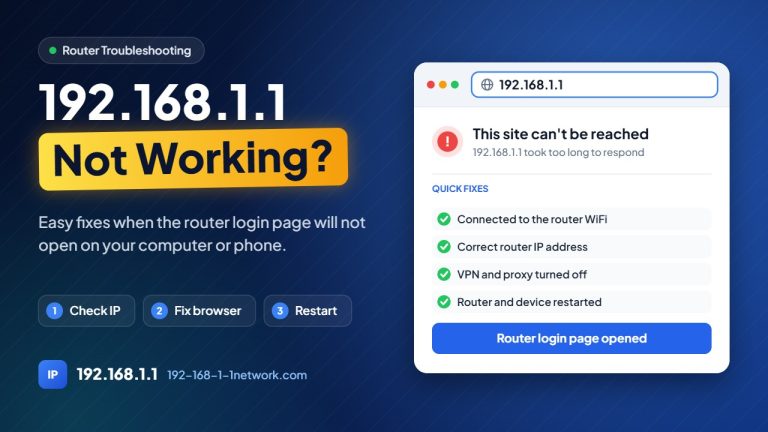
Open any browser, type your router IP address in the address bar and press Enter. Common addresses are 192.168.1.1, 192.168.0.1 and 10.0.0.1. Some brands also use a web address such as tplinkwifi.net or routerlogin.net. If the page does not load, follow our 192.168.1.1 not working fixes.
Step 3: Log In to the Admin Panel
Enter the admin username and password. On many routers the defaults are printed on a sticker on the back or bottom. If you changed the password before, use your own. If you cannot remember it, you may need to reset the router.
Step 4: Open the Wireless Settings
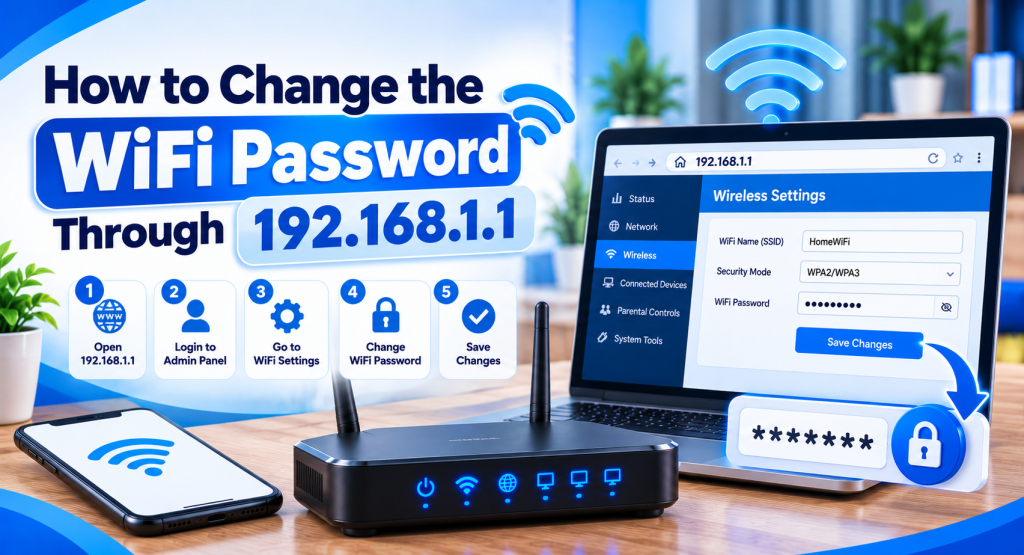
Look for a menu called Wireless, WiFi, WLAN or Wireless Settings. On some routers it sits under Advanced or Network. The field you need is usually called Network Name (SSID), Wireless Network Name or just SSID.
Step 5: Enter a New WiFi Name and Save
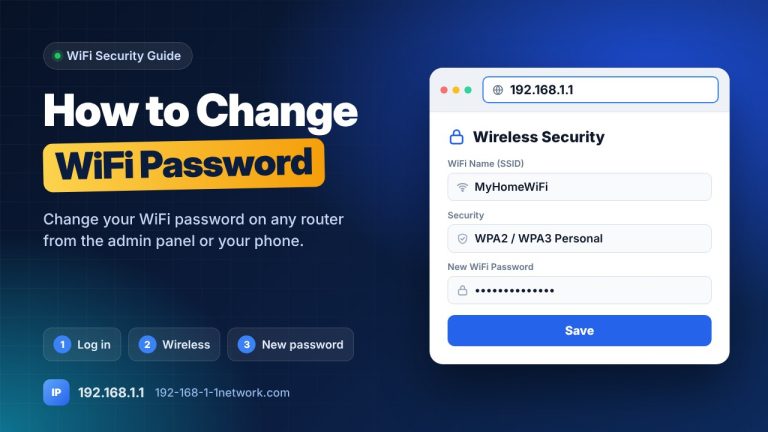
Delete the old name and type the new one. Check the spelling carefully, then click Save or Apply. The router may restart its wireless radio, and every device on WiFi will disconnect. Find the new name in your WiFi list and connect with the same password as before.
Where to Change WiFi Name by Router Brand
Menu names differ between brands and firmware versions. Use this table as a starting point:
| Router brand | Where to look (varies by model) |
|---|---|
| TP-Link | Advanced > Wireless > Wireless Settings on most models, or Wireless > Wireless Settings on older ones. In the Tether app, go to More > Wi-Fi Settings. |
| NETGEAR | Wireless on the BASIC Home page or dashboard, in the Name (SSID) field. On Nighthawk Pro Gaming routers, go to Settings > Wireless Setup. |
| ASUS | Wireless > General on older firmware, or Network > Main network profile on newer firmware. |
| D-Link | Settings > Wireless, or Setup > Wireless Settings on older models. |
| Huawei | WLAN, WiFi Settings or WLAN Basic Configuration, depending on the firmware. ISP firmware may look different. |
| ZTE | WLAN, or Local Network > WLAN, in the SSID settings section. ISP firmware may look different. |
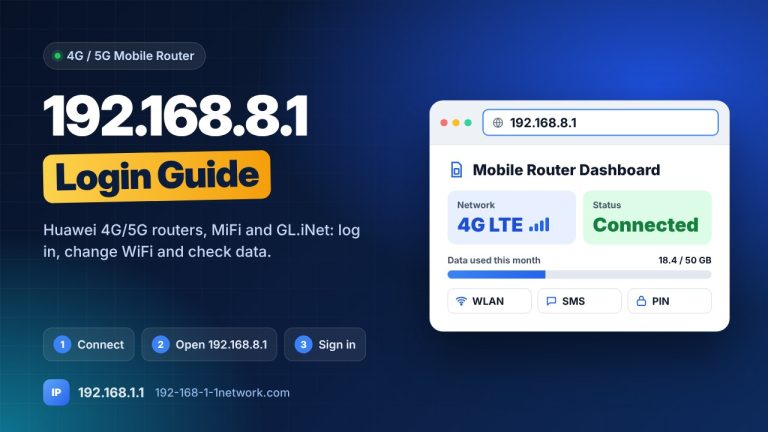
For model-specific steps, see the official guides from NETGEAR and ASUS. On 4G and 5G mobile routers, the WiFi name is usually changed on the 192.168.8.1 admin page.
How to Change WiFi Name from Your Phone
You do not need a computer. There are two easy ways to change WiFi name settings from a phone:
- Router app: many brands have an official app, such as TP-Link Tether or Deco, NETGEAR Nighthawk or Orbi, and the ASUS Router app. Open the app, go to the WiFi or wireless settings, edit the network name and save.
- Phone browser: connect to the WiFi, open Chrome or Safari, type the router IP address and follow the same steps as on a computer.
If your internet provider gave you the router, its app or online account may also let you rename the network.
Dual-Band and Mesh Networks
Dual-band routers broadcast on 2.4 GHz and 5 GHz, and some newer routers add 6 GHz. If a feature like Smart Connect or band steering is on, there is one WiFi name for all bands. If it is off, each band has its own name field, so change each one. Many people add “-5G” to the 5 GHz name to tell them apart. Mesh systems usually use one name for the whole network, and you change it once in the mesh app.
Tips for Choosing a Good WiFi Name
- Keep it to 32 characters or fewer, which is the limit for an SSID.
- Do not use your full name, address, flat number or phone number.
- Avoid the router brand or model, which can give attackers useful hints.
- Make it unique so it does not clash with nearby networks.
- Stick to letters, numbers, hyphens and underscores. Emoji and special characters may not display correctly on older devices.
- Keep it friendly. Everyone nearby can see your WiFi name.
Hiding the WiFi name is not a real security feature. Hidden networks can still be found with simple tools, and they are harder for your own devices to join. A strong password and WPA2 or WPA3 security protect your network much better.
What to Do After Changing the WiFi Name
- Reconnect phones, laptops, smart TVs, printers and game consoles to the new network.
- Set up smart home devices again. Cameras, plugs and speakers often need their own app to join a new network.
- Remove the old network from your devices so they stop trying to connect to it.
- Consider updating the password too. Our guide on how to change WiFi password shows how.
- After a few days, check who is connected to my WiFi to make sure only your devices are on the network.
- Protect the admin panel as well. See how to change router admin password settings.
WiFi Name Not Changing? Common Problems
The Old Name Still Shows on My Phone
Turn WiFi off and on again, or wait a minute for the list to refresh. Your phone may also remember the old network, so forget it in the WiFi settings.
I Cannot Log In to the Router
Check the router IP address and the admin password. If the login page will not open at all, see our 192.168.1.1 not working guide.
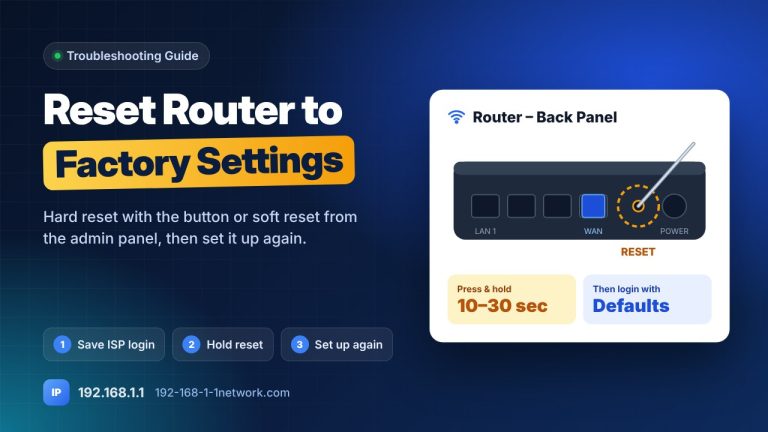
If nobody remembers the admin password, you can reset router to factory settings and start again.
Smart Devices Went Offline
Devices without a screen cannot pick the new name by themselves. Open each device’s app and connect it to the new network. If you have many of these devices, you can keep the old name and password to avoid setting them all up again.
The New Name Does Not Save
Make sure you clicked Save or Apply on the correct band. Some routers need a restart before the change appears. If your internet provider manages the router, the setting may be locked, so use the provider’s app or contact support.
Frequently Asked Questions
Does changing the WiFi name change the password?
No. The name and the password are separate settings. Your password stays the same unless you change it too.
Will changing the WiFi name disconnect my devices?
Yes. Every wireless device disconnects and must join the new network name. Devices connected by cable stay online.
Can I use spaces in my WiFi name?
Yes, most routers allow spaces. Still, a short name with letters, numbers and underscores works best on all devices.
Can I change WiFi name without logging in to the router?
Usually not. You need the router admin panel, the router app or your internet provider’s app or account.
How often should I change my WiFi name?
There is no need to change it regularly. Change it when you get a new router, move home, or want to remove personal details or the router brand from the name.
Final Words
It only takes a few minutes to change WiFi name settings: log in to the router, open the wireless settings, type a new SSID and save. Choose a name that does not reveal personal details, reconnect your devices, and keep a strong password in place. For more help, visit our router login guide.
6 Comments