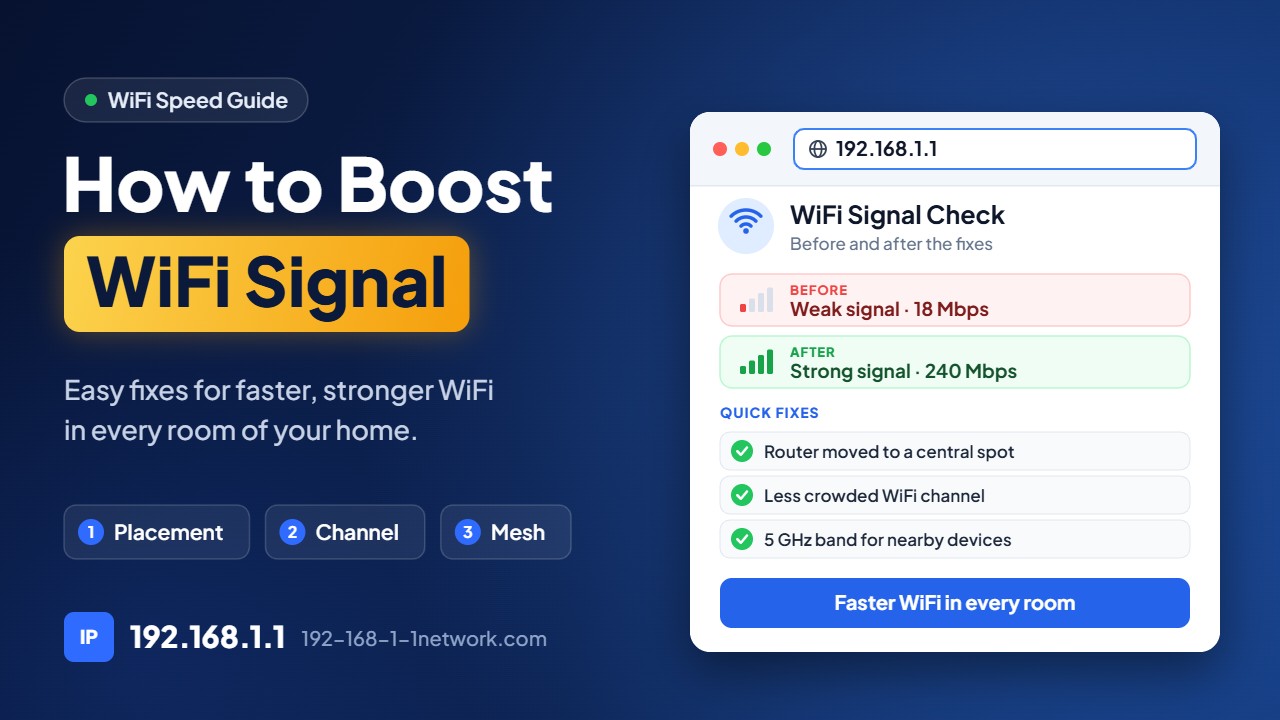
How to Boost WiFi Signal and Speed at Home – 15 Easy Fixes
Is your internet fast next to the router but painfully slow in the bedroom, kitchen or garden? You are not alone. Thick walls, a bad router spot, a crowded channel or an old router can all weaken your network. The good news is that you can boost WiFi signal strength and speed in most homes without paying for a faster internet plan.
This guide covers 15 easy fixes, starting with free changes that take a few minutes and moving on to hardware upgrades for larger homes. Many of the changes are made in your router admin panel, so keep your router login details close by.
Why Is My WiFi Signal Weak?
WiFi is a radio signal. It gets weaker the farther it travels and every time it passes through a wall, floor or large object. These are the most common reasons for a weak WiFi signal:
- Distance: the device is too far away from the router.
- Obstacles: concrete, brick, metal, mirrors and water (such as a fish tank) block or absorb the signal.
- Interference: microwaves, cordless phones, baby monitors, Bluetooth gear and nearby routers use the same frequencies.
- Crowded channels: in flats and apartment blocks, dozens of networks may share the same WiFi channel.
- Too many devices: streaming, gaming and downloads on many devices at once slow everyone down.
- Old hardware or firmware: older routers and outdated software struggle with modern devices.
Quick Steps to Boost WiFi Signal
- Restart your router and modem.
- Move the router to a central, raised and open spot.
- Keep it away from microwaves, cordless phones and metal objects.
- Connect nearby devices to the 5 GHz band.
- Switch to a less crowded WiFi channel.
- Update the router firmware.
- Add a mesh system or extender if some rooms still have no signal.
First, Test Your Speed and Signal
Before you try to boost WiFi signal strength, find out whether the problem is your WiFi or your internet connection. Run a speed test on a laptop connected to the router with an Ethernet cable, then run the same test over WiFi in the room with poor signal.
- The cable test is slow too: the problem is your internet plan, modem or provider. Restart the modem and contact your provider if it continues.
- The cable test is fast but WiFi is slow: the problem is the wireless signal, and the fixes below will help.
It also helps to check the signal bars on your phone in each room. Note where the signal drops so you can tell later whether a change made a real difference.
15 Ways to Boost WiFi Signal and Speed
1. Restart Your Router and Modem
A simple restart clears the router memory, ends stuck connections and often picks a cleaner channel. Unplug the modem and router, wait 30 seconds, plug in the modem first and then the router. Give it two to three minutes for all the lights to settle. If you need to restart often, an old router or outdated firmware may be the real cause.
2. Move the Router to a Better Spot
Router placement is the biggest free way to boost WiFi signal. Place the router in a central part of your home, up high on a shelf or wall mount, and out in the open. Do not hide it inside a cabinet, behind the TV or on the floor in a corner. WiFi spreads outward and slightly downward, so a raised position covers more rooms. If your router sits at one end of the house, much of its signal is going outside.
3. Keep It Away from Interference
Many household items use the same 2.4 GHz frequency as WiFi. Keep the router a few feet away from microwave ovens, cordless phone bases, baby monitors, wireless speakers and large electrical appliances. Large metal objects, mirrors and aquariums also reflect or absorb the signal, so do not put the router next to the fridge or a fish tank.
4. Adjust the Router Antennas
If your router has external antennas, their angle matters. For coverage on a single floor, point them straight up. In a home with more than one floor, tilt one or two antennas to about 30 degrees so the signal also reaches upstairs and downstairs. Make one change at a time, then test the signal again in your problem rooms.
5. Use the 5 GHz Band for Nearby Devices
Most modern routers broadcast two bands. The 2.4 GHz band reaches farther but is slower and more crowded. The 5 GHz band is much faster but has a shorter range. Connect phones, laptops and TVs within one or two rooms of the router to 5 GHz, and keep 2.4 GHz for distant rooms and smart home gadgets. If your router supports WiFi 6E or WiFi 7, the 6 GHz band is faster still, but it works best in the same room as the router.
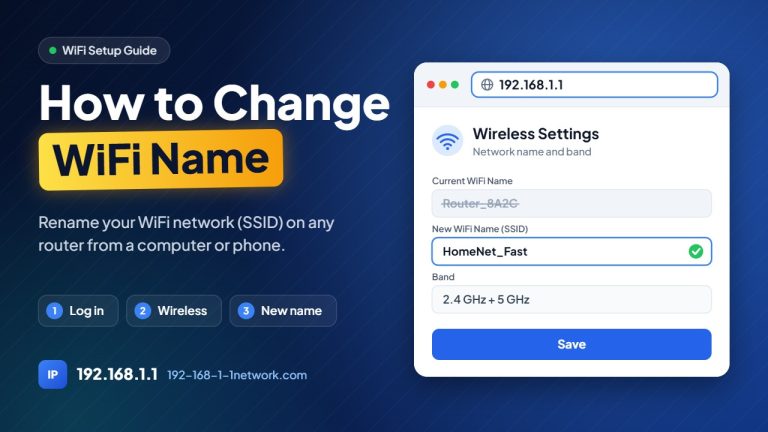
Some routers combine both bands under one network name with a feature called Smart Connect or band steering. If you want to choose the band yourself, give each band its own name. Our guide on how to change WiFi name shows where to find this setting.
6. Change the WiFi Channel
Your router transmits on a channel, and nearby networks on the same channel compete for airtime. Switching to a less busy channel is one of the best ways to boost WiFi signal quality in apartments. Log in to the router, open the Wireless settings and choose a channel manually instead of Auto.
| Band | Recommended channels | Notes |
|---|---|---|
| 2.4 GHz | 1, 6 or 11 | The only channels that do not overlap in most countries. Use 20 MHz channel width in busy areas. |
| 5 GHz | 36, 40, 44, 48 or higher | Many more channels and less crowding. 80 MHz width gives more speed. |
| 6 GHz | Auto | Only on WiFi 6E and WiFi 7 routers, with very little congestion. |
TP-Link’s WiFi signal guide gives the same advice: try channel 1, 6 or 11 on 2.4 GHz if interference is high. A free WiFi analyzer app on your phone or laptop can show which channels your neighbors use, so you can pick the quietest one.
7. Update the Router Firmware
Router makers release firmware updates that fix bugs, improve stability and patch security holes, and some also improve WiFi performance. Look for Firmware Update, Router Update or System Update in the Advanced, Administration or System Tools menu. Many newer routers can install updates automatically, so turn that option on if you see it. Never unplug the router while an update is running.
8. Remove Unknown Devices from Your Network
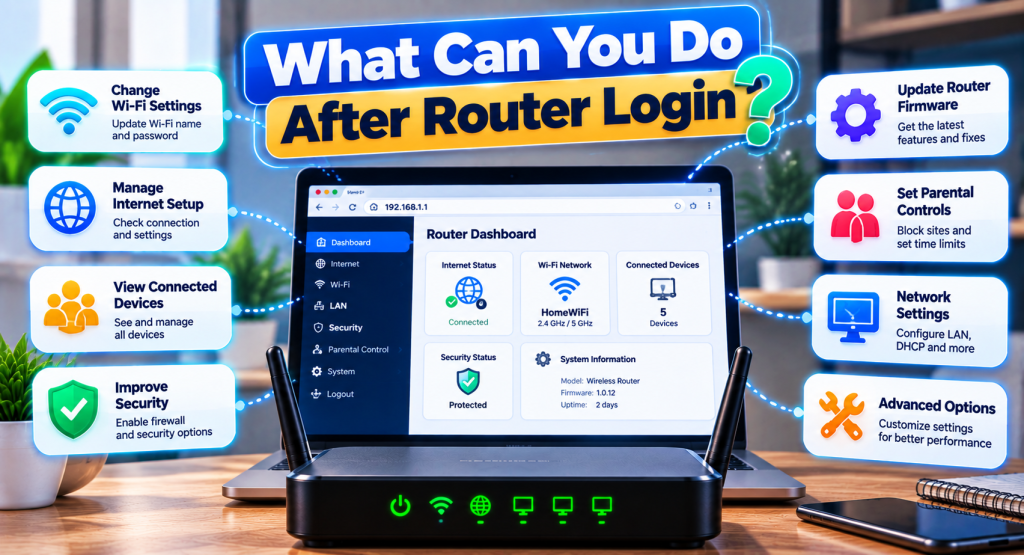
If neighbors or strangers use your WiFi, they share your speed. Open the connected devices or DHCP client list in the router and look for names you do not recognize. Our guide on who is connected to my WiFi explains how to find and block them.
9. Use a Strong Password and WPA2 or WPA3
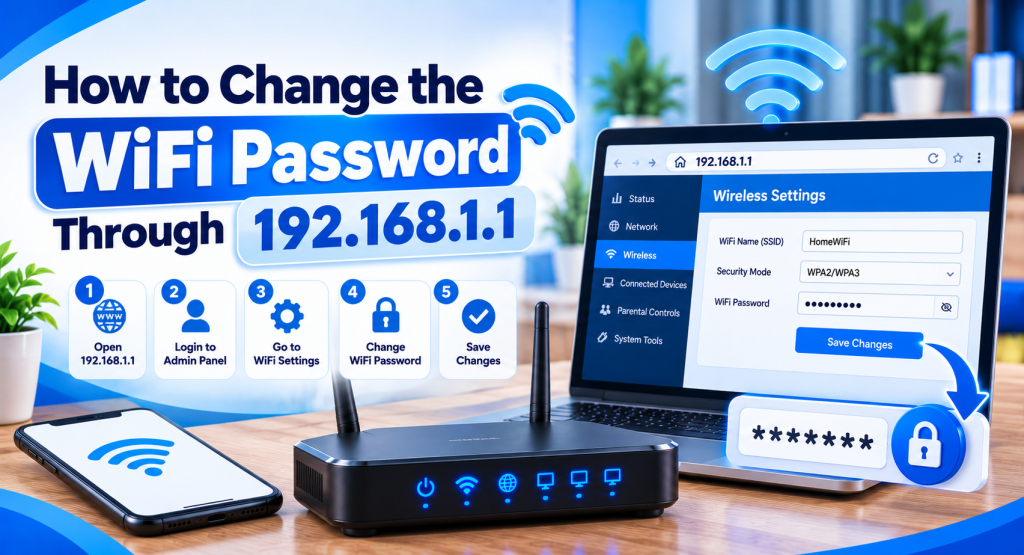
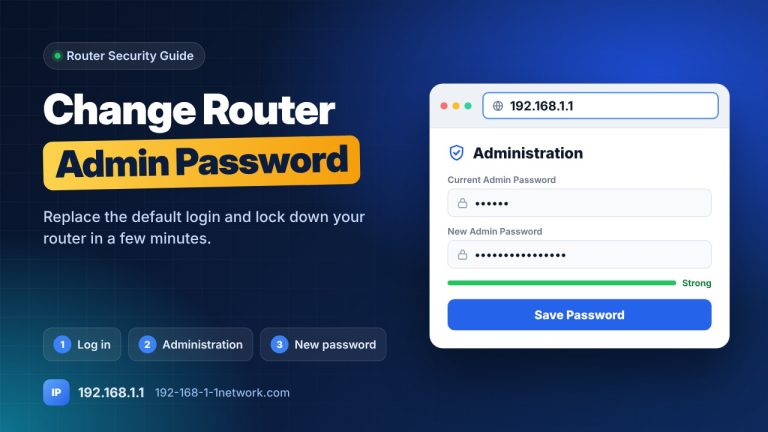
An open or weakly protected network invites freeloaders. Use WPA2-Personal or WPA3-Personal security with a long, unique password. If you have not updated it in a while, follow our steps to change WiFi password settings, and also change the router admin password so nobody else can change your settings.
10. Turn On QoS for Important Devices
Quality of Service (QoS) tells the router which devices or activities come first. If video calls freeze whenever someone downloads a large file, turn on QoS and give priority to your work laptop, TV or games console. It does not increase your total internet speed, but it makes the connection feel much smoother for the things that matter most.
11. Set Transmit Power to High
Some routers let you control how strongly they transmit. Look for Transmit Power, TX Power or Signal Strength in the advanced wireless settings and make sure it is set to High or 100%. Some models ship with a lower setting to save energy or reduce interference.
12. Change Your DNS Server
DNS turns website names into IP addresses. A slow DNS server can make every page take longer to start loading, even with a strong signal. Switching to a fast public DNS such as Cloudflare or Google can help. See our guide on how to change DNS on router settings for step-by-step help.
13. Add a Mesh System, Extender or Access Point
In large homes, homes with thick walls or homes with several floors, one router may not be enough. Adding more coverage is the most reliable way to boost WiFi signal across every room:
- Mesh WiFi: two or more units work together as one network with one name. This is the best option for whole-home coverage.
- WiFi extender: a low-cost fix for one dead zone. Place it about halfway between the router and the weak area, not inside the weak area itself.
- Access point: a second router or access point connected with an Ethernet cable gives the fastest results.
- Powerline adapters: carry the internet through your home electrical wiring when running a cable is not possible.
14. Use Ethernet for Devices That Do Not Move
Smart TVs, desktop PCs and game consoles near the router work best with an Ethernet cable. A wired connection is faster and more stable, and it frees up WiFi airtime for phones and laptops. This alone can improve WiFi speed for everyone else in the house.
15. Upgrade an Old Router
If your router is more than five or six years old, or supports only WiFi 4 (802.11n) or WiFi 5 (802.11ac), a newer WiFi 6 or WiFi 7 router can make a big difference. Newer routers handle many devices at once much better. If your provider gave you a combined modem and router, ask whether a newer model is available.
How to Log In to Your Router to Change WiFi Settings
Many of the fixes to boost WiFi signal, including the band, channel, transmit power and firmware, are made in the router admin panel:
- Connect to your router by WiFi or Ethernet cable.
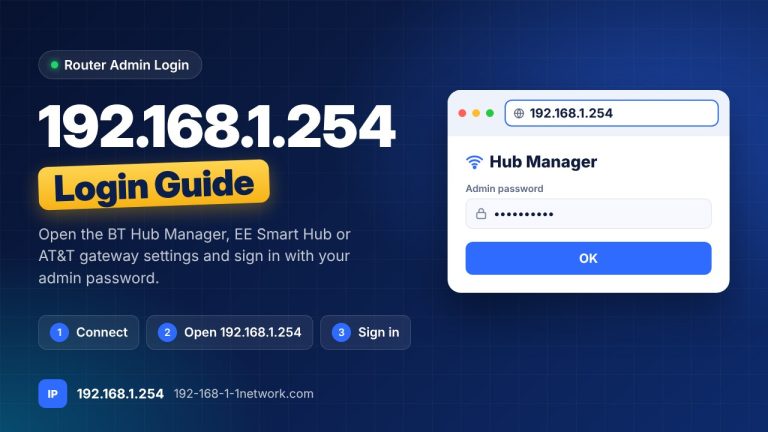
- Open a browser and type your router IP address, such as 192.168.1.1, 192.168.0.1 or 10.0.0.1.
- Enter the admin username and password, often printed on a sticker on the router.
- Open the Wireless, WiFi or WLAN section to change the band and channel settings.
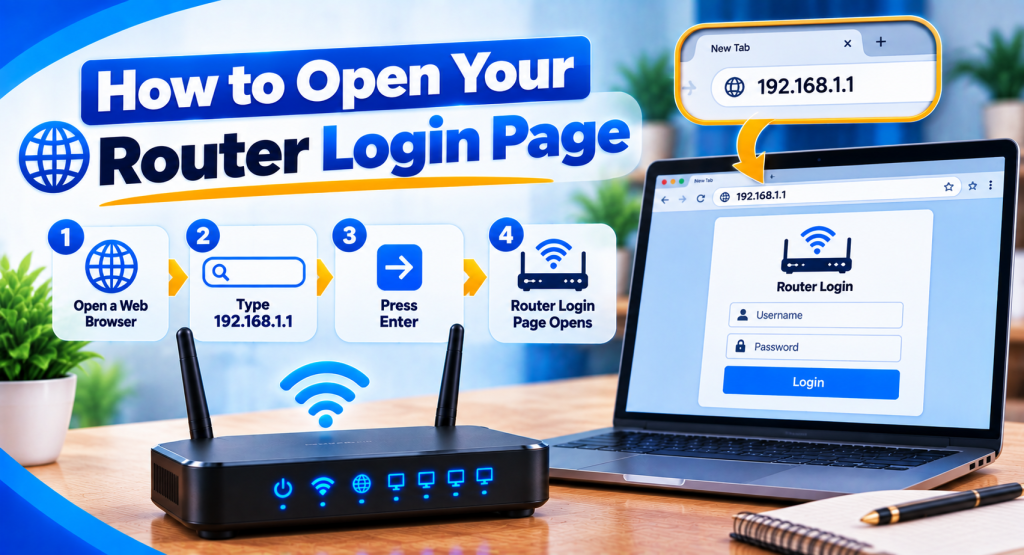
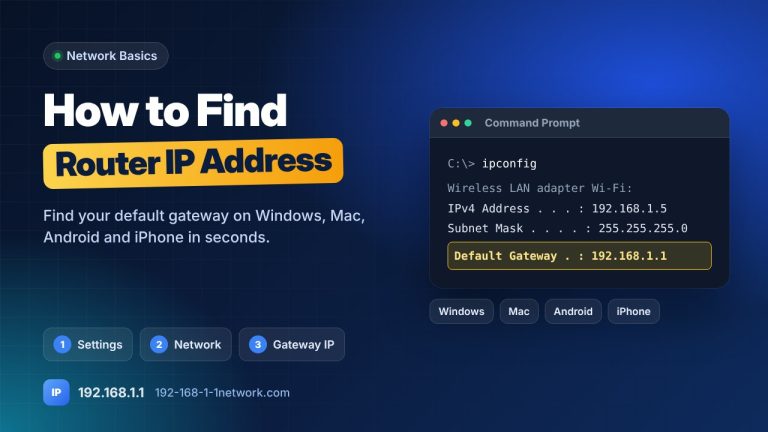
Not sure of the address? Learn how to find router IP address details on any device, or check our list of default router logins. If the page will not open, try these 192.168.1.1 not working fixes.
2.4 GHz vs 5 GHz vs 6 GHz: Which Band Is Best?
| Band | Range | Speed | Best for |
|---|---|---|---|
| 2.4 GHz | Longest | Slowest | Far rooms, smart plugs, cameras and older devices |
| 5 GHz | Medium | Fast | Streaming, video calls and gaming within a room or two |
| 6 GHz | Shortest | Fastest | WiFi 6E and WiFi 7 devices in the same room as the router |
How to Improve WiFi on Your Phone or Laptop
Sometimes the device, not the router, is the weak link. Try these quick checks:
- Turn WiFi off and on, or forget the network and join it again.
- Update the phone or computer software and the WiFi drivers.
- Turn off battery saver or low power mode, which can limit WiFi performance.
- Remove thick metal or magnetic cases that may block the antenna.
- Pause cloud backups and large downloads while you stream or make calls.
Weak WiFi Signal in One Room? Try This
When only one room has a weak WiFi signal, the cause is usually a wall, floor or appliance between that room and the router. Work through these steps in order:
- Move the router a few feet toward that room, or raise it higher.
- Check what sits in the path: a fridge, a fish tank, a large mirror or a brick chimney can block most of the signal.
- Connect devices in that room to the 2.4 GHz band, which passes through walls better than 5 GHz.
- Add a mesh unit or extender halfway between the router and the room.
- Use an Ethernet cable or powerline adapters for a TV or PC that never moves.
Mistakes That Make WiFi Signal Worse
Avoid these common mistakes when you try to boost WiFi signal at home:
- Hiding the router in a cabinet, drawer or behind the TV.
- Placing an extender in a room where the signal is already very weak.
- Leaving the network open or using an old, widely shared password.
- Using the same channel as every neighbor.
- Ignoring firmware updates for years.
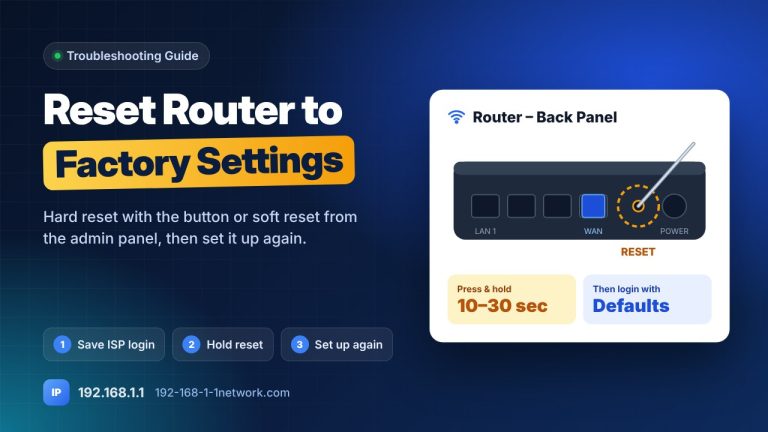
If your router settings become a mess after trying many changes, you can always reset router to factory settings and set it up again from scratch.
When to Call Your Internet Provider
If you have tried every way to boost WiFi signal and the internet is still slow, the problem may be outside your home. Contact your provider if:
- Speed tests over an Ethernet cable are much lower than the speed of your plan.
- The internet, DSL or PON light on the modem keeps blinking or turns red.
- The connection drops at around the same time every day.
- The modem or router came from the provider and is several years old. Many providers will replace it at no cost.
Frequently Asked Questions
What is the fastest way to boost WiFi signal?
Restart the router and move it to a central, raised and open spot. These two changes are free, take a few minutes and often fix a weak signal in nearby rooms.
Does a WiFi extender really work?
Yes, for one or two dead zones. Place it halfway between the router and the weak area. For a large home, a mesh system usually gives better speed and smoother roaming.
Is mesh WiFi better than an extender?
Usually, yes. Mesh units are designed to work together, share one network name and move your devices to the strongest unit automatically, which makes them the better way to boost WiFi signal across a large home. An extender is cheaper and fine for a single dead zone.
How can I improve WiFi speed without buying anything?
Restart the router, move it to a central and raised spot, switch nearby devices to 5 GHz, choose a less crowded channel, remove unknown devices and install the latest firmware. All of these fixes are free.
Why is my WiFi slow even with full bars?
Full bars mean a strong signal, not a fast connection. Slow speed with full bars usually points to a crowded channel, too many devices, a slow DNS server or a problem with the internet plan itself.
Will a new router improve WiFi speed?
If your current router is old or only supports WiFi 4 or WiFi 5, a newer WiFi 6 or WiFi 7 router can noticeably improve WiFi speed and range, especially with many connected devices.
Can aluminum foil boost WiFi signal?
A foil reflector behind the antennas can push a little more signal in one direction, but the results are small and unpredictable. Better placement, a channel change or a mesh system work much better.
Final Words
You can boost WiFi signal in most homes with a few simple steps: restart the router, place it in a central open spot, use the right band and channel, and keep the firmware up to date. If some rooms still struggle, add a mesh system or extender. For more help with router settings, visit our router login guide.
One Comment